Birthday reminders ensure you never miss celebrating important people in your life, preventing embarrassing oversights and helping maintain meaningful relationships. Setting up calendar reminders requires minimal effort but delivers significant benefits through automated notifications delivered days or hours before each birthday arrives. This comprehensive guide walks through step-by-step processes for configuring birthday reminders across popular calendar applications, exploring notification options, and implementing reliable reminder systems that keep you connected to loved ones throughout the year.
Why Birthday Reminders Matter
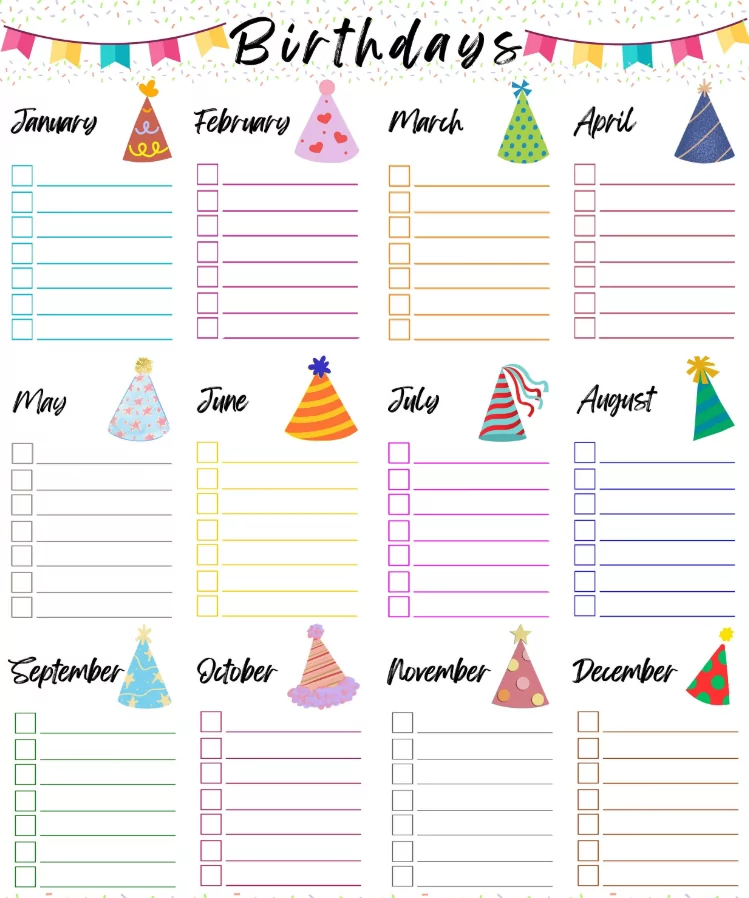
Birthdays represent significant moments in relationships, and remembering them demonstrates care and attention. In today’s busy world, calendar reminders prevent forgotten occasions that might damage relationships or cause disappointment. Beyond personal relationships, birthday reminders benefit business professionals managing client relationships, teachers tracking student birthdays, and managers recognizing team members’ special days. Automated reminders eliminate reliance on memory while providing reliable advance notice for gift planning, card sending, or celebration coordination.
- Strengthens personal relationships through thoughtful recognition
- Prevents social embarrassment from forgotten dates
- Allows adequate time for gift shopping and planning
- Reduces stress through automated notifications
- Improves business relationships and client satisfaction
- Builds professional reputation for attentiveness
Setting Up Birthday Reminders in Google Calendar
Step 1: Access Google Contacts or Calendar
Open Google Calendar or Google Contacts to begin adding birthday information. Google Calendar can automatically sync contact birthdays, making setup simple and efficient.
- Visit calendar.google.com or contacts.google.com
- Sign in with your Google account
- Navigate to settings if needed
Step 2: Add Birthday to Contact
Within Google Contacts, locate the person whose birthday you want to track.
- Find the contact in your list
- Click to open their profile
- Scroll to the birthday field
- Enter the date in format MM/DD/YYYY
- Click Save
Step 3: Enable Birthday Calendar
Google Calendar automatically creates a “Birthdays” calendar that syncs with your contacts. Enable this calendar to display all stored birthdays.
- In Google Calendar, look for “Other calendars” section
- Click the plus sign to add calendar
- Search for “Birthdays”
- Click to add the Birthdays calendar
- Birthdays now appear automatically
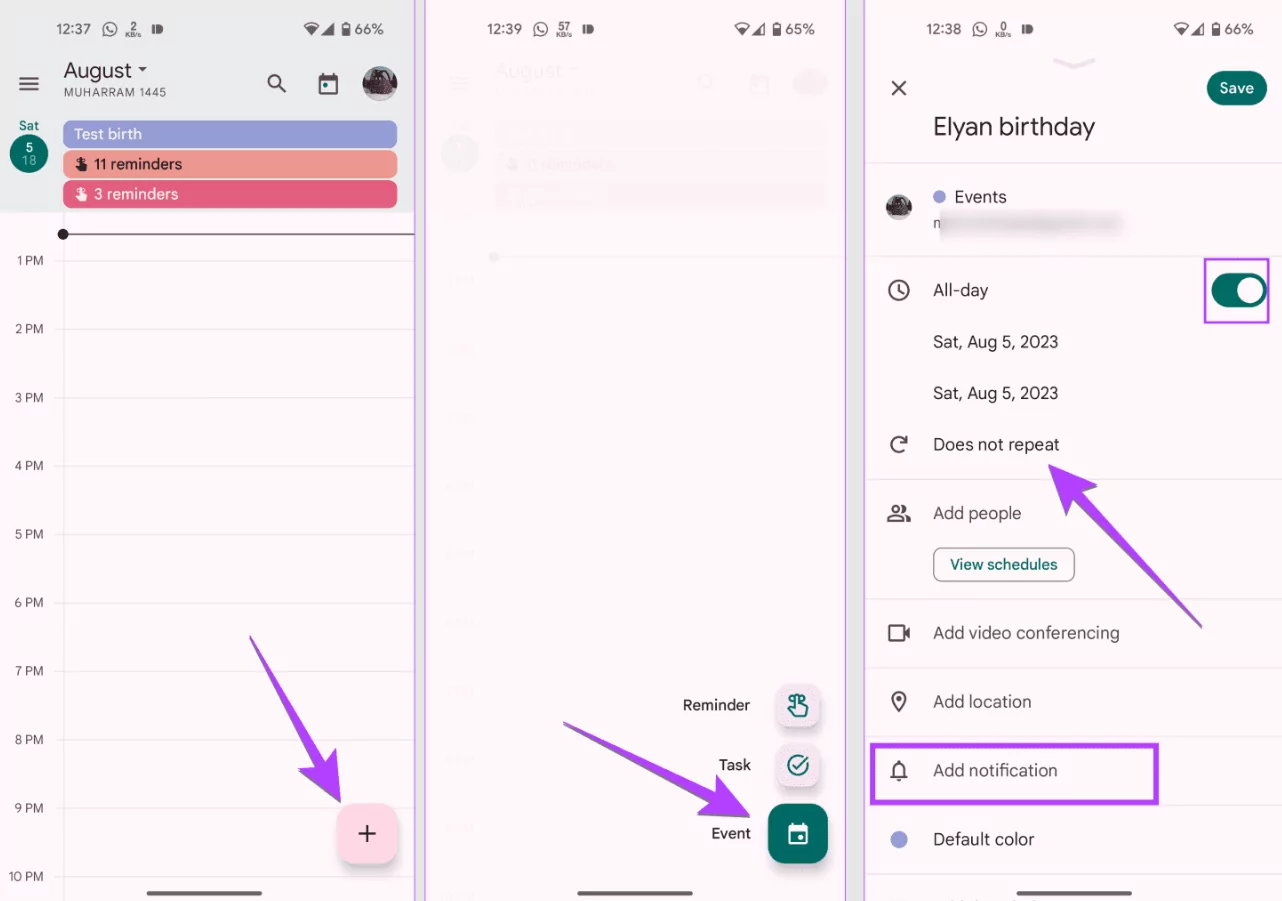
Step 4: Set Notification Preferences
Configure how Google Calendar notifies you about upcoming birthdays.
- Click on any birthday event in the calendar
- Select “Edit event”
- Scroll to notification settings
- Choose notification type: popup, email, or SMS
- Set timing: same day, 1 day before, or 1 week before
- Save changes
Setting Up Birthday Reminders in Apple Calendar
iPhone/iPad Method
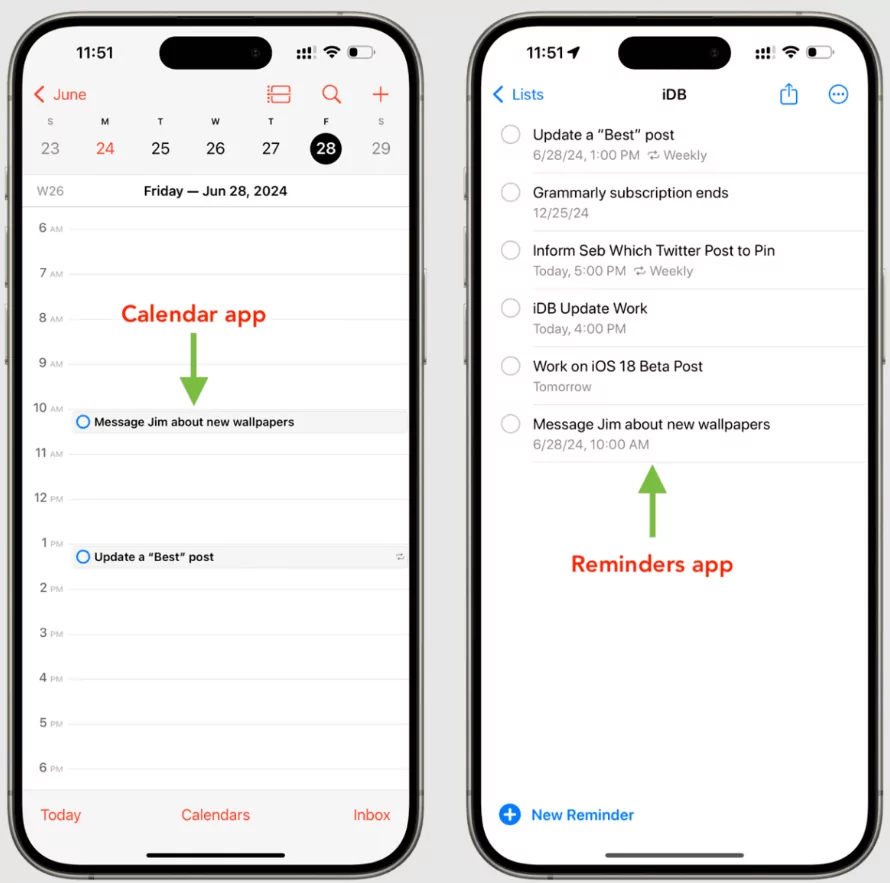
Apple Calendar integrates with Contacts to display birthdays on your device.
- Open Contacts app on iPhone or iPad
- Find the contact whose birthday you want to add
- Tap “Edit” button
- Scroll down to birthday field
- Enter birthday date
- Tap “Done” to save
- Birthday automatically appears in Calendar app
- Configure notification settings in Calendar app settings
Notification Configuration
Set up Apple Calendar notifications for birthdays.
- Open Calendar app
- Tap Calendars at bottom
- Find Birthdays calendar
- Right-click or swipe on Birthdays calendar
- Select Edit calendar
- Adjust alert timing and notification type
Setting Up Birthday Reminders in Microsoft Outlook
Desktop Method
Outlook integrates birthday tracking through contact information.
- Open Outlook and go to People or Contacts
- Find the contact requiring a birthday reminder
- Click to open their contact card
- Look for birthday field
- Enter the birthday date
- Save the contact
- Birthday automatically syncs to calendar
Notification Setup
Configure Outlook birthday notifications.
- In Outlook Calendar, click File menu
- Select Options
- Choose Calendar
- Find reminder settings
- Set default reminder time before birthday
- Choose notification method (popup, email, sound)
- Click OK to save
Alternative Birthday Reminder Methods
Dedicated Birthday Reminder Apps
Specialized apps focus exclusively on birthday tracking with enhanced features.
| App | Platforms | Key Features | Cost |
|---|---|---|---|
| Birthdays | iOS, Android | Visual birthday calendar, gift ideas, social media integration | Free with premium options |
| BirthdayDroid | Android | Contact import, customizable reminders, widget support | Free |
| Birthday Calendar | iOS, Android | Event counter, countdown timer, reminder scheduling | Free with ads |
| Facebook Birthday | Web, mobile | Automatic sync with Facebook friends, quick messaging | Free |
Manual Email Reminders
Create email reminders for birthdays using email scheduling features.
- Compose birthday reminder email
- Use “Schedule Send” feature (Gmail, Outlook)
- Set delivery date 1-2 days before birthday
- Email arrives when needed
Best Practices for Birthday Reminders
Timing Strategies
Choose optimal reminder timing based on your circumstances and preferences.
- 1 week before: Allows gift shopping time
- 3 days before: Sufficient planning window for events
- 1 day before: Last-minute shopping and card sending
- Morning of birthday: Final reminder to send greetings
- Multiple reminders: Combination approach ensures no missed dates
Notification Method Selection
| Notification Type | Advantages | Disadvantages |
|---|---|---|
| Popup Notification | Immediate attention; on-device visibility | Can be dismissed accidentally; easy to ignore |
| Email Notification | Detailed information; easy to archive; forward-able | May end up in spam; easy to miss in crowded inbox |
| SMS/Text Message | Immediate attention; mobile alert even offline | SMS fees possible; may feel intrusive |
| Calendar Event | Visual on calendar grid; easy to plan around | Requires calendar checking habit |
Managing Recurring Birthday Reminders
Creating Recurring Events
Most calendar apps automatically recur birthday events annually once added.
- Add birthday as single date event
- Set recurrence to yearly
- Notification automatically triggers each year
- Update as needed if date changes
Updating and Editing
Modify existing birthday reminders as information changes.
- Update contact information if birthday changes
- Adjust notification timing based on preferences
- Add notes about gift ideas or special circumstances
- Link to wishlist or gift registry if available
Integrating with Other Tools
Calendar Syncing
Sync birthday reminders across multiple devices and calendar platforms.
- Google Contacts sync automatically to Google Calendar
- Apple Contacts sync to Apple Calendar on all devices
- Use calendar sharing features to see others’ birthdays
- Subscribe to family or team birthday calendars
Notification Hub Integration
Combine calendar reminders with task management or note apps.
- Create linked task when reminder triggers
- Add to shopping list or gift ideas note
- Share with family members through collaboration apps
- Post reminder on shared team calendar
Privacy and Security Considerations
When managing birthday information across calendar platforms, maintain security and privacy.
- Use secure cloud storage for contact information
- Be cautious sharing personal dates on social media
- Restrict calendar visibility to trusted people
- Review app permissions before installing birthday reminder apps
- Use strong passwords for calendar accounts
- Enable two-factor authentication on calendar services
Troubleshooting Common Issues
Reminders Not Appearing
If birthday reminders fail to show up, check these settings.
- Verify birthday calendar is enabled/visible
- Check notification settings are configured
- Ensure contact has complete birthday information
- Restart calendar application
- Check spam folder for email reminders
- Verify device notification permissions
Duplicate Reminders
Multiple calendar services may create duplicate birthday events.
- Disable birthday calendar in unnecessary apps
- Remove duplicate events
- Keep birthday data in single reliable source
- Use one primary calendar for all birthdays
Incorrect Date Display
Verify birthday information is entered correctly.
- Check date format matches app requirements
- Include year if available for age tracking
- Update if date changes or was entered incorrectly
- Verify timezone if using multiple time zones
Conclusion
Setting up calendar reminders for important birthdays requires minimal effort but delivers substantial relationship benefits through consistent, automated notifications. Whether using Google Calendar, Apple Calendar, Microsoft Outlook, or specialized birthday reminder apps, the process involves adding birthday information to contacts and configuring notification preferences. By implementing reliable reminder systems with appropriate timing and notification methods, you ensure important birthdays never slip forgotten from busy schedules. Start today by adding key birthdays to your calendar application and configuring reminders that work best for your lifestyle, transforming calendar technology into a meaningful relationship maintenance tool throughout 2025 and beyond.
