The transition to remote and distributed work models has brought unprecedented flexibility, but it has also introduced complex scheduling challenges. When team members are spread across multiple continents, managing meetings, deadlines, and synchronous communication becomes a logistical nightmare dominated by time zone calculation errors. A standard digital calendar is no longer sufficient; success for a remote team hinges on selecting and mastering a calendar solution with robust, intelligent time zone support. This ultimate guide breaks down the critical features, best platforms, and essential strategies for using a digital calendar to harmonize a globally distributed workflow.
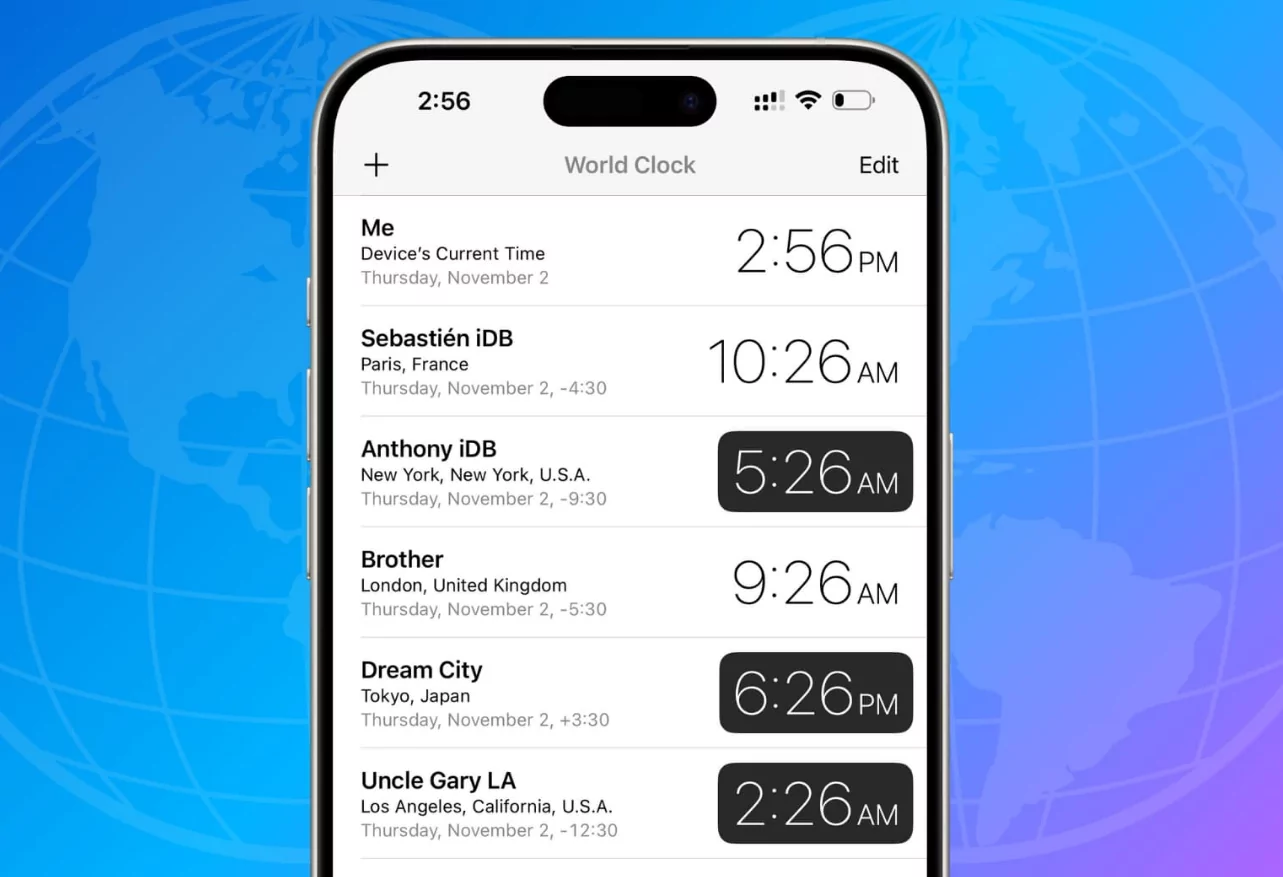
The Problem: Cognitive Load of Time Zone Math
The core issue facing remote teams is the mental fatigue and high error rate associated with manually converting time zones (e.g., trying to convert CET to PST while accounting for daylight saving time shifts). This cognitive load leads to scheduling friction, late starts, and missed meetings—all significant productivity killers.
The Daylight Saving Time (DST) Nightmare
Perhaps the single biggest time zone challenge is Daylight Saving Time (DST). Different countries and regions switch to or from DST on different dates. A team in London (UK switches DST in late March) and New York (US switches in mid-March) may briefly experience a shift from a 5-hour difference to a 4-hour difference, and then back again. Intelligent calendar software must handle these non-standard switch dates automatically.

Critical Time Zone Features for Remote Teams
A calendar solution for remote teams must offer specific features that eliminate manual calculations and provide absolute clarity on meeting times.
1. Dual Time Zone View / Time Zone Bar
The most basic and essential feature is the ability to display two or more time zones simultaneously on the main calendar interface. A permanent time zone bar or sidebar allows users to instantly reference meeting times in their local zone and the host’s zone without opening the event details.
2. Dynamic Time Zone Conversion
When creating an event, the system must allow the organizer to select the host time zone and then display the meeting time in the local time of every invitee. More advanced platforms automatically adjust the event display time based on the recipient’s device settings, eliminating confusion.
3. Intelligent DST Handling
The system must automatically handle DST shifts for both the organizer’s and the attendee’s location, regardless of the date the event was scheduled. This guarantees the event remains at the correct time slot relative to the non-DST location.
4. The “Find a Time” Scheduler (Availability View)
For cross-continental teams, finding a time that respects core working hours for everyone is difficult. The software should overlay the calendars of all participants, automatically translating their free/busy blocks into the organizer’s time zone. The best tools also highlight the maximum overlap of working hours.
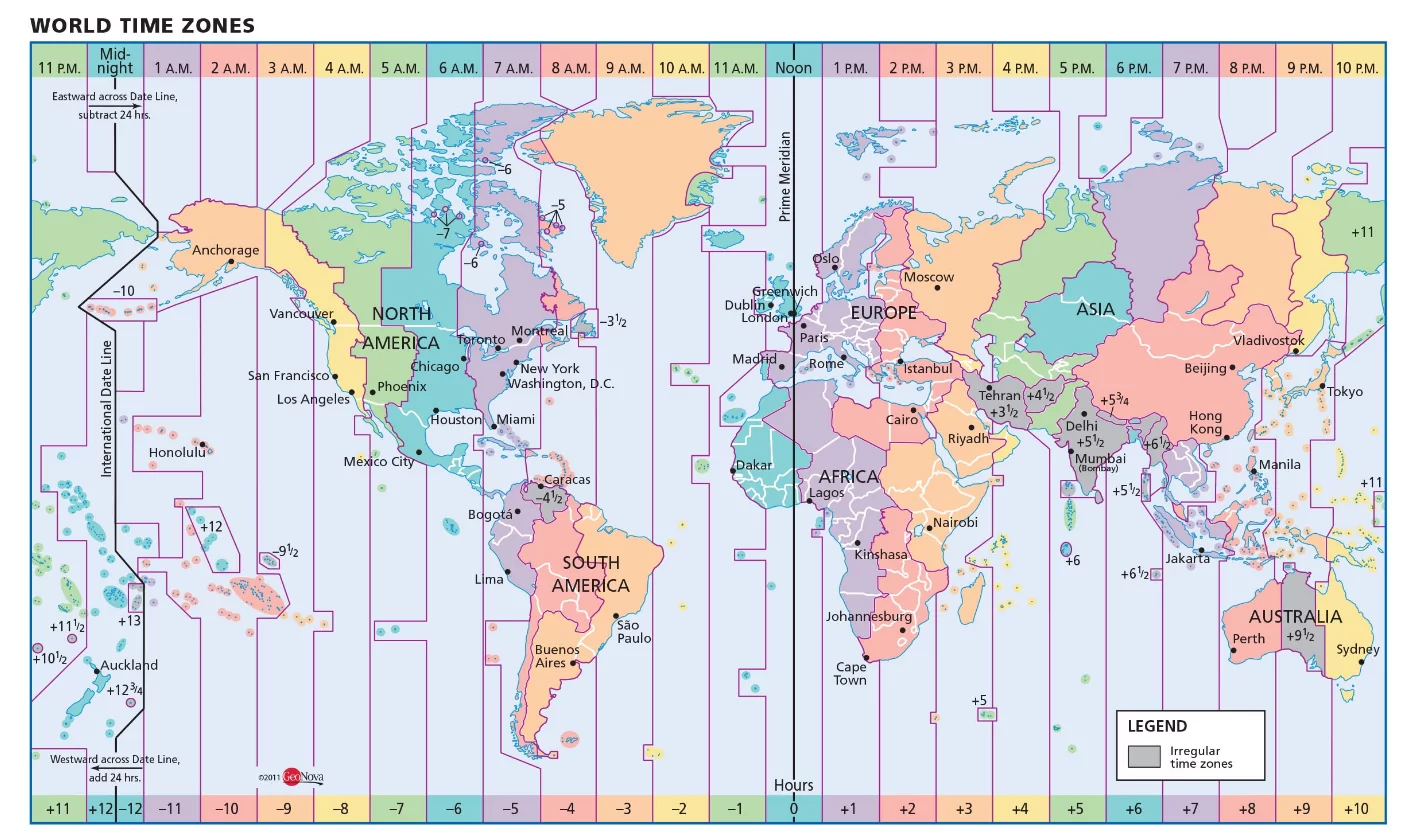
Top Calendar Platforms for Time Zone Mastery
Several major platforms offer the advanced time zone functionality necessary for successful remote team collaboration.
1. Google Calendar (Google Workspace)
Google Calendar is the industry benchmark for time zone support and integration.
- Key Feature: The ability to set a Secondary Time Zone on the web interface. This is invaluable for individuals who routinely work with one specific remote office (e.g., PST worker collaborating with a CET office).
- Dynamic Events: Events are inherently dynamic, meaning they adapt automatically to the user’s location. The organizer sets the time in their zone, and the recipient sees it in theirs.
- Best For: Teams already using Gmail and Google Meet, prioritizing seamless cross-device synchronization and ease of sharing.
2. Outlook (Microsoft 365 / Exchange)
Outlook, especially through the Exchange server backend, provides robust enterprise-level time zone handling.
- Key Feature: Meeting Polls via FindTime. This add-in allows the organizer to propose multiple times, showing them instantly in the attendees’ local time, and letting attendees vote on the best slot.
- Multiple Time Zones: The Outlook desktop client allows adding up to three separate time zones to the calendar view, providing constant visual reference for key markets.
- Best For: Large organizations and teams already using Microsoft Teams and Exchange for security and comprehensive enterprise solutions.
3. Time Zone-Focused Schedulers (e.g., Calendly, World Time Buddy)
These tools are not full calendar replacements but are essential integration layers for remote teams.
- Calendly: Excellent for scheduling external meetings. It detects the client’s time zone and shows them available slots in their local time, eliminating any possibility of booking error.
- World Time Buddy: The ultimate reference tool. It’s a visual scheduler that allows you to drag a time slot across a dashboard displaying 5-10 global time zones, instantly identifying the most humane overlap window.
- Best For: Teams needing to schedule across 4+ different time zones or frequent client meetings globally.
Strategic Best Practices for Remote Scheduling
Technology alone is insufficient. Teams must adopt a clear set of communication and scheduling rules to truly master the time zone divide.
1. Adopt a Team “Anchor Time”
Designate a single, non-negotiable Anchor Time Zone (e.g., UTC, CET, or EST) as the standard reference for all internal communication. When discussing deadlines or meeting times verbally, always reference the Anchor Time first to avoid ambiguity.
2. Prioritize Asynchronous Communication
Acknowledge that 24/7 synchronous meetings are unsustainable. Schedule only essential collaboration and decision-making meetings synchronously. Use tools like Slack or dedicated project management systems for asynchronous updates and non-urgent communication, allowing team members to consume information during their core working hours.
3. Implement the “Follow the Sun” Strategy
For global operations (e.g., customer support, development releases), implement a Follow the Sun handoff strategy. Instead of forcing the US team to work the night shift to cover Asia, the Asian team begins the day, hands off tasks to the European team, who then hand off to the American team. This requires meticulous scheduling and standardized reporting templates.
4. Schedule “No Meeting Zones”
To protect deep work time for individuals in outlier time zones, establish No Meeting Zones (e.g., 9:00 AM to 12:00 PM local time). All managers and organizers should respect these blocks, only scheduling meetings during the designated overlap window (often 2-4 hours per day).
The Technical Pitfalls to Avoid
Even with advanced software, technical misconfigurations can sabotage synchronization and accuracy.
Mistake 1: Setting Manual Time Zones
Never manually adjust the time zone setting within an event (e.g., changing a 9:00 AM PST meeting to 12:00 PM EST). Always set the meeting in the organizer’s local time and rely on the software’s dynamic conversion. Manual overrides destroy the DST intelligence and lead to chaos.
Mistake 2: Failing to Update Operating System Time
The digital calendar relies on the Operating System (OS) to provide the true local time. If an individual travels and fails to update their device’s time zone setting (or doesn’t allow automatic location services), the calendar will display incorrect local times, even if the event conversion is technically correct.
Mistake 3: Overlooking Calendar Event Descriptions
For added safety, include the Anchor Time in the event description. For example: “Team Sync (09:00 EST / 14:00 GMT).” This provides a textual backup against any software error.
Conclusion: The Time Zone Imperative
The successful management of a remote team is ultimately a triumph of logistical planning. A powerful digital calendar with intelligent time zone support is not a luxury; it is the central nervous system of a distributed organization.
By leveraging features like the Dual Time Zone Bar and automated DST handling, and by implementing strategic practices such as the Anchor Time and Asynchronous Communication, teams can eliminate scheduling friction. Mastering time zone management frees up cognitive resources, allowing global teams to operate with the same high level of clarity and synchronization as co-located offices, securing sustained productivity and better work-life balance for all members.
