Automating calendar invites is a game-changer for professionals, teams, and businesses seeking to eliminate repetitive scheduling tasks and minimize the risk of missed appointments. With Zapier integration, you can connect your calendar app to hundreds of other tools, ensuring that calendar events and invitations are triggered automatically by workflows like form submissions, CRM updates, or new bookings. This comprehensive, step-by-step guide explains exactly how to automate Google Calendar, Outlook, and other popular calendar systems using Zapier—plus proven strategies for maximizing productivity and integrating calendar automation with your broader business processes.
What is Zapier?
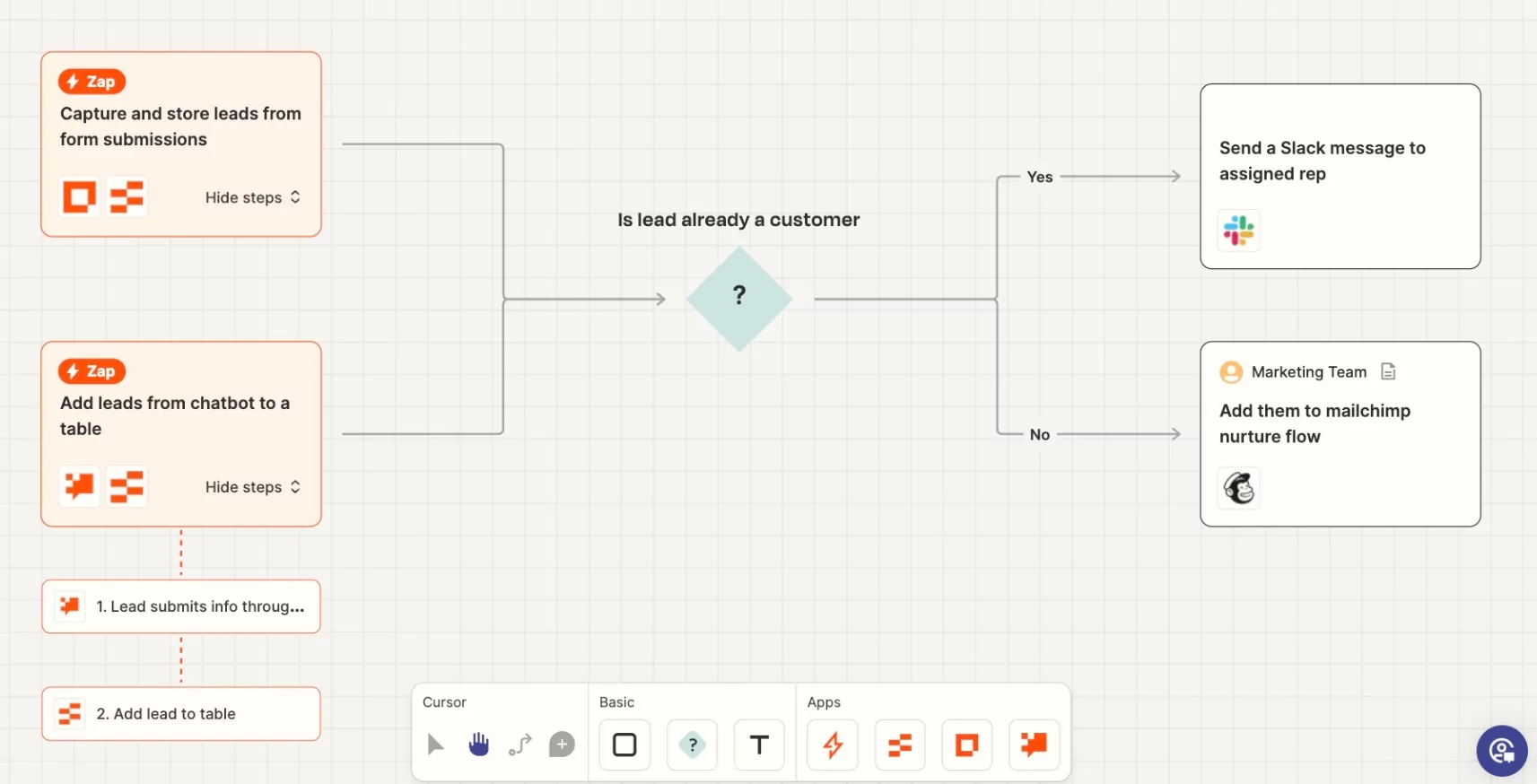
Zapier is an industry-leading automation platform that lets you connect different apps and services without coding. Zapier works via “Zaps”—rule-based workflows where a trigger in one app (e.g., a new booking form submitted in Typeform) causes an action in another app (e.g., a Google Calendar event is created). By integrating Zapier with your calendar systems, you can create calendar invites automatically based on events in CRMs, booking systems, spreadsheets, project management apps, and more.
Why Automate Calendar Invites? Key Benefits
- Eliminate manual entry: Stop copying and pasting event details from emails or forms into your calendar.
- Prevent double booking: Real-time automation ensures calendars reflect the latest bookings and changes.
- Never miss a meeting: Automated calendars mean guests are always notified and reminders are sent out.
- Scale client communications: Perfect for coaches, consultants, and sales teams managing multiple appointments daily.
- Integrate with CRMs and workflows: Syncs with Salesforce, HubSpot, Zoho, and many other tools.
- Enhance virtual collaboration: Seamless invite automation for remote work, webinars, and team check-ins.
Common Use Cases for Calendar Invite Automation
- Automatically create appointments from website bookings (e.g., Calendly, Acuity, Typeform).
- Add calendar invites when deals reach certain stages in CRM (e.g., Salesforce, HubSpot).
- Send invites for confirmed tasks in project management tools (like Trello or Asana).
- Sync tasks or deadlines from spreadsheets to calendar events (Google Sheets, Airtable).
- Automate follow-up or reminder events by linking to email tools (Gmail, Mailchimp).
- Send invites as soon as Stripe, PayPal, or other payment is processed (great for paid appointments).
Step-by-Step: Automating Calendar Invites with Zapier
Step 1: Sign Up for Zapier
- Create a free or paid account: Go to zapier.com and register with your work email.
Step 2: Choose Your Trigger App
- Select the starting point: Examples: a new Google Form response, Acuity Scheduling appointment, or Trello card moved to “To-Do.”
- Connect your app: Log in via Zapier’s interface and authorize access.
- Test the connection: Zapier will pull in sample data to make sure the link works.
Step 3: Select Your Calendar Action
- Choose action app: For example, Google Calendar, Microsoft Outlook Calendar, or Apple Calendar (via iCloud/third-party services).
- Select event action: Common actions are “Create Detailed Event,” “Quick Add Event,” or “Update Event.”
- Connect your calendar account: Authorize Zapier to access your calendar and check relevant calendars if you have multiples.
Step 4: Map Data Between Apps
- For each event field (title, date, start/end times, description, location, guests), select where the info should come from (e.g., fields in your trigger app).
- For invites: include email addresses of all participants—the calendar app will send automatic invites when the event is created.
- Customize event descriptions with info from your booking form, CRM, or client notes.
Step 5: Add Filters and Extra Steps (Optional)
- Use “Filter” in Zapier to restrict automation to certain event types, time frames, or client segments.
- Add conditional actions, like creating Zoom links, sending confirmation emails, or logging the invite in a database.
- For more advanced workflows, use Zapier’s “Paths” to create multiple branches depending on your data.
Step 6: Test and Turn On Your Zap
- Click “Test” to simulate the workflow with sample data and confirm an event gets created (and invites sent).
- Review your calendar for the new event and invitation email received by guests.
- When ready, turn your Zap “On”—from this point, the process is fully automated.
Sample Workflow: Automate Client Bookings to Calendar Invites
- A client completes a Typeform to book a meeting.
- Your Zap triggers when the form is submitted.
- The Zap uses “Create Detailed Event” in Google Calendar, mapping client name, appointment time, and notes.
- The calendar sends an invite to the client (using the email they entered), and invites your email or team as well.
- If you connect Zoom as a step, a meeting link is auto-generated and included in the calendar invite description.
Best Calendar and Scheduling Tools to Integrate with Zapier
- Google Calendar: Full integration for creating, updating, and deleting calendar events with automated invites.
- Microsoft Outlook: Supports calendar automation for professional and enterprise users.
- Calendly: Syncs directly for incoming bookings, reschedules, and reminders.
- Acuity Scheduling: Automates appointment creation and client notifications.
- Setmore, Bookafy: Ideal for small businesses needing a shared calendar automation solution.
- Zoom: Not a calendar itself, but adds meeting links to invites and integrates seamlessly via Zapier steps.
Pro Tips for Zapier Calendar Automation
- Batch your Zaps: Group all related calendar automations to streamline tracking and edits (e.g., all client-related invitations in one folder).
- Use dynamic fields: Pull in custom fields (client, location, project) to personalize invites and make calendar entries clear.
- Automate reminders: Add email or SMS reminders as Zapier actions after the calendar invite step.
- Combine with time proposals: Use booking tools where clients select from available slots—those times become your automated event times.
- Account for time zones: Always use UTC or specify the desired time zone in your Zap’s data mapping for global clients/teams.
- Handle reschedule/cancellation: Build Zaps for when appointments are changed or canceled—update or remove events automatically.
- Test thoroughly: Check end-to-end automation with real-world scenarios before relying on your system for clients or mission-critical operations.
Troubleshooting and Managing Calendar Automation
- Check Zapier task history for failures—most issues relate to permissions, expired connections, or incorrect data mapping.
- For duplicate invites, check whether booking tools are ALSO set to send invites natively—disable one to avoid confusion.
- Review privacy settings if dealing with sensitive information—use minimum necessary fields and avoid unnecessary data sharing.
- If guests are not receiving invites, confirm that the correct email field is mapped, and that spam filters do not block the automated emails.
Integrating Zapier Calendar Automation with Your Business Workflow
- Connect other tools like Slack (for instant event notifications), Trello (for project boards), and CRMs to turn calendar automation into a hub for client and team management.
- Sync automated calendar invites with shared office displays, mobile devices, and integrations like Google Meet or Teams.
- Build a culture of transparency—share calendar automation with your team for easy collaboration and handoffs.
- Document your Zapier workflows so colleagues and admins can maintain, audit, or upgrade as your needs evolve.
Security and Compliance Considerations
- Use strong authentication for all connected apps and logins.
- For health, legal, or financial data: ensure Zapier and your calendar provider comply with relevant standards (HIPAA, GDPR, etc.).
- Limit permissions—connect only the necessary scopes for your workflow.
- Regularly audit authorized apps and Zaps for unnecessary access.
Future-Proofing: Why Automating Calendar Invites is Only the Beginning
As your business scales, Zapier’s calendar integration capabilities can grow. Automate feedback surveys after appointments, invoice generation, task creation, and follow-ups. With multi-step Zaps, Paths, and Filters, you can automate onboarding, reporting, client onboarding, and much more—turning your calendar from a static tool into an engine for business productivity.
Conclusion: Save Time and Reduce Errors With Zapier Calendar Integration
Automating calendar invites with Zapier is a powerful way to save time, ensure accuracy, and create a seamless experience for both your team and your clients. Whether you’re a solo professional, a rapidly scaling startup, or an established business, integrating your scheduling workflows with Zapier makes calendar management smarter, more reliable, and ready for growth.
