Have you ever received a flight itinerary, a webinar invitation, or a work schedule in an .ics file format, only to realize you don’t know how to get it into your Google Calendar? You are not alone.
The .ics extension (standard iCalendar format) is the universal language for digital calendars used by Apple, Outlook, and Yahoo. While Google Calendar supports this format natively, the process of “converting” or importing these files isn’t always intuitive.
This guide will walk you through how to convert ICS files to a Google-compatible format and import them seamlessly, ensuring you never miss an important event again.
What is an ICS File?
Before diving into the steps, it helps to understand what you are handling. An ICS file (iCalendar) is a plain text file that contains calendar event details like title, time, date, location, and description.
Does Google Calendar accept ICS files?
Yes. You generally do not need third-party software to “convert” an ICS file before putting it into Google Calendar. Google’s “Import” function acts as the converter, reading the ICS data and translating it into an event on your grid.
Method 1: The Direct Import (Desktop/Web)
This is the most reliable way to convert and add ICS files to your Google Calendar. It allows you to choose exactly which calendar (Personal, Work, Family) the events will go into.
Step-by-Step Guide:
- Download the ICS file to your computer.
- Open Google Calendar in your web browser.
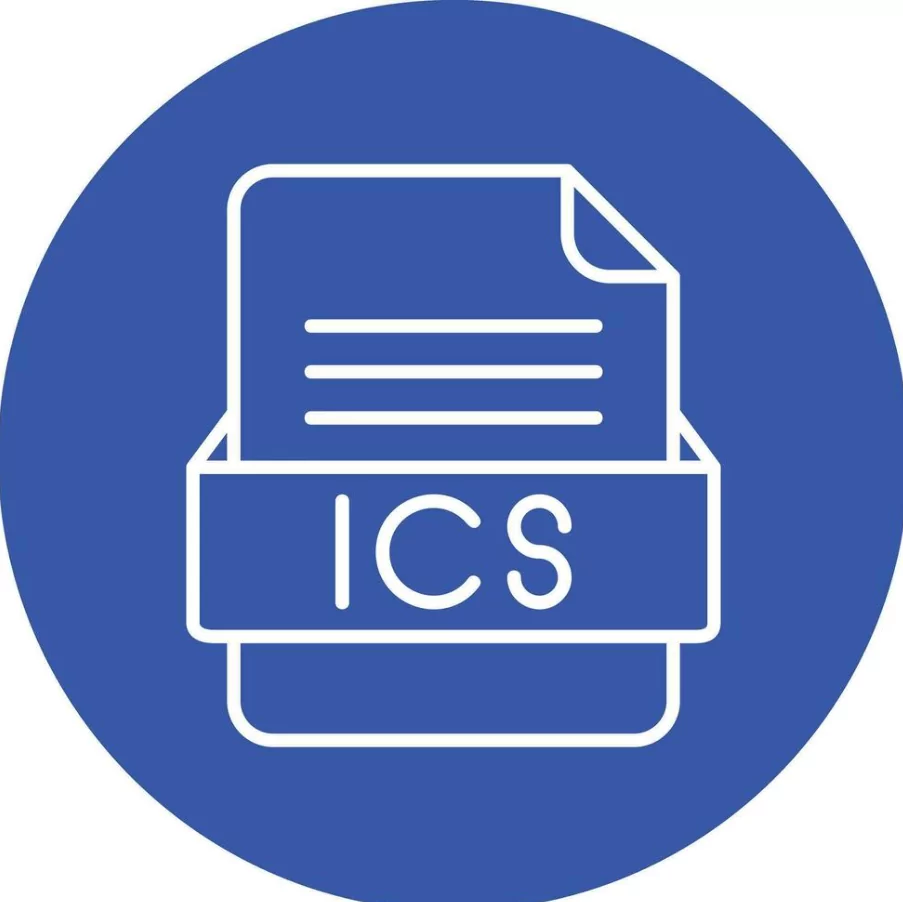
- Click the Settings gear icon in the top right corner, then select Settings.
- In the left sidebar, click on Import & export.
- Under the “Import” section, click “Select file from your computer” and choose your .ics file.
- Crucial Step: In the “Add to calendar” dropdown, select the specific calendar you want these events to appear in.
- Click Import.
Google will process the file and display a message telling you how many events were successfully imported.
Method 2: Adding ICS Files via Mobile (Android & iOS)
The Google Calendar mobile app does not have a dedicated “Import” settings menu like the desktop version. However, you can still “convert” the file by opening it directly.
- Open the email or message containing the .ics attachment.
- Tap on the file to download or open it.
- Your phone will ask which app to use. Select Calendar (or Google Calendar if specified).
- You will see a preview of the event. Tap Add to Calendar or Save.
- Note for iPhone users: This often saves to the Apple Calendar app by default. Ensure your Apple Calendar is synced to your Google account settings if you want it to show up on other devices.
Method 3: Converting ICS to CSV (For Bulk Editing)
Sometimes, you might want to “convert” an ICS file to a spreadsheet (CSV) first. This is useful if you want to edit the events in Excel (e.g., changing titles in bulk) before uploading them to Google Calendar, as Google also supports CSV imports.
How to convert ICS to CSV:
- Use a free online tool like Indigoblue ICS to CSV Converter or GCal2Excel.
- Upload your .ics file.
- Download the resulting .csv file.
- Open the CSV in Excel/Google Sheets and make your edits.
- Follow the Method 1 steps above, but upload the .csv file instead of the ICS.
Common Issues and Troubleshooting
1. “Processed 0 Events” Error
If Google says 0 events were processed, the ICS file might be corrupted or empty. Try opening the file in a text editor (like Notepad) to ensure there is text data inside starting with BEGIN:VCALENDAR.
2. File Size Limits
Google Calendar has a file size limit for imports (typically around 1MB). If you are migrating years of history and the file is huge, you may need to split the ICS file into smaller chunks or use a CSV converter to separate the data.3. Duplicate Events
Importing an ICS file does not “sync” it; it copies the data. If you import the same file twice, you will get duplicate events. You will need to manually delete the duplicates.
Frequently Asked Questions (FAQ)
Can I undo an ICS import in Google Calendar?
No, there is no “Undo” button for imports. If you accidentally imported a file into the wrong calendar, you will have to delete the events manually. Pro tip: Create a temporary new calendar, import the file there to test it, and then delete the calendar if it looks wrong.
Is an ICS file the same as a CSV file?
No. ICS is a standard calendar format, while CSV is a comma-separated values file (spreadsheet). Google Calendar accepts both, but ICS is better for keeping time zone and recurring event data accurate.
Why can’t I see the imported events on my phone?
Syncing can take a few minutes. Go to your Google Calendar app settings, tap “Refresh,” and ensure the specific calendar you imported into is checked/visible in the sidebar.
