In today’s mobile-first world, managing your schedule across multiple devices has become essential. Whether you’re checking your calendar on your smartphone during a commute or planning your week on your desktop computer, having automatic synchronization ensures you’re always working with up-to-date information. This comprehensive guide explores the best mobile calendar apps that seamlessly synchronize with your desktop, eliminating scheduling conflicts and keeping you organized across all your devices.
Why Cross-Platform Calendar Synchronization Matters
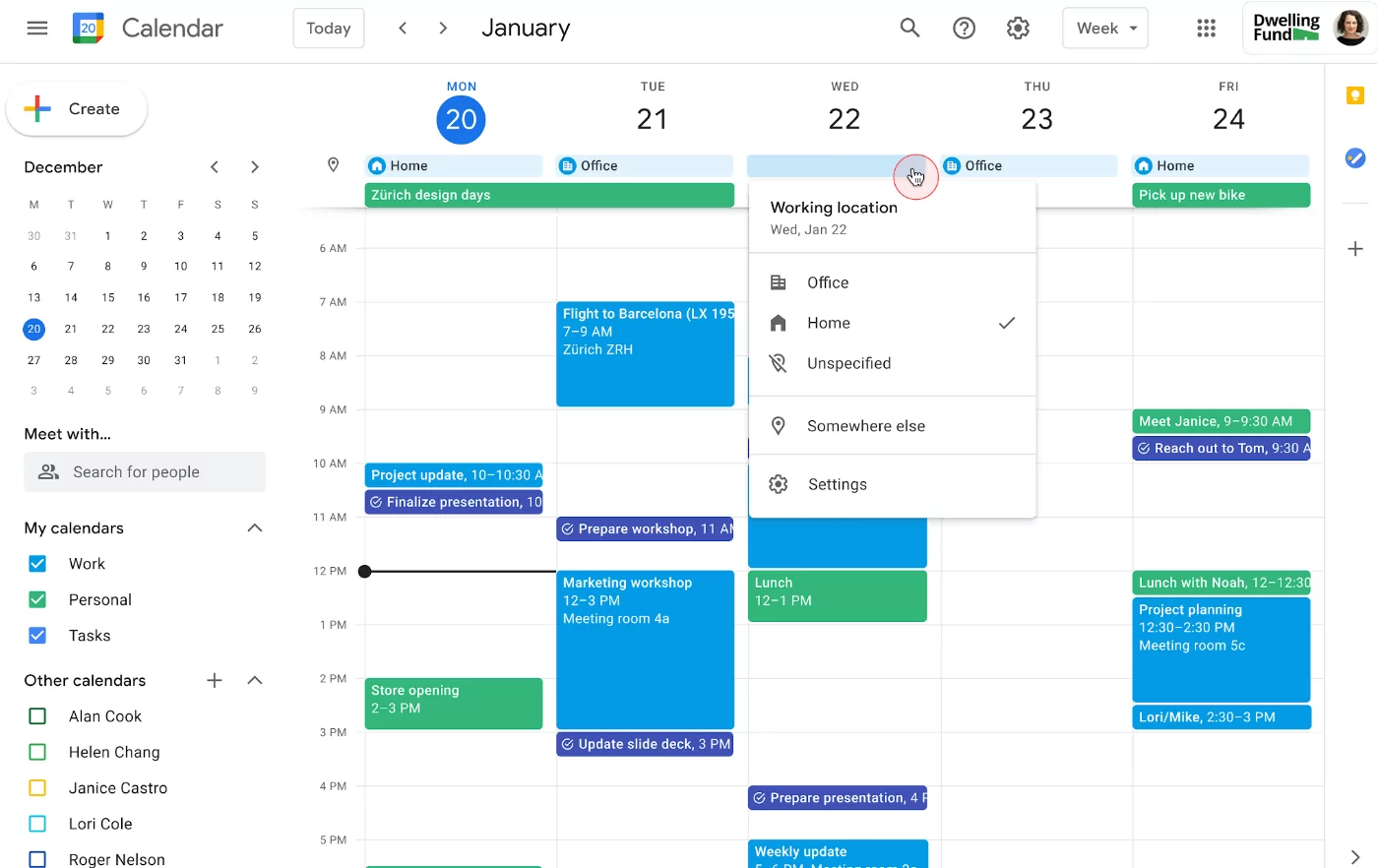
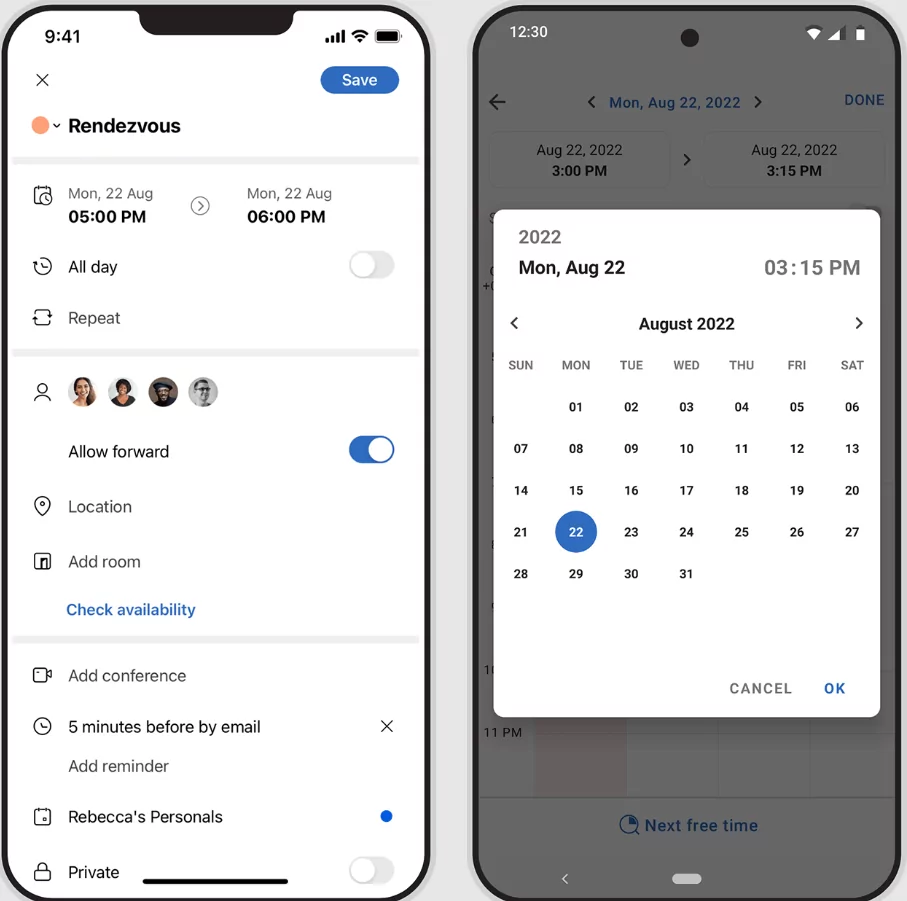
The modern professional rarely relies on a single device. Between smartphones, tablets, laptops, and desktop computers, staying synchronized across platforms has become crucial for productivity and peace of mind. Calendar apps that automatically sync across devices ensure that when you schedule a meeting on your phone, it immediately appears on your desktop—and vice versa. This real-time synchronization prevents double-bookings, missed appointments, and the confusion of managing multiple calendar versions.
Automatic desktop-to-mobile synchronization also means you don’t need to rely on manual uploads or scheduled syncs. Instead, changes propagate instantly across all your devices, providing a unified view of your schedule regardless of which device you’re using. For professionals managing complex schedules, teams coordinating across time zones, and individuals juggling personal and work commitments, this functionality represents the difference between chaos and order. The ability to create an event on your phone and have it instantly appear on your desktop calendar reduces friction in your workflow and ensures consistency across all platforms.
Top Mobile Calendar Apps with Automatic Desktop Sync
1. Google Calendar
iOS/Android: Full Support
Desktop Sync: Real-Time (Web & Desktop)
Price: Free / Premium Available
Google Calendar stands as the gold standard for cross-platform calendar synchronization. With native apps for both iOS and Android, plus seamless web integration and desktop application support through Google Workspace, it provides truly universal accessibility. Every event you create, modify, or delete on any device instantly appears on all other connected devices through Google’s cloud infrastructure. The mobile app provides complete feature parity with the desktop version, ensuring you never feel limited by device choice.
Key Synchronization Features:
- Real-time bidirectional sync across all platforms and devices
- Instant push notifications for event updates and invitations
- Seamless integration with Gmail and Google Meet for scheduling
- Support for multiple calendar overlays with color-coding
- Automatic time zone adjustment for international events
- Event attachments and detailed descriptions sync instantly
- Shared calendar viewing with granular permission controls
- Automatic detection and creation of events from Gmail messages
Google Calendar’s synchronization is nearly instantaneous, typically updating across devices within seconds. The mobile app allows you to create, edit, and delete events with full feature parity to the desktop version. For professionals invested in Google’s ecosystem, Google Calendar represents the most seamless cross-platform experience available. The integration with Google Meet makes it particularly valuable for remote teams scheduling video conferences directly from calendar invitations.
2. Apple Calendar
iOS/iPadOS: Native App
Desktop Sync: Automatic via iCloud
Price: Free (with Apple ID)
For users exclusively within the Apple ecosystem, Apple Calendar provides unparalleled synchronization through iCloud. Pre-installed on every iPhone, iPad, and Mac, Apple Calendar syncs automatically whenever any changes occur, with updates appearing within seconds across all connected devices. The integration is so seamless that users often don’t need to configure anything—it simply works out of the box when you sign in with your Apple ID.
Apple Calendar Sync Capabilities:
- Automatic iCloud sync across iPhone, iPad, Mac, and Apple Watch
- Family sharing with shared family calendars automatically synced
- Siri voice commands for hands-free calendar management
- FaceTime integration for instant video call scheduling
- Handoff feature for seamless app switching between devices
- Support for multiple calendar types (iCloud, Google, Yahoo, Exchange)
- Shared calendar notifications with customizable alerts
- Time zone intelligent handling for recurring events
While Apple Calendar doesn’t natively support Android devices, it works seamlessly with web-based access through iCloud.com. This limitation primarily affects households or teams with mixed Apple and non-Apple devices. For pure Apple users, however, the synchronization experience is flawless and requires minimal technical knowledge. The native integration with Apple Watch also provides unique scheduling capabilities unavailable in most competing applications.
3. Microsoft Outlook Calendar
iOS/Android: Full Native Apps
Desktop Sync: Real-Time (Windows/Mac)
Price: Free / Office 365
Microsoft Outlook Calendar provides robust cross-platform synchronization for users invested in the Microsoft 365 ecosystem. Available on iOS and Android with corresponding desktop applications for Windows and Mac, Outlook delivers enterprise-grade synchronization with advanced features like meeting room availability and scheduling assistant capabilities. The synchronization is automatic and maintains full calendar functionality across all platforms, making it ideal for corporate environments.
Outlook Calendar Synchronization Features:
- Automatic bidirectional sync between mobile and desktop applications
- Integration with Outlook email for seamless scheduling
- Teams meeting integration with one-click joining
- Shared mailbox calendar support for collaborative teams
- Advanced availability detection for scheduling meetings
- Support for recurring events with complex recurrence patterns
- Categories and color-coding for event organization
- Time zone intelligent conversion for global events
- Mobile app calendar sync toggle for flexible synchronization control
Outlook’s synchronization extends beyond basic calendar events to include meeting invitations, responses, and complex organizational features. The mobile apps maintain full parity with desktop versions, allowing users to manage intricate schedules effectively from their smartphones. For enterprises using Office 365, Outlook Calendar represents the natural choice for comprehensive calendar management with deep integration into the Microsoft productivity suite.
4. Fantastical
iOS/Mac: Native Apps
Desktop Sync: Automatic via iCloud/Calendar Service
Price: Free Plan / $6.99/month Premium
Fantastical stands out for combining beautiful design with powerful synchronization across Apple devices. The app automatically syncs with iCloud, Google Calendar, and Microsoft Exchange, providing a unified calendar view across iPhone, iPad, and Mac. Its natural language event creation combined with automatic synchronization makes it an excellent choice for Apple users who want both aesthetics and functionality without complexity.
Fantastical’s Sync Advantages:
- Automatic sync across iOS, iPadOS, and macOS platforms
- Natural language event parsing that syncs to all platforms
- Support for multiple calendar services (iCloud, Google, Exchange, CalDAV)
- One-click conference call joining with Zoom, Google Meet, Teams
- Task integration with Apple Reminders, Todoist, and Things
- Weather forecasts integrated with calendar views
- Time zone intelligence for scheduling across regions
- Real-time notification syncing across all devices
- Direct account connections bypass iOS restrictions for faster sync
Fantastical improves on Apple’s native calendar by allowing direct account connections, which provide up-to-the-second synchronization and advanced features like room availability lookup and exchange categories. While primarily designed for Apple users, Fantastical can sync with Google Calendar and Microsoft services, making it accessible to users with mixed-platform environments. The natural language interface allows you to create complex recurring events simply by typing phrases like “every other Tuesday at 2pm”.
5. Notion Calendar
iOS/Android: Both Platforms
Desktop Sync: Real-Time with Notion
Price: Free / Premium Plans
Notion Calendar represents a modern approach to calendar synchronization by integrating seamlessly with the Notion workspace platform. Available on iOS and Android with web access, Notion Calendar syncs automatically with your Notion workspace and connected Google Calendars. For users managing their entire productivity ecosystem within Notion, this provides an elegant unified experience that connects scheduling with project management, note-taking, and documentation.
Notion Calendar Sync Capabilities:
- Automatic sync between Notion Calendar and workspace databases
- Real-time synchronization with connected Google Calendars
- Mobile app sync with Notion workspace across iOS and Android
- Database integration allowing events to create or update tasks
- Timeline view synchronization across mobile and desktop
- Multi-timezone support with automatic conversion
- Shared calendar viewing within Notion teams
- Event linking to Notion pages and documents
- Custom properties synchronization across devices
Notion Calendar’s synchronization is particularly powerful for knowledge workers who use Notion as their primary productivity platform. Linking calendar events to projects, tasks, and documentation creates a cohesive productivity system where your schedule directly integrates with your work. Changes made in the mobile app instantly appear in your Notion workspace and vice versa, creating a truly unified scheduling experience.
6. Akiflow
iOS/Android: Full Support
Desktop Sync: Real-Time Web & Desktop Apps
Price: Free / Premium Plans Available
Akiflow differentiates itself by combining calendar synchronization with task management in a unified interface. The platform provides true cross-device synchronization for both iOS and Android, with desktop web and native applications. Akiflow syncs seamlessly with Google Calendar and Microsoft Outlook while maintaining its own task management layer, creating a comprehensive productivity platform that treats your calendar and task list as interconnected components.
Akiflow’s Synchronization Features:
- Bidirectional 2-way sync with Google Calendar and Outlook in real-time
- Unified task and calendar view across all devices
- Mobile app features full planning capabilities matching desktop
- Automatic time-blocking suggestions for tasks
- Multiple calendar overlay with color-coded event management
- Calendar and task changes sync within seconds
- Availability-based meeting suggestions
- Native integrations with Trello, Slack, and Gmail
- Cross-platform data consistency with cloud backup
Akiflow’s synchronization engine is designed for professionals who treat their calendar and task list as interconnected components of productivity. Changes made to tasks on your phone immediately reflect in your desktop time-blocking, and calendar updates sync bidirectionally. This seamless integration makes Akiflow particularly valuable for users who want their entire schedule managed in one platform.
Comparison Table: Mobile Calendar Apps with Desktop Sync
| App Name | Mobile Platforms | Desktop Support | Sync Speed | Primary Feature |
|---|---|---|---|---|
| Google Calendar | iOS, Android | Web, Windows, Mac | Real-Time | Universal Cross-Platform |
| Apple Calendar | iOS, iPadOS | macOS, Web | Real-Time | Apple Ecosystem |
| Outlook Calendar | iOS, Android | Windows, Mac, Web | Real-Time | Enterprise Integration |
| Fantastical | iOS, iPadOS | macOS, Web | Instant | Design & Natural Language |
| Notion Calendar | iOS, Android | Web, Mac, Windows | Real-Time | Workspace Integration |
| Akiflow | iOS, Android | Web, Desktop | Real-Time | Task + Calendar |
How Automatic Synchronization Works
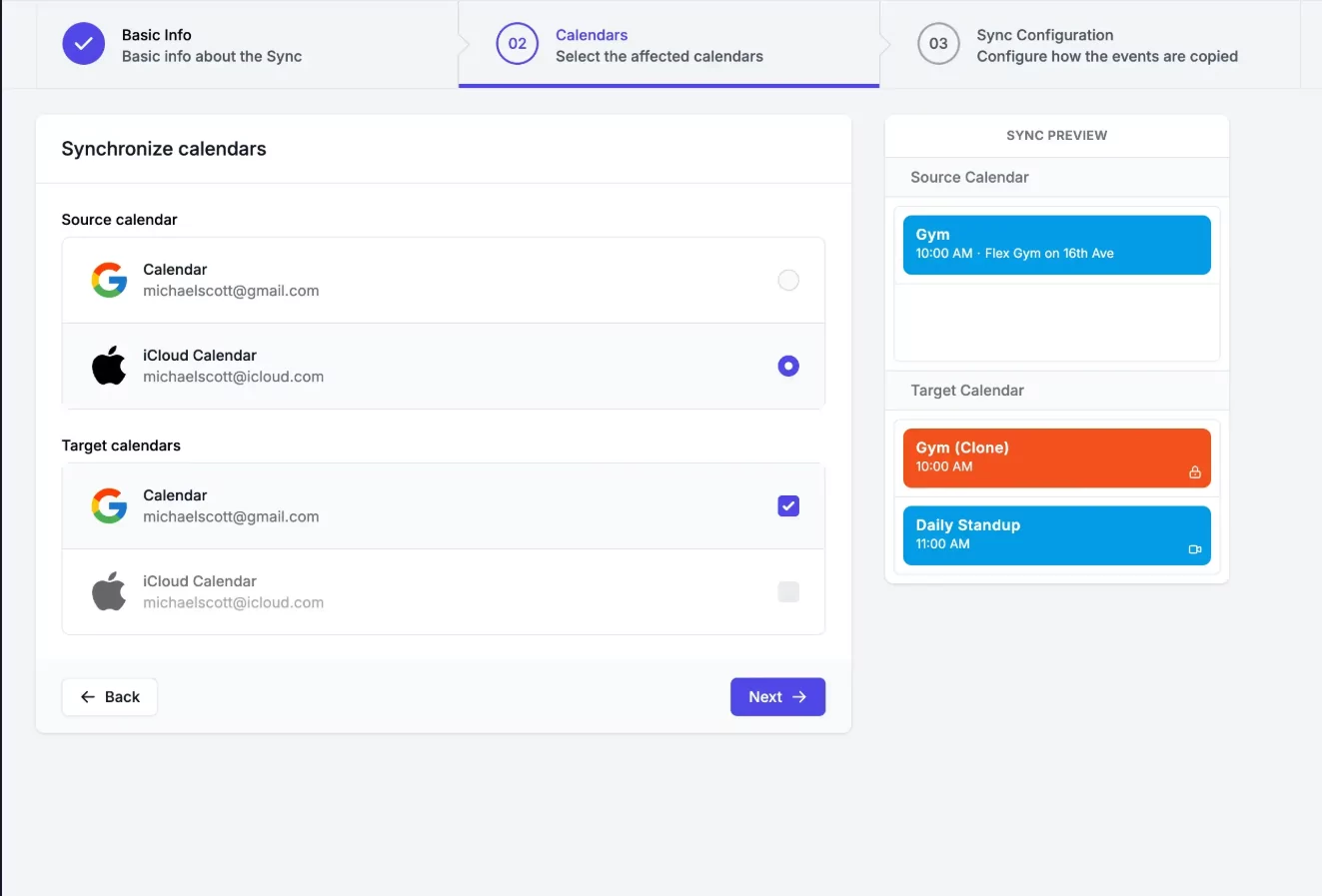
Understanding the mechanics of calendar synchronization helps you choose the right app for your needs. Most modern calendar apps synchronize using cloud-based infrastructure where your calendar data is stored on servers rather than locally. When you create an event on your mobile device, the app sends the information to the cloud server, which immediately distributes it to all other connected devices using your account. This architecture ensures that all devices always display the current calendar state.
Key synchronization technologies include:
- CalDAV Protocol: Industry-standard protocol used by many calendar services for synchronization
- iCloud Sync: Apple’s proprietary synchronization system for seamless Apple device integration
- Cloud APIs: Google, Microsoft, and other providers use custom APIs for real-time synchronization
- Push Notifications: Alerts devices immediately when calendar changes occur
- OAuth 2.0 Authentication: Secure account authentication without storing passwords directly
Real-Time vs. Periodic Sync: Most calendar apps today use real-time synchronization, meaning changes appear on all devices almost instantly. Some older or specialized applications use periodic syncing, checking for updates every few minutes. For modern productivity needs, real-time sync is essentially standard.
Choosing the Right Calendar App for Cross-Device Synchronization
Selecting the optimal calendar app depends on several factors specific to your device ecosystem and workflow requirements. Consider the following criteria when evaluating options:
Device Ecosystem Compatibility
If you exclusively use Apple devices (iPhone, iPad, Mac), both Apple Calendar and Fantastical provide seamless synchronization. For mixed-platform environments where you use both Apple and Windows devices, Google Calendar and Microsoft Outlook offer superior cross-platform compatibility. Android users should prioritize Google Calendar, Outlook, or Akiflow for native app experiences.
Synchronization Speed Requirements
For professionals requiring instantaneous synchronization (such as receptionists, event coordinators, or those managing high-volume meetings), real-time sync apps like Google Calendar, Outlook, and Fantastical are essential. The difference between real-time and 5-minute delayed sync can prevent scheduling conflicts and missed meetings.
Integration with Other Tools
If you use Notion as your workspace platform, Notion Calendar creates a unified system. For task management-focused workflows, Akiflow combines calendar and tasks seamlessly. Microsoft 365 users benefit from Outlook’s deep integration with Teams, Exchange, and Office applications.
Privacy and Data Control
Consider where your calendar data is stored. Google and Microsoft store data on their servers with privacy policies reflecting that. Users concerned about data privacy should research each provider’s privacy practices, data retention policies, and encryption standards.
Pro Tip: Most calendar apps allow you to add multiple calendar sources simultaneously. You can use your primary app’s synchronization while connecting to secondary calendars from other services, creating a unified yet flexible calendar management system.
Troubleshooting Synchronization Issues
Despite reliable technology, synchronization issues occasionally occur. Here are common problems and solutions:
- Events not appearing on mobile: Ensure the mobile app has calendar access enabled in device settings, and that calendar sync is toggled on in app settings
- Changes not syncing to desktop: Verify your account is properly connected, force refresh the desktop app, and check your internet connection
- Duplicate events appearing: Check that you haven’t added the same calendar from multiple sources, and disable unnecessary calendar overlays
- Time zone incorrect: Verify your device’s time zone settings and ensure the calendar app is using your correct time zone
- Slow synchronization: Check internet connectivity, close unnecessary apps consuming bandwidth, and restart your device
Conclusion: Unified Scheduling Across All Devices
Automatic calendar synchronization between mobile and desktop devices has become essential infrastructure for modern productivity. Whether you choose Google Calendar’s universal compatibility, Apple Calendar’s ecosystem excellence, Outlook’s enterprise integration, Fantastical’s beautiful design, Notion’s workspace unification, or Akiflow’s task integration, real-time synchronization ensures you never miss an appointment regardless of which device you’re using.
The evolution of calendar technology has eliminated the frustration of managing multiple calendar versions. Begin by identifying your device ecosystem and primary workflow, then test your chosen app’s synchronization capabilities. Most applications offer free trials or free tiers—take advantage of these to experience the synchronization performance firsthand. With reliable cross-device calendar synchronization in place, you’ll gain the peace of mind that comes from knowing your schedule is always current, accurate, and accessible from any device.
Frequently Asked Questions
How long does it take for calendar changes to sync between devices?
Most modern calendar apps provide near-instantaneous synchronization, typically within seconds. Google Calendar, Microsoft Outlook, and Fantastical sync within 1-5 seconds. Some apps using CalDAV protocol may take slightly longer (5-15 seconds), but delays are rarely noticeable for practical purposes.
Can I sync calendars from multiple sources simultaneously?
Yes, all major calendar apps allow you to connect and view multiple calendar sources simultaneously. You can typically add calendars from Google, Apple, Microsoft, and other CalDAV-compatible services in one app, viewing all events in a unified interface.
What happens if I lose internet connection? Will my calendar still sync?
Most calendar apps store recent event information locally on your device, so you can view your calendar offline. However, synchronization requires internet connectivity. Once your connection is restored, changes automatically sync to the cloud and other devices.
Are my calendar events secure during synchronization?
Modern calendar apps use HTTPS encryption and OAuth 2.0 authentication to protect your data during transmission. However, security also depends on the provider’s data center security and privacy policies. Research your chosen provider’s security certifications and privacy practices.
Can I prevent specific calendars from syncing to certain devices?
Yes, most calendar apps allow granular control over which calendars sync to which devices. In settings, you can typically enable/disable individual calendars for synchronization, giving you flexibility in managing sensitive information.
