You don’t need pro design skills to build a beautiful, printable calendar. With Canva’s free tools, you can design monthly or yearly layouts, add holidays and photos, and export crisp files ready for home or office printing. Follow this simple step-by-step guide to create your custom calendar today.
Before You Start: Decide the Basics
Format
- Monthly pages (Jan–Dec)
- One-page yearly overview
- Quarterly or academic (Aug–Jul)
Start Day
- Sunday start (US) or Monday start (ISO)
- Include week numbers (optional)
Style
- Ultra-minimal (ink saver)
- Neutral pastel or bold header bar
- Photo banner or seasonal theme
Step-by-Step: Build a Calendar in Canva (Free)
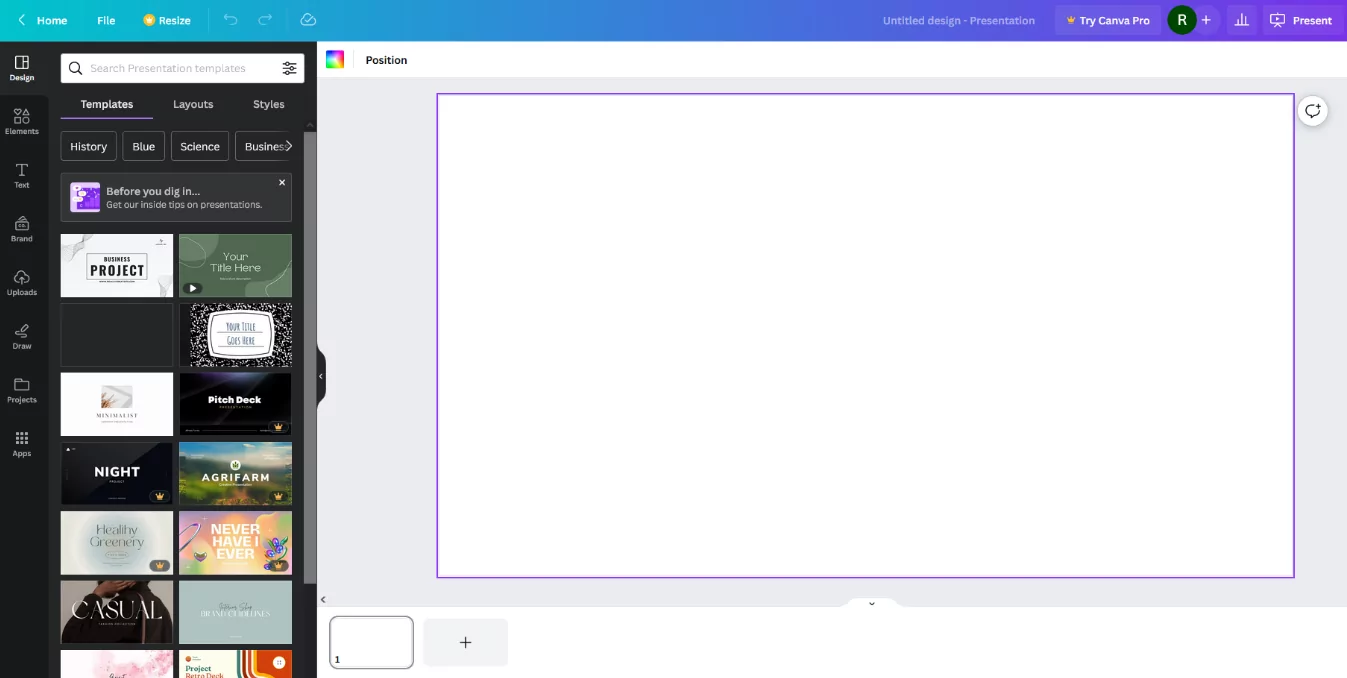
- Create your design file.
In Canva, click Create a design → Custom size. Choose your paper:- US Letter 8.5×11 in → 2550×3300 px @300 PPI
- A4 210×297 mm → 2480×3508 px @300 PPI
- A3/Tabloid for wall calendars
- Set a clean layout grid.
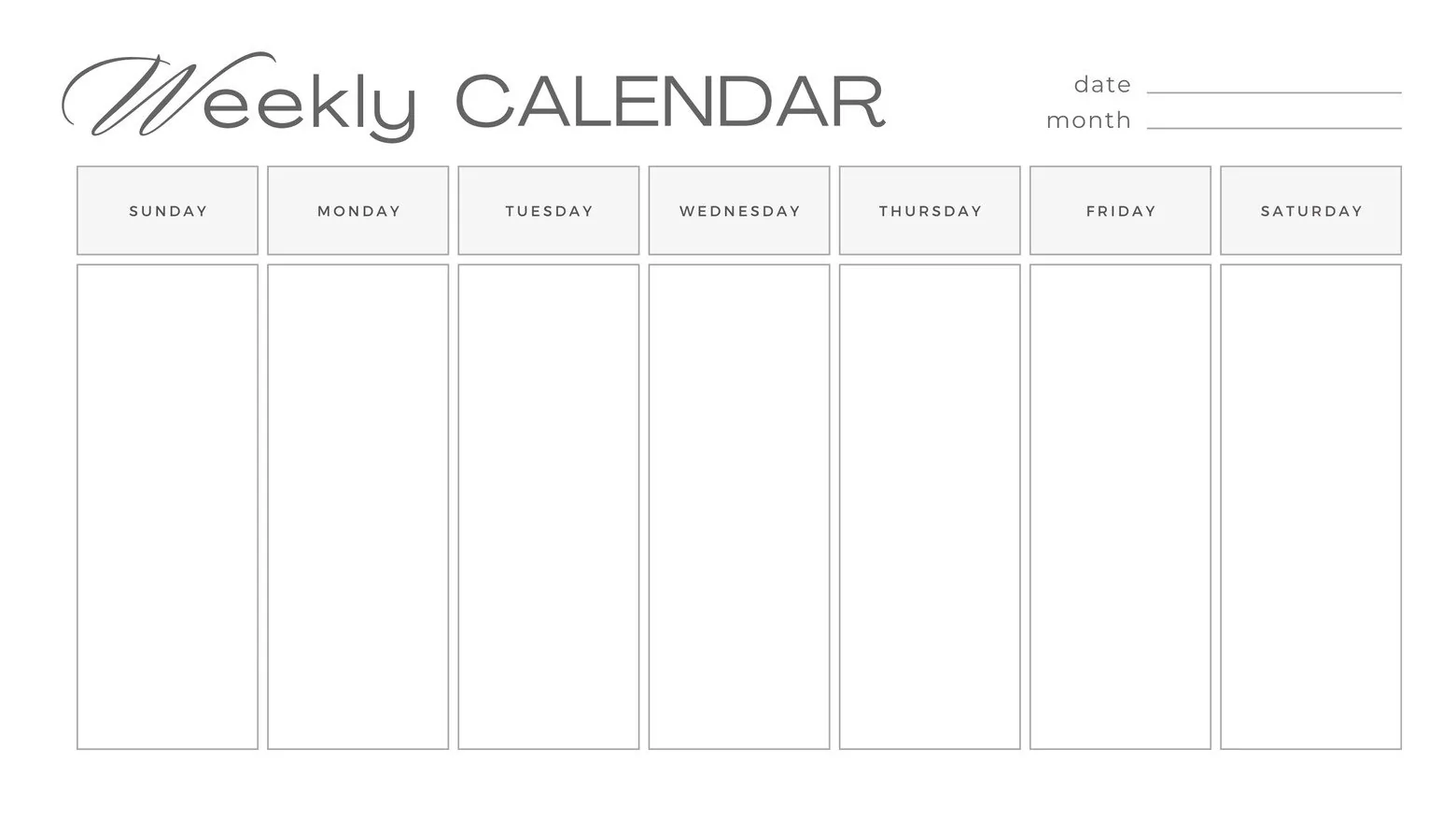
Add guides or use a simple table built from rectangles. You need 7 columns × 5–6 rows for most months. Keep margins 10–15 mm so nothing gets clipped. - Add the month header and weekdays.
Use a single sans-serif family. Make the month header bold; weekdays in small caps with 2–3% letter spacing for a tidy look. - Place date numbers.
Add a small text box in each cell (top-right alignment keeps writing space clear). Duplicate across the grid for consistency. - Choose Sunday or Monday start.
If you switch later, shift weekday labels and move date numbers accordingly. For ISO week numbers, add a thin left band (W01–W53) only when needed. - Add a notes area (optional).
Insert a slim right column or a bottom footer with lines for Priorities, To-Do, and Next Month. - Style weekends & holidays.
Apply a very light gray tint (3–6%) for Sat/Sun. For holidays, create a separate layer with a smaller, muted font so the grid stays minimalist. - Bring in photos or brand elements (optional).
Add a slim photo banner or your logo/color palette. Keep accents subtle to protect readability. - Duplicate for all months.
In the Pages panel, Duplicate the finished month. Update the header and date numbers for each month in your year. - Export for print or sharing.
Use:- PDF Print (best for printing; crop marks off, flatten transparency)
- PNG (sharp lines, 300 PPI)
- JPG (smaller file for previews/email)
Pro tip: Build one master month with styles and spacing perfect, then duplicate. This saves hours and keeps your typography consistent across the year.
Recommended Sizes & Print Settings
| Paper | Pixels @300 PPI | When to use |
|---|---|---|
| US Letter (8.5×11 in) | 2550 × 3300 | Home/office printers in North America |
| A4 (210×297 mm) | 2480 × 3508 | Standard worldwide printing |
| A3 / Tabloid | 3508 × 4961 / 3300 × 5100 | Wall calendars, classrooms, team boards |
- Strokes: 0.75–1 pt; increase to 1.25 pt if your printer softens hairlines.
- Typography: Dates 9–11 pt; weekdays 10–12 pt; month header 18–28 pt (adjust for larger sizes).
- Ink saver: Use charcoal (#222–#333) instead of pure black for a smoother look.
5 Calendar Examples You Can Recreate in Canva
- Ultra Minimal: Thin grid, monochrome, no icons. Perfect for offices and classrooms.
- Neutral Pastel: A light month bar (pastel blue/peach) plus gray weekend tint.
- With Notes Column: Narrow right column with ruled lines for tasks and reminders.
- Photo Banner: Seasonal photo strip on top; keep grid lines lighter to balance visuals.
- Content Planner: Three tiny icon markers per day (post, video, email) built from simple shapes.
Printable Ideas: Make It Work for Your Life
Home & Family
- Chores, meal plan, birthdays
- Color labels for family members
- Fridge magnet or clipboard
Work & Teams
- Deadlines, PTO, sprints
- Week numbers (ISO) for projects
- Export PDF and share in Slack/Teams
Study & Teaching
- Assignment checkpoints
- Exam countdown bar
- Black-and-white ink-saver version
Canva Features That Make Calendars Easier
- Brand Kit: Save your colors and fonts to keep every month consistent.
- Grids & Guides: Align boxes precisely; enable rulers for perfect spacing.
- Styles: Create text styles for Month, Weekday, and Date, then reuse.
- Duplicate Pages: Build once, replicate quickly for all twelve months.
- Folders: Store regional holiday layers and swap them per version.
Adding Holidays & Observances (Optional Layer)
Create a separate “Holidays” layer so you can toggle it for different regions or clients. Use a smaller, muted font and keep labels short (e.g., “Thanksgiving” vs “Thanksgiving Day (US)”) to preserve a minimalist look. If you serve multiple audiences, export two versions: with and without holidays.
FAQ
Can I switch between Sunday and Monday start later?
Yes. Update weekday headers, then shift date numbers. If you use week numbers, recheck alignment after switching.
What’s the best export option for printing?
PDF Print is most reliable. For image files, use PNG (300 PPI). Keep JPG for quick previews or email.
How do I keep lines sharp?
Export at 300 PPI, use stroke 0.75–1 pt, and avoid heavy effects. If prints look soft, bump line weight slightly.
Can I reuse this template for future years?
Absolutely. Duplicate the file, update the year and date placements, and keep your styles and notes area intact.
Quick Checklist (Copy/Paste)
- Create canvas at 2550×3300 (Letter) or 2480×3508 (A4)
- Add 7×5/6 grid with margins 10–15 mm
- Header + weekdays (small caps, spaced)
- Place date numbers top-right in cells
- Weekend tint (3–6%) and optional notes area
- Optional holidays layer and week numbers band
- Duplicate for all months, proofread dates
- Export PDF Print or PNG @300 PPI
Proof tip: Cross-check tricky months (Feb & leap years). Print a test page before producing the full set.
Start Your Canva Calendar Now
Pick a layout, keep the design minimal, and build a single master month you can duplicate. With Canva’s free tools, you’ll generate a polished calendar that prints cleanly—and actually helps you plan better at home, school, or work.