Your digital calendar holds the blueprint of your life—client meetings, medical appointments, family birthdays, and project deadlines. Yet, many people treat their calendar data as temporary, relying entirely on cloud services without maintaining a local backup. If an account is hacked, accidentally deleted, or locked by a service provider, years of critical historical data can vanish instantly. Regularly exporting your calendar data for backup and archiving is a vital digital hygiene practice. This guide provides step-by-step instructions on how to export your calendar from the major platforms and best practices for securely storing your archives.
Understanding Calendar File Formats
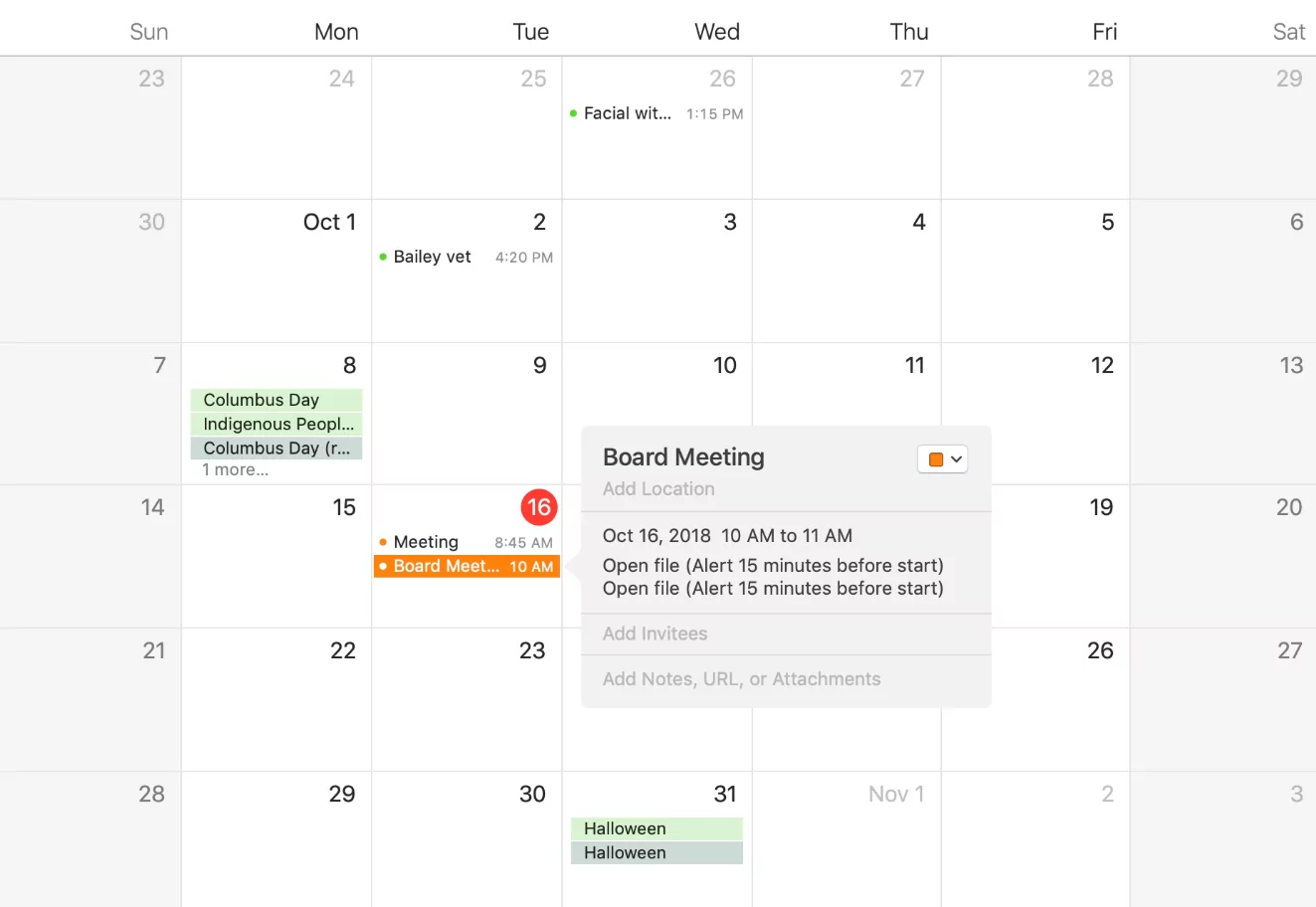
Before diving into the export process, it is important to understand the two primary file formats used for calendar data: ICS and CSV. Choosing the right format depends on how you intend to use the archived data.
The ICS Format (iCalendar)
The ICS format is the universal standard for calendar data. When you export your calendar as an ICS file, it preserves all the complex metadata of your events, including start and end times, recurring event rules, alarm settings, location details, and attendee lists. If your goal is to import your backup into another calendar application (like moving from Google Calendar to Apple Calendar) or to fully restore a lost calendar in the future, the ICS format is the absolute best choice.
The CSV Format (Comma Separated Values)
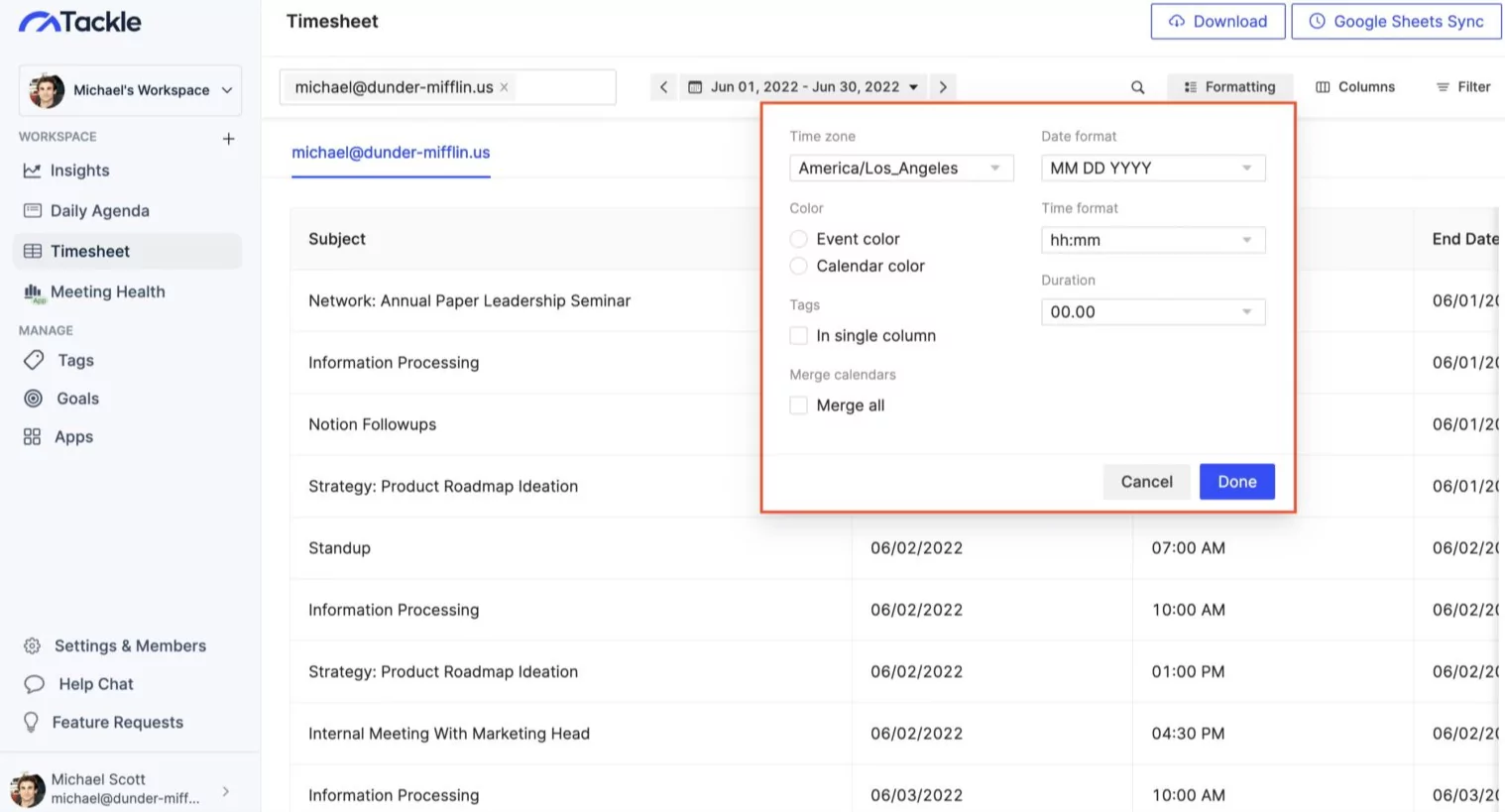
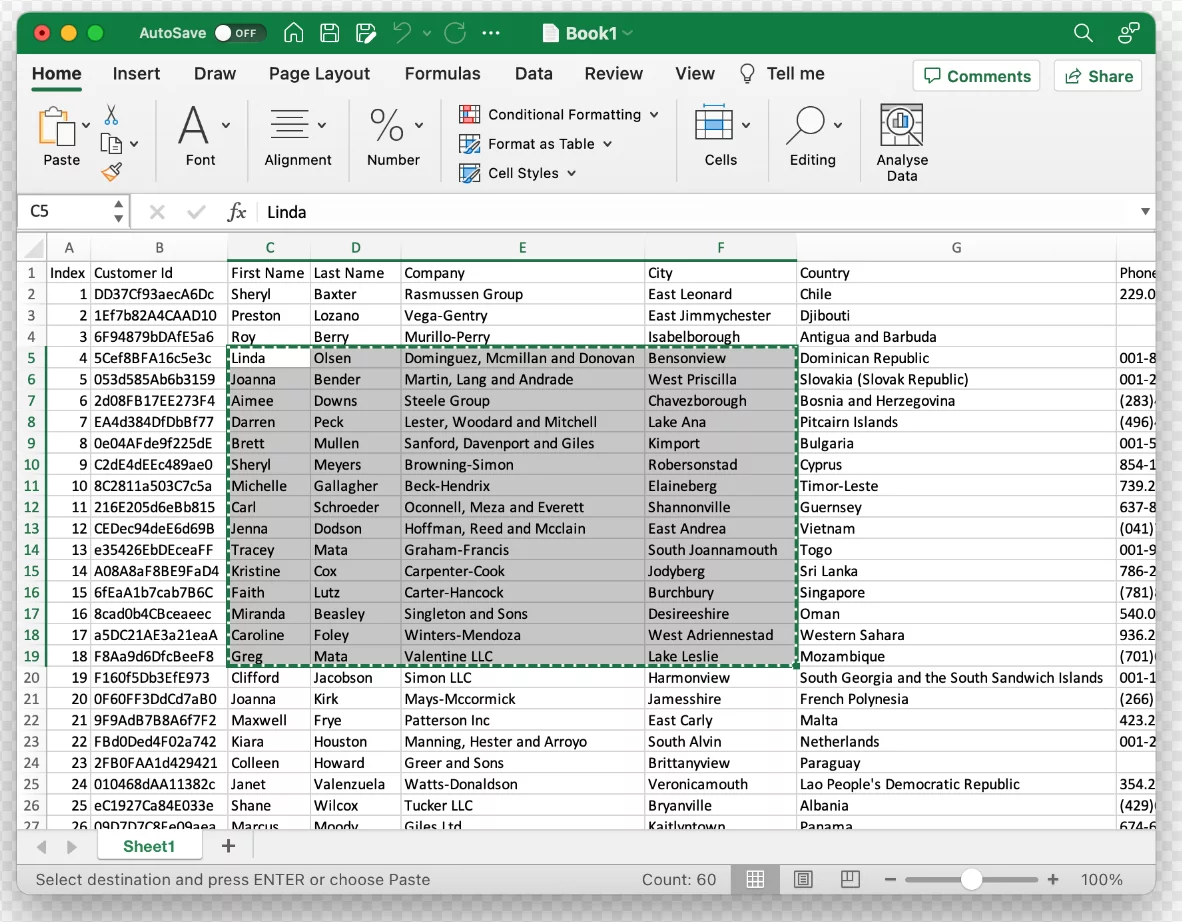
A CSV file is essentially a plain-text spreadsheet. When you export calendar data to CSV, it strips away the complex formatting and organizes your events into clean rows and columns (e.g., Subject, Start Date, End Date). This format is ideal if you want to archive your calendar data for auditing purposes, such as tracking billable hours for clients or calculating how much time you spent in meetings over the past year. CSV files can easily be opened, filtered, and analyzed in Microsoft Excel or Google Sheets.
Exporting from Google Calendar
Google Calendar makes the export process relatively straightforward, allowing you to download all your calendars at once or just specific ones.
Exporting All Calendars
To back up your entire Google Calendar ecosystem, open Google Calendar on a desktop computer. Click the gear icon in the top right corner and select “Settings.” On the left-hand menu, click “Import & export,” then select the “Export” section. Under “Export,” click the button to download your data. Google will immediately generate a ZIP file containing individual ICS files for every calendar associated with your account.
Using Google Takeout for Deep Archives
For a more comprehensive, automated archive, use Google Takeout. Go to takeout.google.com, deselect all products, and then check only “Calendar.” You can click “Multiple formats” to see exactly how the data will be saved. Google Takeout allows you to set up automatic, recurring exports (e.g., every two months for a year), ensuring your calendar archive is always up to date without requiring manual intervention.
Exporting from Apple Calendar (iCloud)
Apple users have slightly different methods depending on whether they want to archive a single calendar or create a complete backup of their calendar database.
Exporting Individual Calendars to ICS
Open the Apple Calendar app on your Mac. In the left-hand sidebar, click the specific calendar you want to back up (such as “Work” or “Home”). Go to the menu bar, click “File,” hover over “Export,” and then select “Export…” again. Choose a safe location on your hard drive and save the file. This will generate a standard ICS file for that specific calendar.
Creating an Apple Calendar Archive File (ICBU)
If you want a complete snapshot of your entire Apple Calendar setup—including all events, custom calendar colors, and account settings—you should create an Apple Calendar Archive. Go to “File,” hover over “Export,” and select “Calendar Archive.” This creates a proprietary .icbu file. This file type is excellent for disaster recovery on a Mac, as importing an .icbu file will completely replace your current calendar setup with the exact state it was in when the archive was created. However, note that .icbu files cannot be imported into non-Apple platforms like Google or Outlook.
Exporting from Microsoft Outlook
Microsoft Outlook provides robust options for exporting, and it is uniquely friendly toward the CSV format, making it ideal for data analysis.
Exporting to CSV for Analysis
Open the Outlook desktop application. Go to “File,” select “Open & Export,” and click “Import/Export.” Choose “Export to a file” and click Next. Select “Comma Separated Values” (CSV). You will then be prompted to select the specific Calendar folder you wish to export. After choosing the destination on your computer, Outlook allows you to set a date range for the export (e.g., January 1 to December 31). This is incredibly useful for archiving data year by year without creating massive, unwieldy files.
Exporting via Outlook.com (Web)
If you use the web-based version of Outlook, the process generates an ICS file. Go to Settings (the gear icon), select “Calendar,” and then click “Shared calendars.” Under the “Publish a calendar” section, select the calendar you want to back up, choose “Can view all details,” and click Publish. Outlook will generate an HTML link and an ICS link. Click the ICS link to download the file directly to your computer. Once downloaded, you can unpublish the link to maintain security.
Best Practices for Storing Calendar Backups
Once you have exported your data, storing it securely is the final, crucial step in the archiving process.
- Use the 3-2-1 Backup Rule: Do not just leave the ICS file in your computer’s “Downloads” folder. Keep three total copies of your calendar data: two on different storage media (like your computer’s hard drive and an external USB drive), and one stored offsite (such as in a secure, encrypted cloud storage service like Dropbox or an external drive kept in a fireproof safe).
- Implement a Naming Convention: Name your files clearly so you know exactly what they contain without having to open them. A good format is `YYYY-MM-DD_Platform_CalendarName.ics` (for example, `2026-03-01_Google_WorkCalendar.ics`).
- Schedule Regular Backups: Treat your calendar backup like a recurring meeting. Set a recurring reminder in your primary calendar for the first day of every quarter to manually export your data, or rely on automated tools like Google Takeout to handle it for you.
Conclusion
Your calendar is a detailed historical ledger of your professional and personal life. Taking 10 minutes every few months to export your data into an ICS or CSV file ensures that this history is protected against accidental deletion, server outages, or platform migrations. By establishing a routine backup process and following secure storage practices, you maintain total control and ownership over your digital timeline.
