Working across multiple time zones used to be complicated. Today, with the right tools and a bit of setup, you can easily Customize Calendar View for Different Time Zones and stay organized no matter where your team, clients, or friends are located.
Whether you’re managing remote teams, scheduling international meetings, or planning travel, understanding how to adjust your calendar for different time zones can save you from confusion, missed calls, and unnecessary stress.
Why Time Zone Customization Matters
In a global world, it’s common to work with people in different countries. Without proper time zone management, simple tasks like scheduling a meeting can quickly become frustrating.
Avoid Scheduling Mistakes
One of the biggest benefits when you Customize Calendar View for Different Time Zones is avoiding errors. No more guessing or calculating time differences manually.
Improve Team Collaboration
When everyone knows the correct meeting times, communication becomes smoother and more professional.
Save Time and Reduce Stress
Automating time zone conversions removes the need for constant checking and recalculating.
Understanding Time Zones in Digital Calendars
Most modern calendar apps automatically detect your primary time zone based on your device settings. However, they also allow you to add additional time zones for better visibility.
When you Customize Calendar View for Different Time Zones, your calendar can display multiple time columns or convert event times automatically depending on the viewer’s location.
How to Customize Calendar View for Different Time Zones
1. Set Your Primary Time Zone
Start by confirming that your main time zone is correct. This ensures all your events are anchored properly.
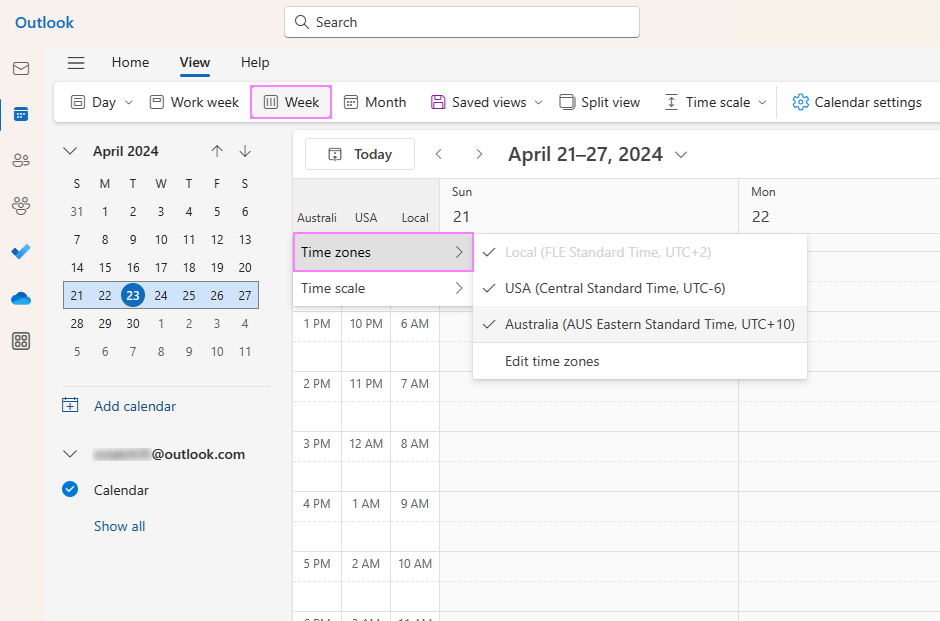
2. Add Secondary Time Zones
Most calendar apps allow you to add additional time zones. This feature is especially useful if you frequently work with specific regions.
3. Enable Dual Time Zone View
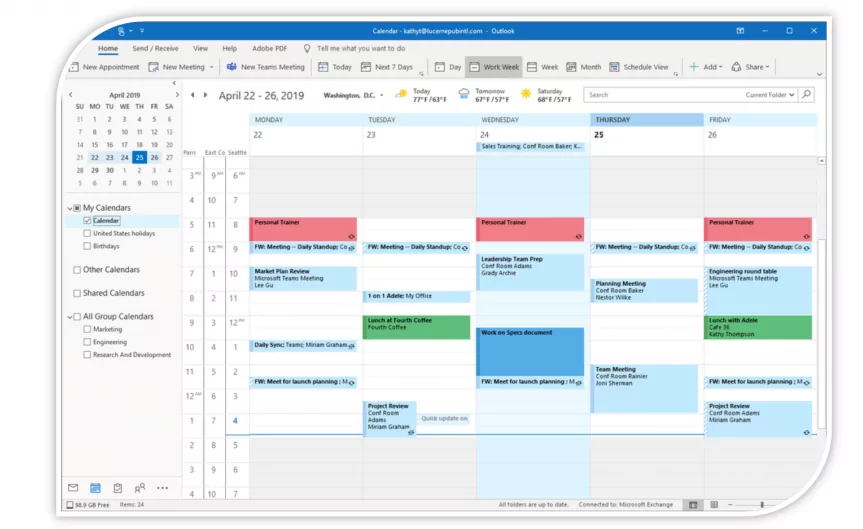
Some platforms offer a side-by-side display of two or more time zones. This makes it easy to compare times instantly.
4. Use Automatic Time Zone Conversion
When creating events, enable automatic conversion so attendees see the correct time in their local zone.
5. Label Time Zones Clearly
Use clear labels like “New York Office” or “London Team” instead of just city names to avoid confusion.
Best Practices for Managing Multiple Time Zones
Schedule Within Overlapping Hours
Try to find time windows that are reasonable for all participants. Avoid early mornings or late nights whenever possible.
Use UTC as a Reference
Coordinated Universal Time (UTC) can serve as a neutral reference point when planning across regions.
Confirm Meeting Times
Even with automation, it’s a good idea to confirm meeting times, especially for important calls.
Be Aware of Daylight Saving Changes
Some countries adjust their clocks seasonally, which can affect scheduling.
Common Mistakes to Avoid
- Forgetting to update your time zone while traveling
- Scheduling meetings without checking participants’ local times
- Ignoring daylight saving time changes
- Using unclear labels for time zones
These small mistakes can lead to missed meetings and confusion, so it’s worth paying attention to details.
Tools That Help You Manage Time Zones
Several popular calendar tools make it easy to Customize Calendar View for Different Time Zones. Features may vary, but most include:
- Multiple time zone display
- Automatic event conversion
- Shared calendar visibility
- Mobile and desktop synchronization
Using these features effectively can significantly improve your workflow.
Tips for Remote Workers and Global Teams
Create a Shared Team Calendar
This helps everyone stay aligned and reduces scheduling conflicts.
Set Clear Working Hours
Define availability for each team member to avoid scheduling outside their working hours.
Use Meeting Buffers
Add buffer time between meetings to handle delays or unexpected issues.
Communicate Clearly
Always include time zones when sharing schedules or invitations.
Why This Skill Is Essential in 2026
Remote work and global collaboration are now the norm. Knowing how to Customize Calendar View for Different Time Zones is no longer optional—it’s a necessary skill.
It helps you stay professional, organized, and respectful of others’ time, which is crucial in any modern work environment.
Conclusion
Learning how to Customize Calendar View for Different Time Zones can make a huge difference in how you manage your schedule. It eliminates confusion, improves communication, and helps you stay on top of your commitments.
With just a few simple adjustments, your calendar can become a powerful tool for global productivity. Whether you’re working remotely, managing international clients, or planning travel, mastering time zone customization will save you time and effort every day.
Start optimizing your calendar today—and experience the difference it makes.
