Managing schedules across regions can quickly become complicated when teams, clients, or partners operate in different parts of the world. Learning how to customize calendar view for different time zones helps reduce confusion, prevent missed meetings, and improve coordination in both personal and professional settings.
Modern scheduling tools are designed to make global collaboration easier, but many users still struggle with timezone visibility and display settings. When your calendar is configured correctly, you can compare local times, plan events more accurately, and create a smoother booking experience for everyone involved.
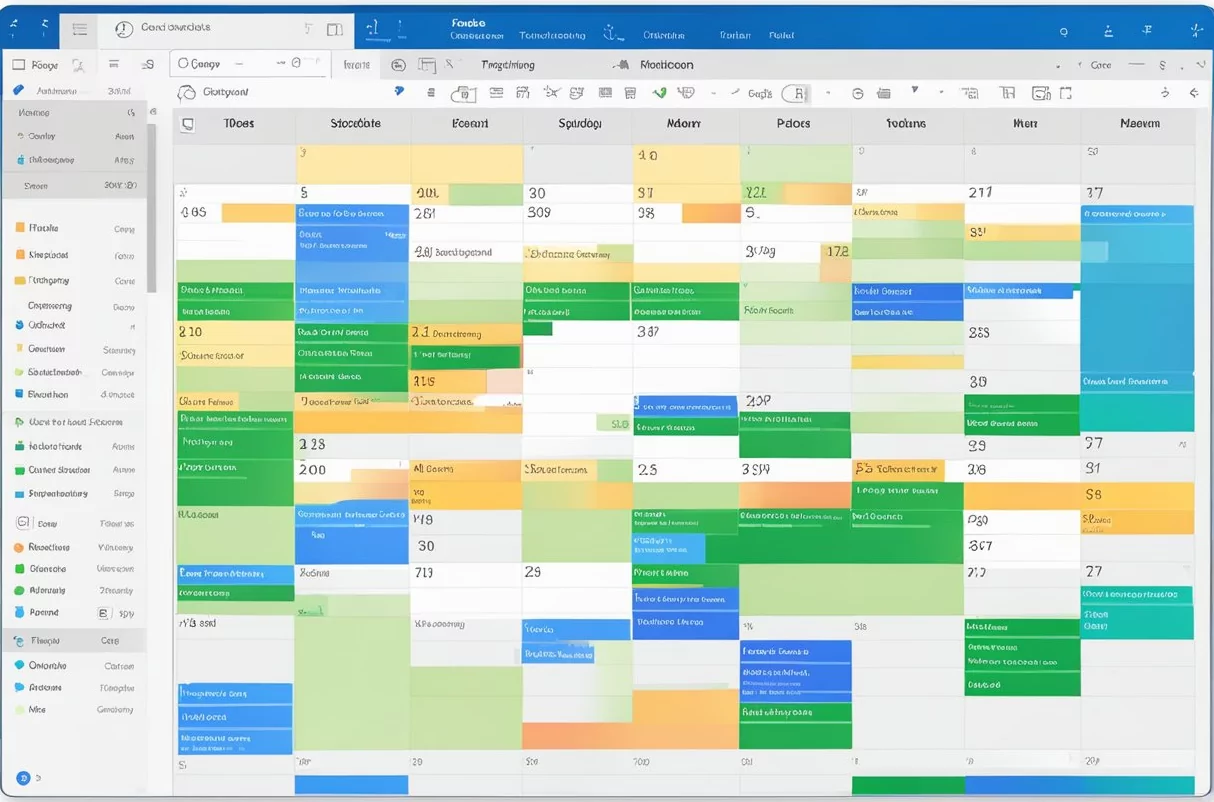
Why Time Zone Customization Matters
Time zone mistakes can lead to missed calls, delayed projects, and unnecessary back-and-forth communication. A calendar that shows only one local time may work for individual use, but it becomes less effective when meetings involve people from multiple countries or distributed teams.
By customizing calendar view for different time zones, users can see schedules in a way that matches real-world collaboration. This makes it easier to identify overlapping availability, avoid booking outside working hours, and communicate meeting times with greater confidence.
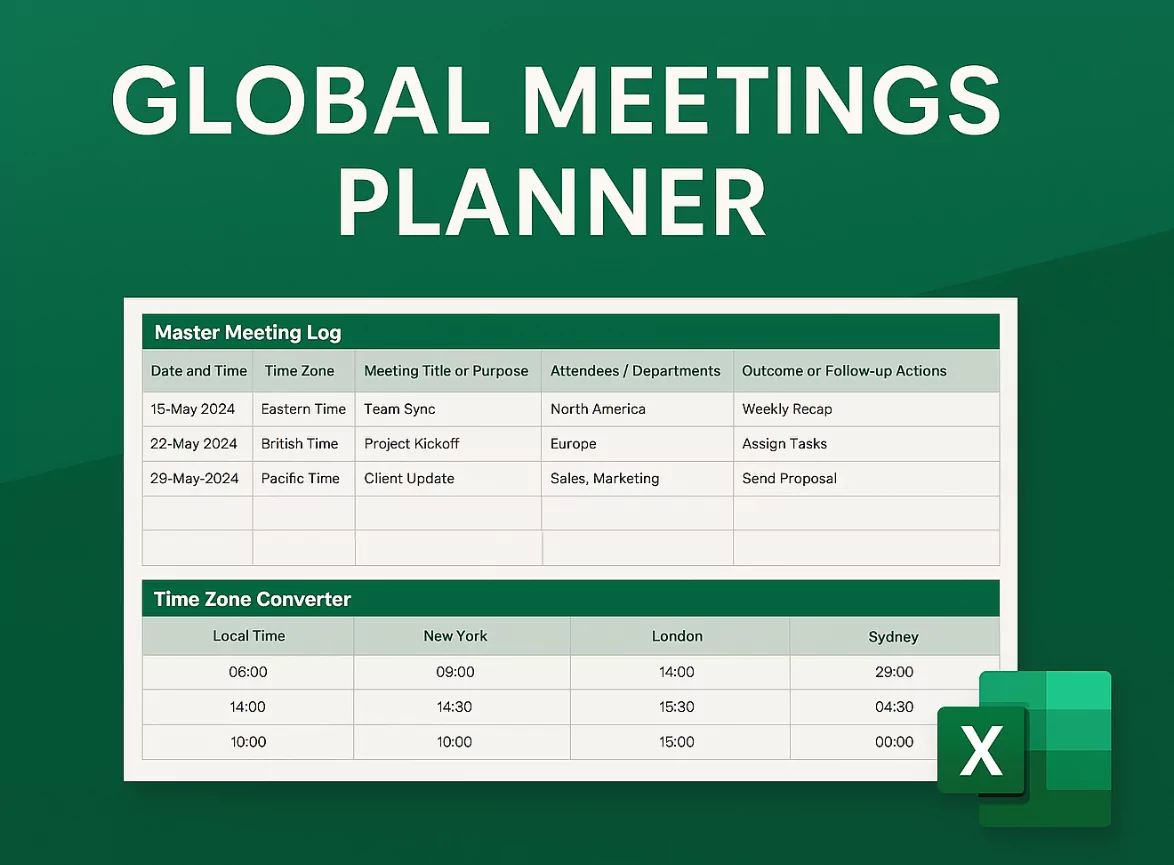
What It Means to Customize Calendar View for Different Time Zones
Customizing a calendar view for different time zones means adjusting how time is displayed so users can track events across multiple regions. Depending on the platform, this may include adding secondary time zones, switching the primary display zone, enabling dual-time views, or setting event-specific timezone rules.
Some calendar systems also allow users to automatically adapt the display based on viewer location. This can be especially helpful for remote teams, international businesses, online coaching services, webinars, and global customer support operations.
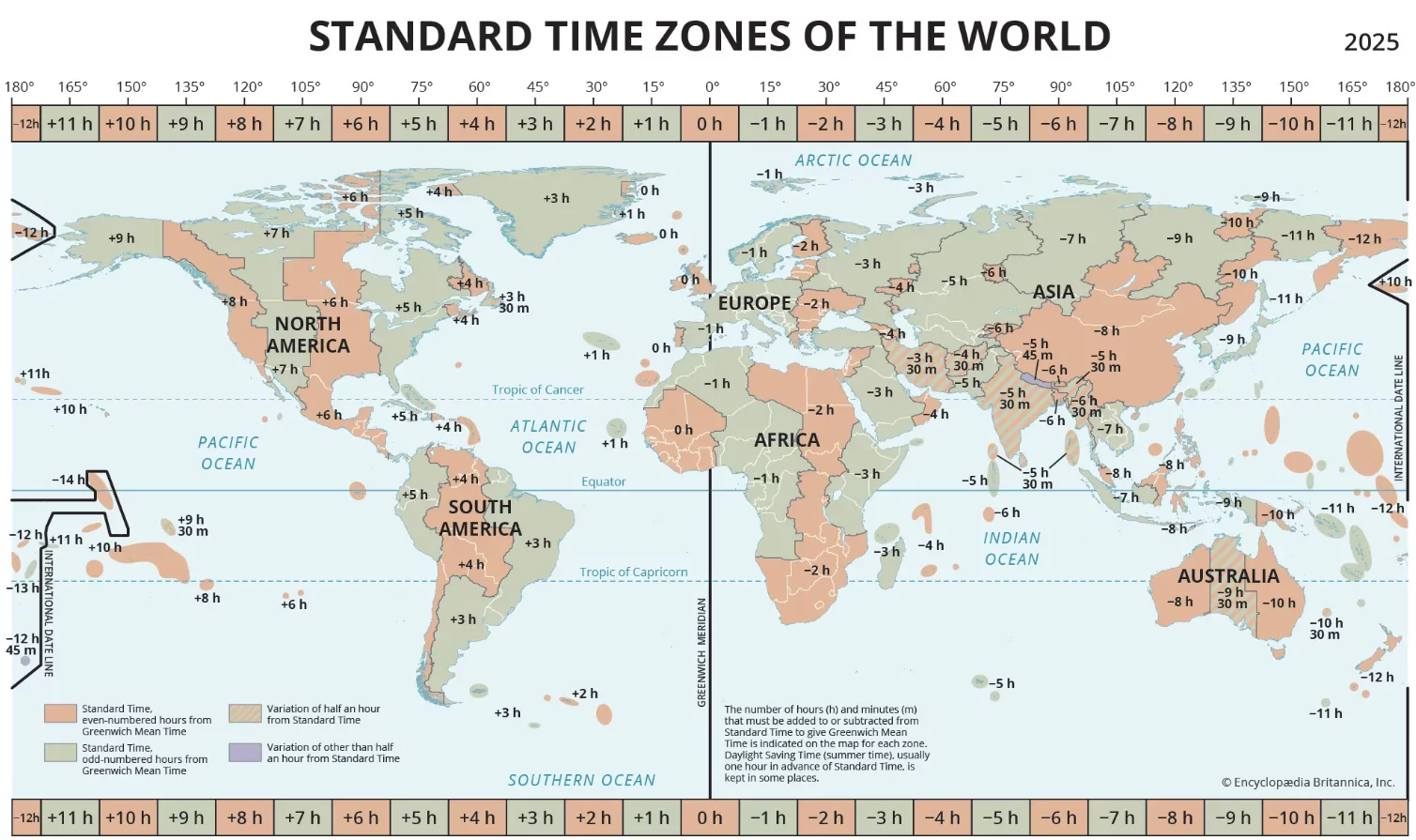
Main Benefits of a Multi-Time-Zone Calendar View
One major benefit is clarity. When everyone can view schedules in the right context, there is less room for interpretation and fewer scheduling errors. This is especially important when meetings involve participants in North America, Europe, Asia, or other regions with large time differences.
Another benefit is efficiency. Instead of manually converting times every time you schedule a call, a customized calendar does the work for you. This saves time and allows teams to focus on planning the meeting itself rather than checking conversions repeatedly.
It also improves user experience. A booking page or shared calendar that adapts to different time zones feels more professional, more reliable, and easier to use. This can increase trust among users who depend on accurate appointment scheduling.
How to Set Up Calendar Views for Different Time Zones
The first step is to define your primary timezone. This is usually the timezone where you work most often or where your organization is based. Once that is set, you can add secondary time zones that reflect the locations of key clients, team members, or target audiences.
Next, review your calendar display options. Many tools allow side-by-side timezone columns, event conversion settings, or custom labels for cities and regions. These features help you scan the day more easily and make decisions faster.
It is also important to check how recurring events behave across regions. Some recurring meetings may shift when daylight saving changes occur, so a well-configured calendar should account for those transitions automatically whenever possible.
Best Practices for Global Scheduling
If you regularly schedule international meetings, keep your calendar interface simple and readable. Avoid cluttering the view with too many time references at once. Instead, display only the time zones that are most relevant to your daily workflow.
Use clear event titles and include timezone context in invitations when needed. For example, a meeting title or description can mention whether the time is displayed in UTC, local attendee time, or organizer time. This reduces uncertainty and helps participants prepare correctly.
Another best practice is to create booking windows based on overlapping business hours. If your team works in Jakarta, London, and New York, a customized calendar should make it easy to identify the most practical time slots for all participants without forcing late-night or early-morning calls.
How Businesses Benefit from Time Zone Customization
For businesses, a calendar configured for multiple time zones supports better communication and stronger operations. Sales teams can book calls with international prospects more confidently, customer success teams can coordinate onboarding across countries, and support teams can organize availability more effectively.
It also helps reduce operational friction. Instead of manually adjusting schedules for each contact, businesses can rely on a calendar system that presents accurate times automatically. This improves workflow consistency and reduces the risk of avoidable errors.
From a branding perspective, it shows professionalism. A scheduling experience that respects timezone differences tells users that the company is prepared to work globally and values convenience for every participant.
Common Challenges and How to Avoid Them
One common issue is assuming that everyone sees the same time display. In reality, different devices, calendar apps, and account settings may present time information differently. That is why it is important to test how events appear from multiple user perspectives.
Another challenge is daylight saving time. Not all countries observe it, and regions that do may change on different dates. If your calendar platform does not manage these transitions well, meetings can shift unexpectedly and create confusion.
Over-customization can also become a problem. Adding too many visual layers, too many timezone references, or too many overlapping calendars may make the interface harder to use. The goal is to improve clarity, not to create a more complicated screen.
SEO Value of This Topic
The keyword How to Customize Calendar View for Different Time Zones targets a specific user problem with clear search intent. People searching for this topic usually want practical guidance, platform ideas, or a step-by-step explanation that helps them manage international scheduling more effectively.
Because it is a long-tail keyword, it also offers strong content potential for niche SEO. A well-structured article can rank for related searches such as multi-time-zone calendar setup, global scheduling tools, dual timezone calendar display, and international appointment management.
To support SEO performance, the keyword should appear naturally in the H1, opening paragraph, selected subheadings, and supporting body text. The article should stay readable and helpful rather than forcing exact-match repetition too often.
Features to Look For in a Calendar Tool
If you are choosing a calendar platform for timezone flexibility, look for tools that offer automatic timezone detection, dual-time display, customizable booking pages, calendar sync, and clear event conversion rules. These features make global scheduling easier and reduce manual work.
It is also useful to have reminder automation, working-hour limits, and mobile-friendly display settings. When these features work together, users can schedule across borders with fewer errors and a better overall experience.
How to Present This on a Website
If your website promotes scheduling software or booking tools, explain timezone customization in simple and practical language. Focus on how the feature helps real users avoid confusion, save time, and coordinate more effectively with international contacts.
You can also improve engagement by including examples. For instance, show how a consultant in Indonesia can offer meeting slots that automatically display correctly for clients in the United States, Europe, and Australia. Real-world use cases make the feature easier to understand and more persuasive.
Conclusion
Understanding how to customize calendar view for different time zones is essential for anyone working across borders. It improves scheduling accuracy, supports better collaboration, and creates a more professional user experience for teams and clients alike.
When configured properly, a calendar becomes more than a planning tool. It becomes a reliable system for global coordination, helping people connect at the right time no matter where they are in the world.
