Choosing between Microsoft Outlook Calendar and Google Calendar is a critical decision for individuals and organizations seeking optimal scheduling and collaboration tools in 2025. Both platforms offer robust features for managing events, coordinating meetings, and syncing across devices, yet they differ significantly in architecture, integration capabilities, and user experience. This comprehensive comparison explores their strengths, weaknesses, and best use cases.
Microsoft Outlook Calendar serves primarily enterprise users integrated into the Microsoft 365 ecosystem, while Google Calendar excels for individuals, small teams, and organizations prioritizing simplicity and cross-platform accessibility. Understanding their distinctions helps users select the platform best aligned with their workflow requirements and organizational infrastructure.
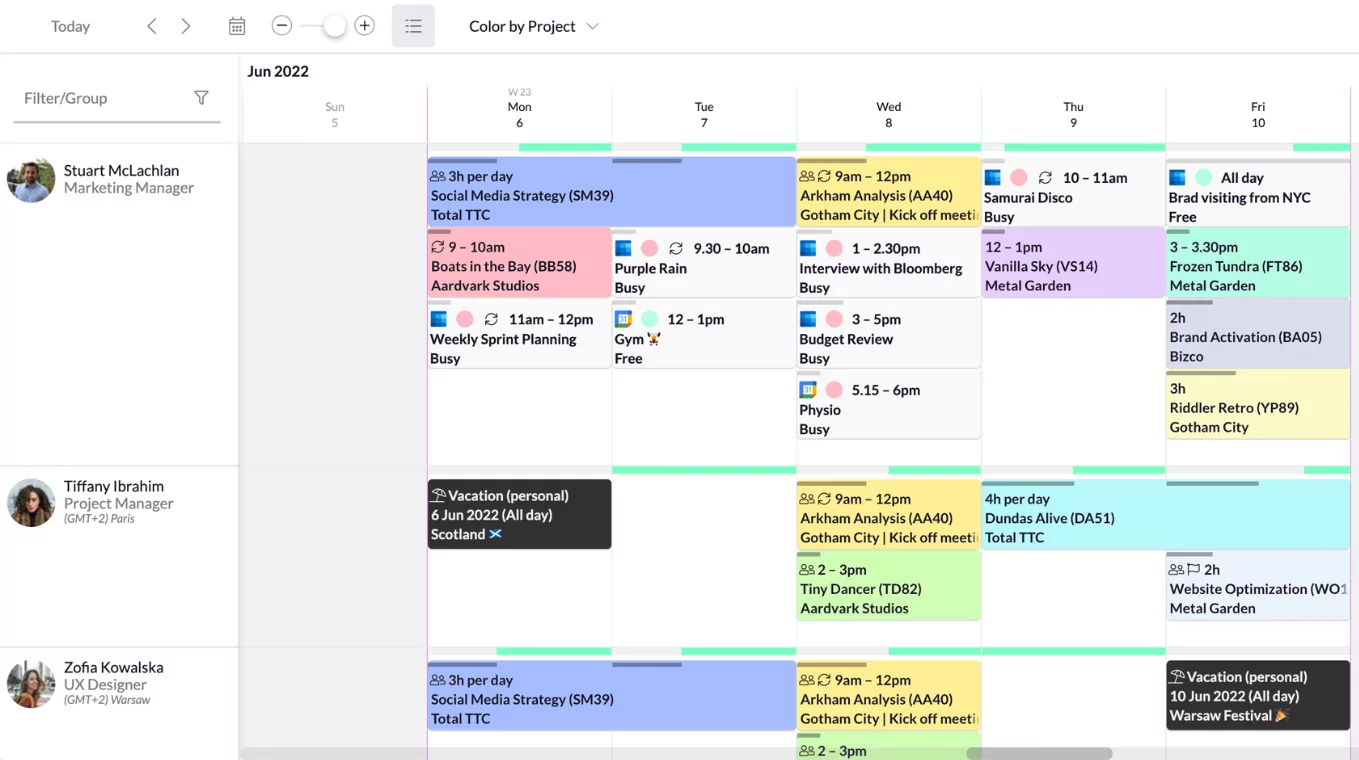
Overview of Both Platforms
Microsoft Outlook Calendar is part of the Microsoft 365 suite (formerly Office 365), offering advanced scheduling capabilities integrated with Outlook email, Microsoft Teams, and other enterprise tools. It provides desktop, web, and mobile applications with robust feature sets designed for complex organizational scheduling. Outlook Calendar emphasizes control, customization, and deep integration within Microsoft’s ecosystem.
Google Calendar is a standalone web-based platform accessible free with Google accounts or as part of Google Workspace enterprise solutions. It prioritizes simplicity, real-time collaboration, and cross-platform compatibility. Google Calendar integrates seamlessly with Gmail, Google Meet, Google Docs, and hundreds of third-party applications via open APIs. Its strength lies in ease of use and flexible collaboration without requiring organizational infrastructure.
Both platforms have evolved significantly through 2025, incorporating AI features, improved mobile experiences, and enhanced integration capabilities. The choice between them increasingly depends on existing organizational technology stacks rather than absolute feature superiority.
Event Creation and Management
Google Calendar offers faster event creation through a minimalist interface: clicking “Create” or selecting a time slot immediately opens a simple event entry form. Adding guests, setting reminders, and enabling Google Meet occurs within the same interface. For complex scheduling, users access “More options” for detailed configuration.
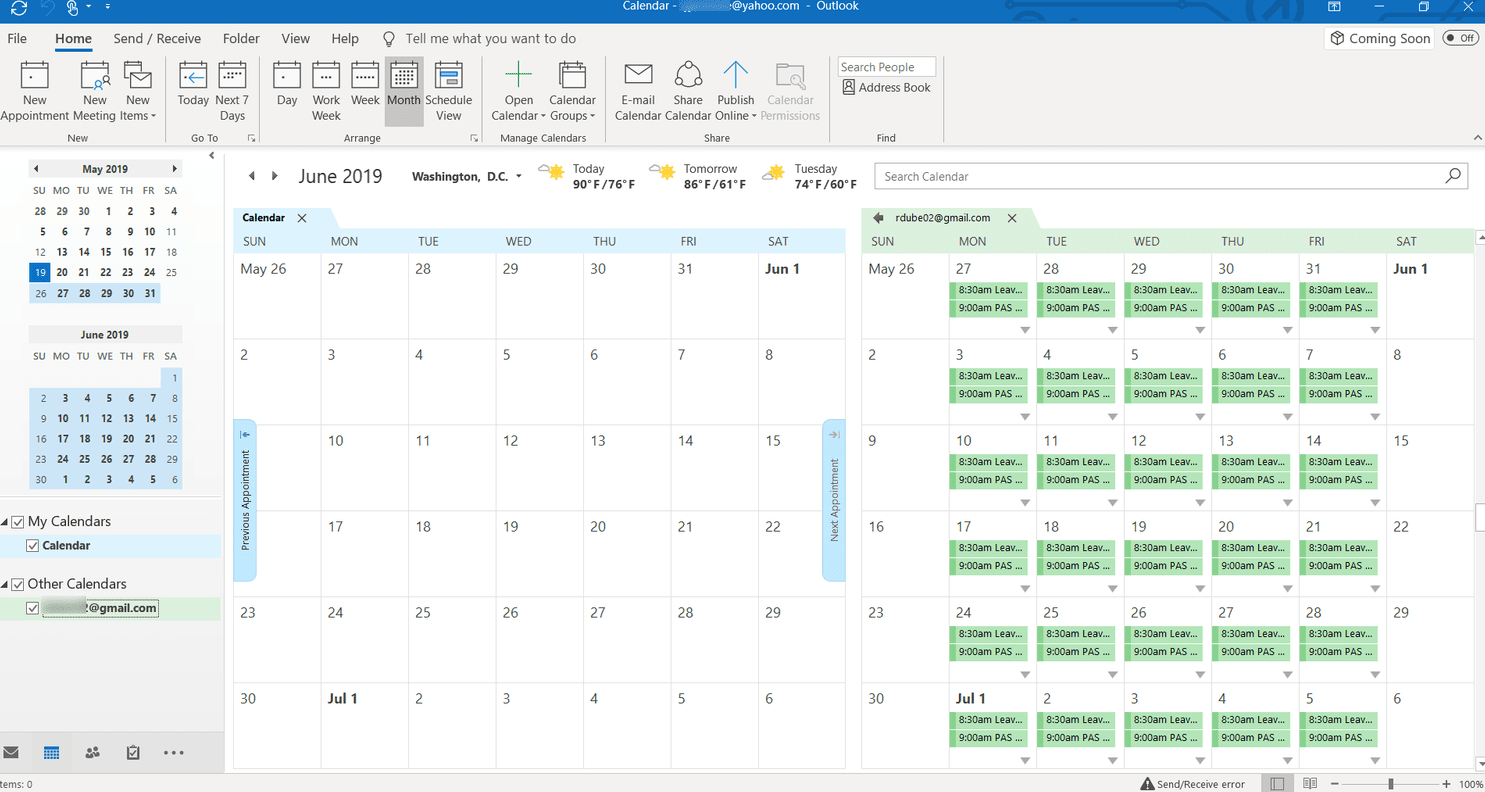
Outlook Calendar’s event creation is more comprehensive by default, opening a detailed editor immediately. Users can set event names, dates, times, attendees, locations, add OneDrive attachments, and select Teams or Zoom meetings without navigation. This design accommodates power users but feels overwhelming for casual users.
Google Calendar’s automatic event extraction from Gmail—flights, reservations, restaurant confirmations—appears in calendars without manual entry, a feature unique among mainstream calendar applications. Outlook lacks this Gmail integration unless using third-party tools.
Calendar Sharing and Collaboration
Both platforms support calendar sharing with granular permissions: view-only, make changes, or full management access. Google Calendar emphasizes simplicity with straightforward permission dialogs. Outlook Calendar offers more advanced sharing options including delegate access—allowing colleagues to manage calendars on behalf of others—more suited to executive-assistant relationships.
Google Calendar’s real-time collaboration shows instant updates when multiple users edit events simultaneously. Outlook Calendar syncs efficiently but occasionally shows slight delays, particularly on iOS devices. For teams requiring immediate visibility of schedule changes, Google Calendar’s responsiveness provides advantages.
Google Calendar’s “Appointment Schedules” feature creates public booking pages for clients or colleagues to reserve time slots, ideal for consultants and service providers. Outlook offers similar functionality through Microsoft Bookings, a separate service requiring additional setup and licensing.
Integrations and Ecosystem Compatibility
Google Calendar integrates with over 1,000 third-party applications through native connections and APIs: Zoom, Slack, Trello, Asana, Zapier, and countless others. These integrations range from simple event syncing to automated workflows. Google’s open API philosophy enables developers to create custom integrations easily.
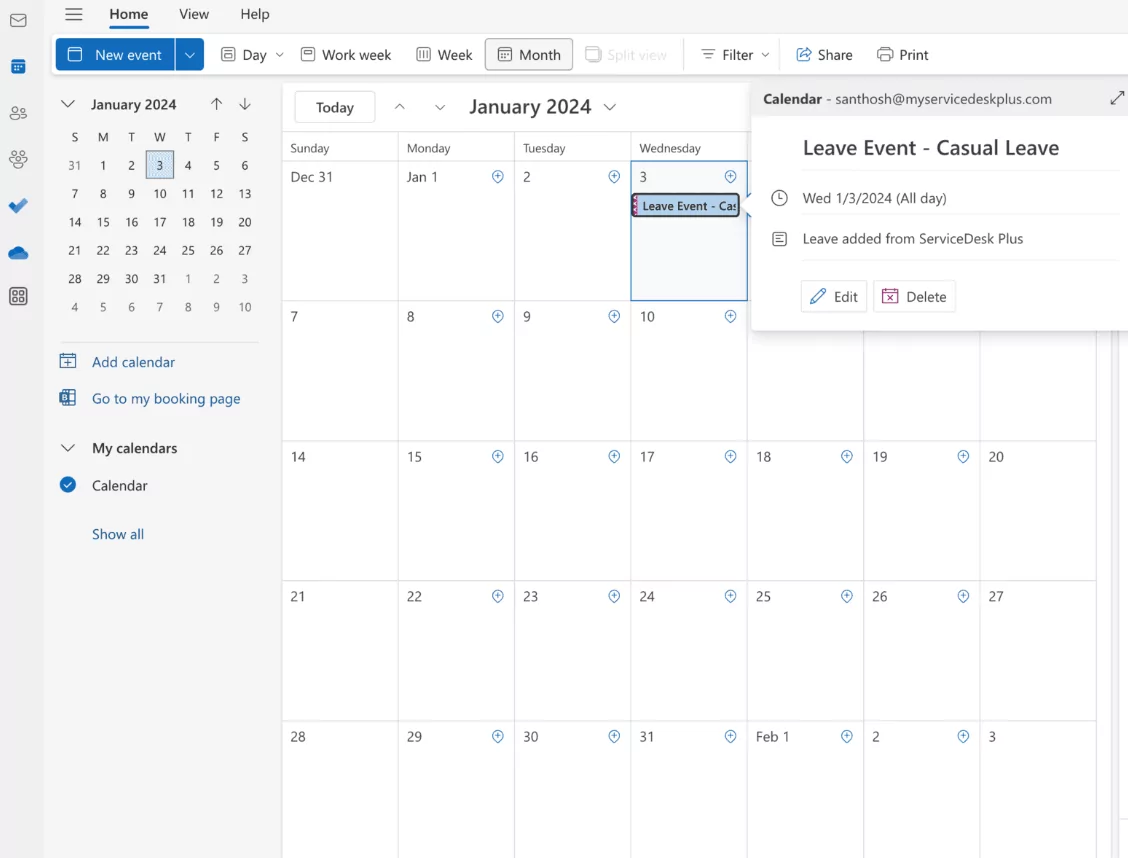
Outlook Calendar integrates deeply within the Microsoft ecosystem: Microsoft Teams shows calendar availability directly in chat, Teams calendar features sync with Outlook Calendar, and Microsoft Bookings enhances meeting coordination. For Microsoft 365 users, these native integrations provide seamless experiences. However, third-party integrations are fewer than Google Calendar’s ecosystem.
For organizations mixing Google Workspace and Microsoft 365, calendar syncing requires third-party solutions like OneCal or SyncGene, as native cross-platform synchronization is limited. This limitation increasingly affects hybrid teams in 2025.
AI and Smart Features
Google Calendar includes basic AI: automatic event suggestions from Gmail, smart recommendations for meeting titles and locations, and task integration with Google Tasks. In 2025, Google continues expanding AI features through Workspace integrations.
Outlook Calendar leverages Microsoft Copilot for enterprise users, offering AI-driven meeting time suggestions, RSVP tracking, and intelligent scheduling. For Microsoft 365 subscribers, AI capabilities increasingly enhance productivity through automated scheduling and conflict detection. These features, however, require paid plans.
Detailed Feature Comparison Table
| Feature | Google Calendar | Outlook Calendar |
|---|---|---|
| Event Creation Speed | Fast, minimal interface | Detailed by default, slower |
| Sharing Permissions | Simple (view, edit, manage) | Advanced (includes delegates) |
| Third-Party Integrations | 1000+ apps supported | Fewer integrations available |
| Email Integration | Gmail auto-add events | Outlook email sync |
| Video Meeting Integration | Google Meet native | Teams/Zoom integration |
| Desktop Application | Web-only (Chrome extension offline) | Full desktop app for Windows/Mac |
| Offline Access | Limited (Chrome only) | Full offline desktop support |
| Mobile Experience | Consistent across platforms | Better on Windows, adequate on iOS |
| AI Features | Basic smart suggestions | Advanced with Copilot (paid) |
| Recurring Events | Simple patterns | Complex customization |
User Interface and User Experience
Google Calendar’s interface is minimalist and intuitive, with clean typography, spacious layouts, and quick access to essential features. The learning curve is gentle, enabling new users to navigate without training. Customization is available but limited, respecting the principle of simplicity over extensive options.
Outlook Calendar offers five viewing modes (Day, Work Week, Week, Month, Agenda) versus Google Calendar’s six (Day, Week, Month, Year, Planning, 4-Day). Outlook’s interface feels feature-rich but can overwhelm beginners. Desktop applications provide superior performance, advanced search, and sorting capabilities compared to web versions.
Both platforms support dark mode, color-coded event categories, and custom calendar colors. Google Calendar allows importing user-created themes, while Outlook offers theme customization within desktop applications. Neither platform dramatically differs in UI preferences; choices depend on individual preferences for simplicity versus feature density.
Pricing and Accessibility
Google Calendar is free for personal use with Google accounts, with unlimited basic functionality. Google Workspace plans start at $6 per user monthly, including enhanced collaboration and administrative controls. Organizations can maintain low costs while scaling team calendars through these affordable plans.
Outlook Calendar is included in Microsoft 365 personal subscriptions ($7.99/month) and business plans starting at $6.99/user/month. No free standalone version exists; desktop applications require subscriptions. For organizations already using Microsoft 365, Outlook Calendar requires no additional investment.
For cost-conscious individuals or small teams, Google Calendar’s free tier provides comprehensive functionality. For enterprises already committed to Microsoft 365, Outlook Calendar’s inclusion eliminates additional expenses.
Mobile Experience and Cross-Device Syncing
Google Calendar offers consistent experiences across iOS, Android, web, and desktop through responsive design. Real-time syncing ensures changes appear instantly on all devices. Mobile apps prioritize usability with quick event creation, touch-friendly interfaces, and smooth scrolling through large calendars.
Outlook Calendar’s mobile apps work well on Android but occasionally lag on iOS, a known issue affecting Microsoft 365 users. Desktop applications provide superior performance but limit portability. Cross-device syncing works reliably but sometimes shows delays.
For users who frequently switch between devices, Google Calendar provides better consistency. Enterprise users primarily on Windows devices find Outlook Calendar’s integration smoother.
Offline Access and Performance
Google Calendar’s offline support through Chrome browser is functional but limited: users can view cached events and basic reminders, but cannot send invitations or access full notification features without internet. Desktop applications lack true offline access.
Outlook Calendar’s desktop application provides comprehensive offline functionality: creating events, managing calendars, accessing full notification systems, and automatic syncing when reconnected. This makes Outlook superior for users with unreliable internet or those requiring robust offline capabilities.
Specific Use Case Recommendations
For Individual Users
Google Calendar excels: free, simple, integrates with Gmail and Google apps, mobile-friendly, and supports popular third-party tools. No learning curve; productivity gains immediate.
For Small Teams
Google Calendar provides superior collaboration: easy sharing, real-time updates, and affordable Workspace plans. Appointment scheduling through public booking pages accommodates client coordination without complex setup.
For Enterprise Organizations
Outlook Calendar within Microsoft 365 offers better integration with existing Microsoft infrastructure: Teams, Exchange email, SharePoint, and governance features. Advanced sharing and delegation support complex organizational hierarchies.
For Hybrid Teams
Neither calendar alone suffices. Third-party sync tools (OneCal, SyncGene) bridge Google Calendar and Outlook Calendar for organizations using both platforms. This adds complexity but ensures unified visibility.
Troubleshooting and Support
Google Calendar support through community forums and help articles is robust for common issues. Microsoft 365 subscribers get enterprise support options, beneficial for critical calendar issues affecting large organizations.
Both platforms have sync issues: Google Calendar occasionally delays cross-device updates; Outlook Calendar sometimes fails iOS syncing. Both maintain extensive documentation and community support for troubleshooting.
The choice between Microsoft Outlook Calendar and Google Calendar in 2025 depends primarily on organizational technology ecosystems rather than absolute feature superiority. Google Calendar wins for simplicity, flexibility, and cross-platform consistency, ideal for individuals, small teams, and mixed-technology environments. Outlook Calendar excels within Microsoft 365 organizations, offering advanced sharing, enterprise integrations, and comprehensive desktop applications.
Evaluate based on current tools: users heavily invested in Google Workspace should choose Google Calendar; Microsoft 365 users should leverage Outlook Calendar. Hybrid organizations require third-party syncing solutions. Neither platform is definitively superior; success depends on alignment with organizational infrastructure and user preferences for simplicity versus advanced functionality.
