Project chaos kills productivity. Custom calendar views by project or department turn overwhelming task lists into clear, actionable schedules everyone actually uses. This step-by-step guide shows you how to build department-specific calendars that boost alignment and deadline adherence across teams.
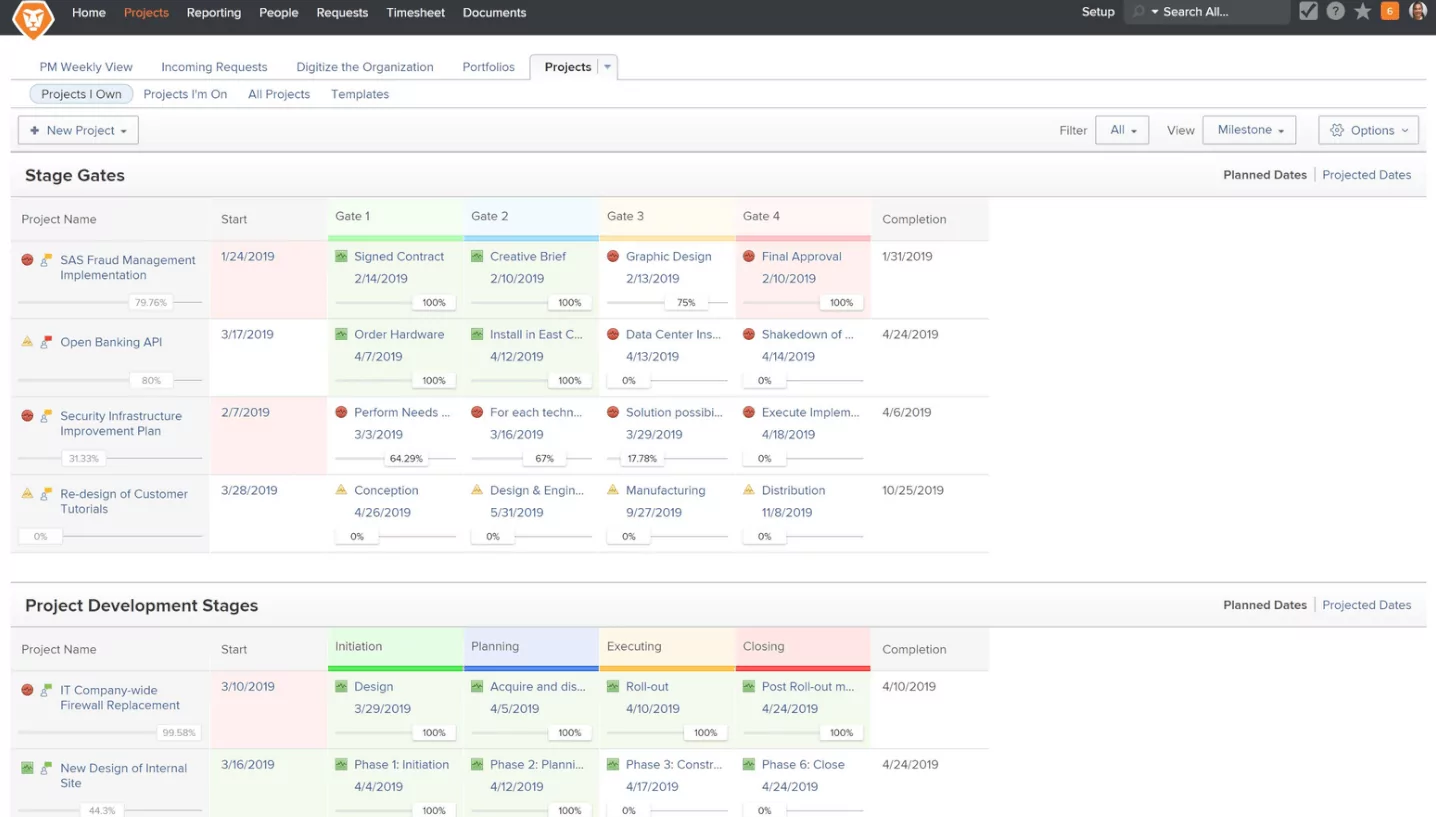
Why Project and Department Calendar Views Matter
One-size-fits-all calendars create confusion. Marketing needs campaign deadlines, engineering needs sprint cycles, sales needs demo schedules. Custom views filter noise so each team sees only their priorities while maintaining company-wide visibility.
Shared calendars with role-based filtering solve the “I didn’t know about that deadline” excuse. Stakeholders get high-level overviews, individual contributors get focused task flows.
Common Calendar Problems Teams Face
- Everyone sees everything → Information overload
- No department-specific views → Missed deadlines
- Static calendars → Can’t adapt to changing priorities
- Email updates instead of live calendars → Version confusion
ROI of Custom Calendar Views
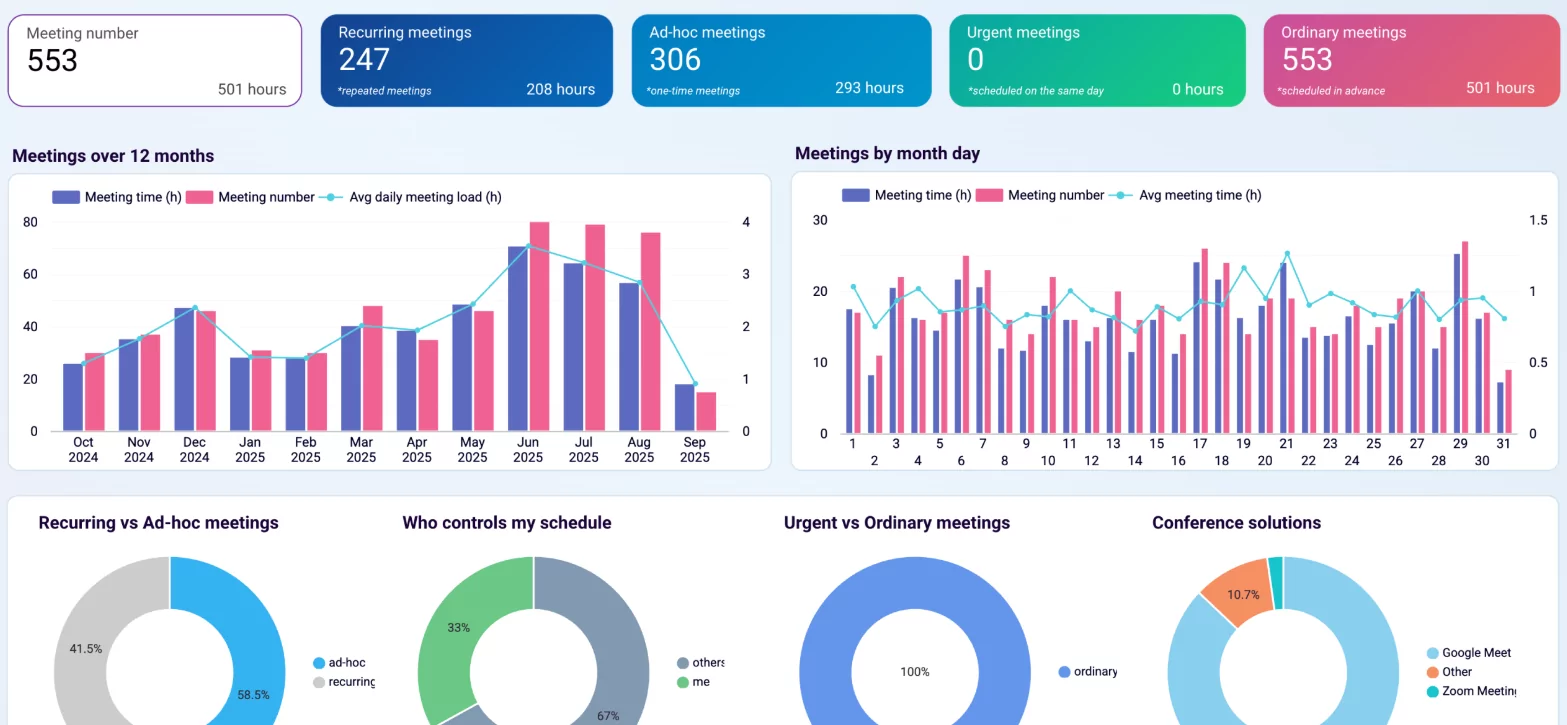
Teams using department calendars report 34% fewer missed deadlines and 27% faster cross-team alignment. Visual calendars make capacity obvious before overbooking happens.
Step-by-Step: Building Project Calendar Views
Step 1: Choose Your Calendar Platform
| Platform | Best For | Custom View Strength |
|---|---|---|
| monday.com | Marketing/Creative teams | 15+ view types, color-coding |
| Asana | Cross-functional projects | Timeline + Calendar combo |
| ClickUp | Engineering/Product | Custom fields → Dynamic calendars |
| Wrike | Enterprise agencies | Advanced filtering + dependencies |
Step 2: Create Project-Specific Calendars
Each major project gets its own calendar view. Filter by “Project Name” custom field. Marketing: Q2 Website Redesign calendar shows content creation → design → dev → QA phases.
- Create “Project” dropdown custom field
- Tag all tasks with project name
- Filter calendar view by project
- Save as “ProjectName Calendar” template
- Share with project stakeholders
Step 3: Build Department Calendar Views
Department calendars aggregate related projects. Sales calendar shows demo schedules across all campaigns. Engineering calendar shows sprint deliverables across all products.
- Marketing: Campaign launch dates, content calendars, social posts
- Sales: Demos, proposals, contract deadlines
- Engineering: Sprint planning, code reviews, deployments
- HR: Onboarding, reviews, training sessions
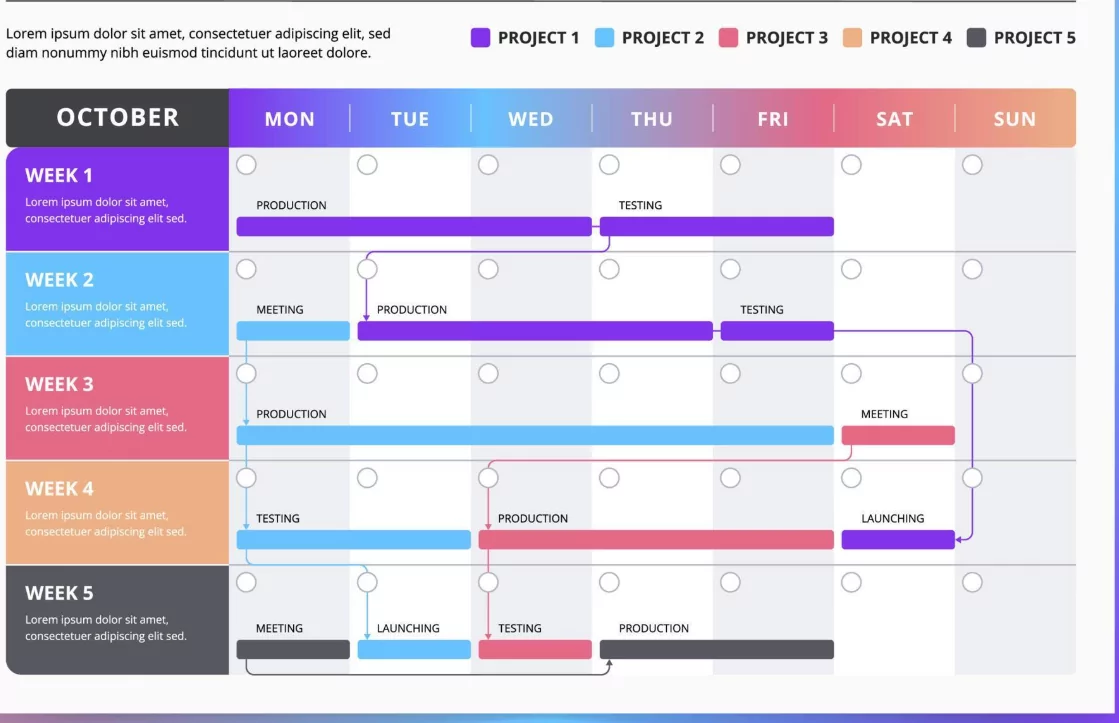
Department Calendar Templates (Copy-Paste Ready)
Marketing Department Calendar
| Custom Field | Filter Value | Purpose |
|---|---|---|
| Department | Marketing | Show only marketing tasks |
| Task Type | Campaign, Content, Social | Core marketing work |
| Priority | High, Critical | Surface urgent items |
Engineering Sprint Calendar
Filter: Department=Engineering + Sprint=[Current Sprint Number]. Shows tickets, PR reviews, deployments. Color-code by status: To Do (yellow), In Progress (blue), Ready for Review (orange), Done (green).
Advanced Filtering Techniques
Dynamic Status Color Coding
ClickUp/monday.com: Map status to colors automatically. “Blocked” tasks always red regardless of department. “Ready for Review” always orange. Visual consistency across all views.
Multi-Project Rollups
Engineering supports 3 products? Create “All Engineering” calendar that rolls up Product A, B, C calendars. Filter by product name or engineer name for drill-down views.
Dependency Visualization
Marketing can’t start translation until Creative approves assets. Calendar shows dependency lines or highlights “Waiting on [Team]” status. Prevents teams from working on outdated materials.
Cross-Department Alignment Calendars
Executive Dashboard Calendar
Filter: Priority=High OR Milestone=Yes. Shows only company-impacting dates across all departments. Perfect for board meetings, investor updates.
Weekly Sync Calendar
Each department contributes 3 key dates for the week. Shared view prevents “I didn’t know about that” moments during cross-functional meetings.
Best Practices for Adoption
Color Coding Standards
- Red: Critical/Blocked
- Orange: High Priority/Needs Review
- Yellow: In Progress
- Blue: Planning/To Do
- Green: Completed
Daily Calendar Rituals
- 9 AM: Check department calendar for today’s priorities
- 2 PM: Cross-department sync (5 min)
- 4 PM: Update statuses, drag blocked items
Weekly Leadership Review
Friday 3 PM: Executives review high-priority calendar. Red/orange items get immediate attention. Creates accountability without meetings.
Platform-Specific Setup Guides
monday.com Department Calendars
Main Board → Add View → Calendar → Filter by “Department” column → Customize colors by “Status” column → Save as “Marketing Calendar” → Share with Marketing team.
ClickUp Project Calendars
Space → Calendar View → Custom Field Filter “Project=Website Redesign” → Date field “Due Date” → Color by “Priority” → Save View → Set permissions.
Asana Team Calendars
Project → Calendar Layout → Advanced Search “Department:Engineering” → Save Search as Smart Field → Create Calendar from Smart Field.
Troubleshooting Common Issues
| Problem | Solution |
|---|---|
| Too many tasks showing | Add Priority filter ≥ Medium |
| Wrong dates displaying | Check Start Date vs Due Date field |
| Team ignores calendar | Daily standup starts with calendar review |
Implementation Checklist (Next 7 Days)
- Day 1: Pick platform, create Department column
- Day 2: Tag existing tasks by department
- Day 3: Build 1 sample calendar per department
- Day 4: Train team leads on their calendars
- Day 5: Set daily calendar review ritual
- Day 6: Create executive dashboard calendar
- Day 7: Review adoption, adjust filters
Final Thoughts: Calendars Replace Status Meetings
Custom project and department calendars eliminate 80% of status meetings. Everyone sees priorities instantly. Dependencies surface before they become crises. Capacity becomes visible before burnout hits.
Start with one department calendar today. Watch alignment improve immediately. Scale across teams next week. Your entire organization will run like one synchronized machine.
