Color coding is a powerful visual organization tool that transforms Google Calendar from a simple scheduling platform into an intuitive productivity system. By assigning distinct colors to different categories of events, projects, or life areas, users gain instant visual clarity about their time allocation and schedule distribution. This guide provides comprehensive strategies for effectively color coding Google Calendar to maximize productivity and reduce cognitive load in 2025.
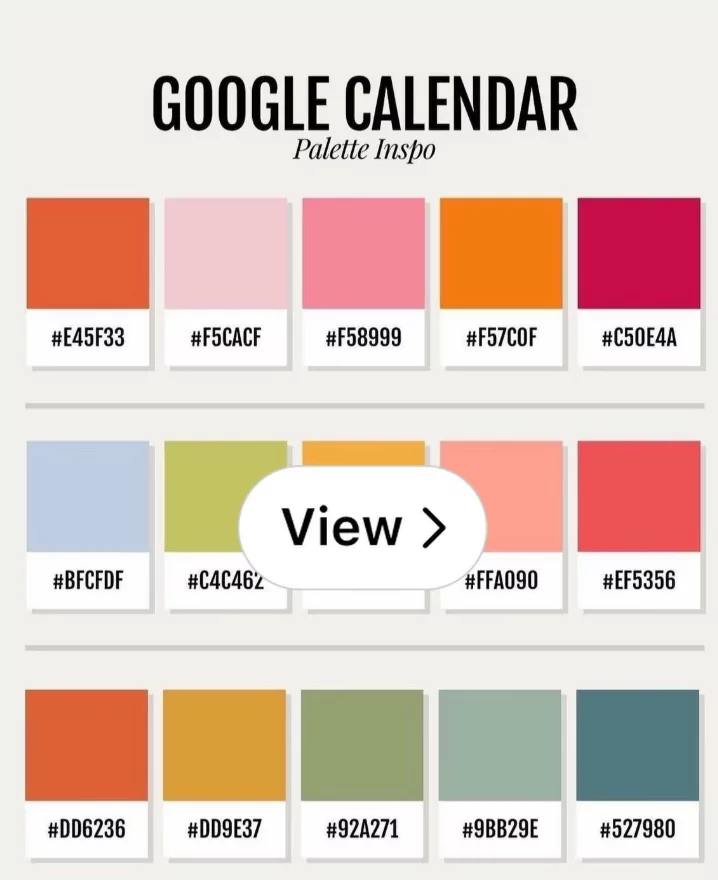
Why Color Coding Improves Productivity
- Visual processing efficiency: The human brain processes colors faster than text, enabling quick visual scanning of schedules.
- Category recognition: Distinct colors create mental associations, making event types instantly recognizable.
- Time allocation awareness: Visual distribution reveals whether time is balanced across priorities.
- Reduced decision fatigue: Pre-assigned colors streamline event entry, requiring fewer choices.
- Focus and context switching: Color patterns help identify focus periods and prepare mentally for transitions.
Getting Started with Google Calendar Color Coding
Step 1: Identify Your Categories
Before assigning colors, determine the categories representing your life areas or work functions. Common examples include:
- Work and professional commitments
- Personal and family time
- Health and fitness activities
- Educational pursuits
- Meetings and collaborative sessions
- Personal projects and hobbies
- Travel and time off
Step 2: Create Separate Calendars
For best organization, create distinct calendars for major categories rather than using single calendar with multiple colors:
- Open Google Calendar
- In the left sidebar, click “+” next to “Other calendars”
- Select “Create new calendar”
- Name the calendar (e.g., “Work Projects,” “Personal Health”)
- Click “Create calendar”
- Repeat for each major category
Step 3: Assign Colors to Calendars
- In the left sidebar, locate the calendar
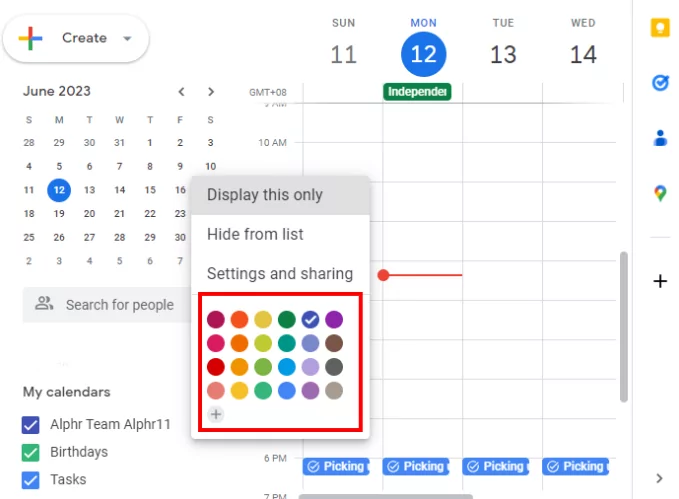
- Hover over the calendar name and click the three-dot menu
- Select “Settings and sharing”
- Scroll to “Color” section
- Choose from 24 predefined colors or a custom color picker
- Click outside to save
Alternatively, right-click the calendar name and select “Change color” for quick access.
Best Practices for Color Selection
- Use contrast: Choose colors that visually pop against your calendar background; avoid similar hues.
- Follow psychology: Red for urgent/deadline items, green for health/growth, blue for focus work, yellow for creative tasks.
- Limit palette: Use 5-7 colors maximum to avoid visual overwhelm; too many colors reduce effectiveness.
- Consistency: Maintain color assignments across all devices; Google Calendar syncs colors automatically.
- Accessibility: Avoid red-green combinations if color-blind; include additional visual markers (icons, abbreviations).
Color Coding Schemes for Different Lifestyles
Scheme 1: Work-Life Balance (5 Colors)
- Red: Work deadlines and critical meetings
- Blue: Deep focus work and project time blocks
- Green: Personal time and family commitments
- Purple: Health, fitness, and wellness
- Yellow: Social events and leisure activities
Scheme 2: Productivity Focused (6 Colors)
- Red: Urgent and time-sensitive tasks
- Orange: Important but not urgent tasks
- Blue: Scheduled focus and deep work blocks
- Green: Completed or approved tasks
- Gray: Administrative and routine tasks
- Purple: Learning and professional development
Scheme 3: Client-Based (Multiple Colors per Category)
- Assign distinct colors for each major client
- Create sub-calendars for project phases
- Use neutral colors (gray, beige) for internal administration
Scheme 4: Student/Academic (6 Colors)
- Blue: Classes and lectures
- Purple: Study sessions and assignment deadlines
- Green: Exams and assessments
- Orange: Group projects and collaborations
- Red: Urgent deadlines
- Yellow: Social and personal time
Advanced Color Coding Techniques
Combining Events with Transparency
Google Calendar allows adjusting event opacity/transparency to indicate priority or status:
- Solid colors: Confirmed, high-priority events
- Transparent: Tentative or low-priority events
- Combine with colors for nuanced priority visualization
Event Status Indicators Through Colors
- Bright colors: Active, ongoing projects requiring attention
- Muted colors: Completed or archived items
- Alternating colors: Recurring events showing pattern recognition
Time Block Color Consistency
Use consistent colors for recurring time blocks:
- Recurring morning focus time: Always blue
- Weekly team meetings: Always orange
- Personal development blocks: Always purple
Using Color Coding with Other Google Calendar Features
Combining with Event Labels
Supplement color coding with descriptive labels in event titles for comprehensive organization:
- [PROJECT] Blue event title for project-based work
- [PERSONAL] Green event title for personal activities
- [URGENT] Red event title for time-sensitive items
Integration with Goal Features
If using Google Calendar goals, align goal colors with your calendar scheme for visual consistency:
- Health goals: Green color matching fitness calendar
- Learning goals: Purple matching education calendar
- Professional goals: Blue matching work calendar
Tips for Effective Implementation
- Start simple: Begin with 3-4 colors; expand as needed.
- Print reference guide: Create a legend documenting your color scheme for quick reference.
- Review quarterly: Assess whether your scheme serves current needs; adjust if life circumstances change.
- Educate collaborators: Share your color scheme with colleagues using shared calendars to ensure consistency.
- Use mobile effectively: The Google Calendar mobile app displays colors consistently; use for on-the-go scheduling.
Troubleshooting Color Coding Issues
- Colors not syncing: Refresh browser cache or re-open Google Calendar; changes sync within minutes.
- Too many colors causing confusion: Consolidate calendars; merge similar categories.
- Difficulty remembering color meanings: Create a written legend and post it near your workspace.
- Color accessibility concerns: Use the color picker to select high-contrast options for colorblind users.
Conclusion
Color coding Google Calendar transforms scheduling from a functional necessity into an intuitive productivity system. By strategically selecting categories, assigning consistent colors, and maintaining clear visual organization, you gain instant clarity about time allocation, priorities, and balance across life areas. Whether managing work projects, academic commitments, personal wellness, or a complex mix of all three, effective color coding reduces cognitive load and enables faster, more confident scheduling decisions. Implement these strategies today to harness the full productivity potential of your Google Calendar in 2025.
