Learning How to Create Recurring Calendar Events That Skip Holidays is essential for anyone who manages schedules, leads teams, or organizes events that should not occur on public holidays. Whether you use Google Calendar, Outlook, Apple Calendar, or another scheduling tool, setting up recurring events that automatically bypass holidays can save time, prevent confusion, and ensure smoother planning.
In this SEO-optimized guide, we will explain practical methods, step-by-step instructions, and useful tips to help you create recurring events that skip holidays easily and accurately.
Why You Need Recurring Events That Skip Holidays
Traditional recurring events (daily, weekly, monthly) do not automatically recognize public holidays. This can lead to:
- Meetings scheduled during Christmas, New Year’s Day, or national holidays
- Work reminders appearing during days off
- Conflicts with personal and company holiday policies
- Unnecessary notifications during closed office days
By setting events that skip holidays, you keep your calendar clean, professional, and accurate throughout the year.
Methods to Create Recurring Calendar Events That Skip Holidays
Depending on your calendar platform, there are several methods to create recurring events that avoid holidays. Below are the most effective solutions:
1. Use a Holiday Calendar to Manually Exclude Dates
The simplest approach uses public holiday calendars that most platforms already include.
Steps:
- Add your country’s holiday calendar (Google, Outlook, Apple all support this).
- Create your recurring event as usual.
- Edit individual instances that fall on holidays and move or delete them.
This method is easy but requires manual adjustments once per year.
2. Duplicate Events While Skipping Holiday Dates
This approach is useful for weekly meetings that occur only on working days.
Steps:
- List all working days (e.g., Mondays, Wednesdays).
- Check the holiday calendar for the year.
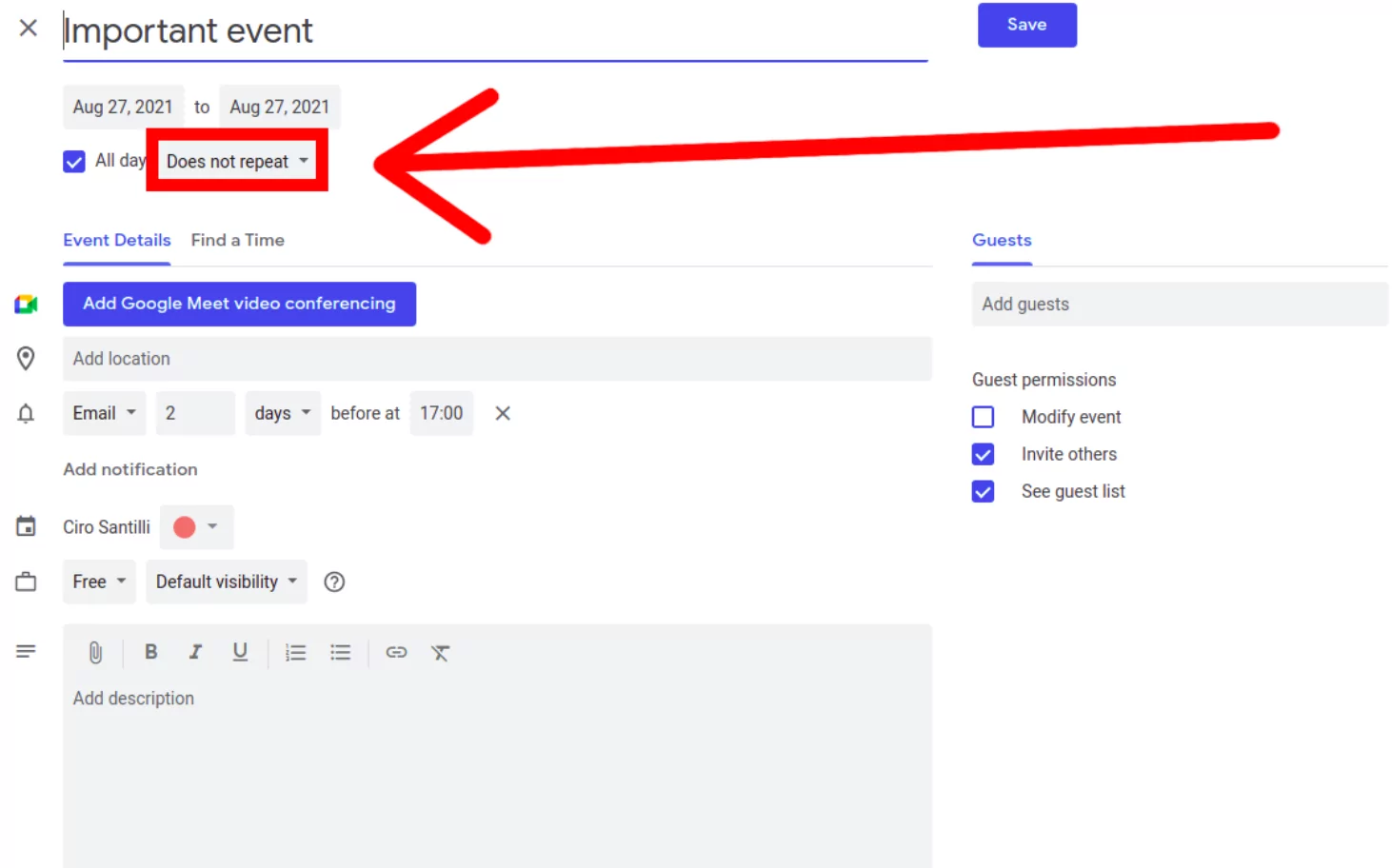
- Create recurring events but exclude holidays by selecting “Does not repeat on this date” (Google) or editing exceptions (Outlook).
Good for office schedules or classroom sessions.
3. Use Recurrence Exceptions (Google Calendar)
Google Calendar allows adding exceptions for particular dates. This is one of the most accurate ways to skip holidays.
Steps:
- Create a recurring event.
- Open an instance that falls on a holiday.
- Select “This event” when editing.
- Delete or move it to the next working day.
Google automatically records the removed date as an “exception.”
4. Use Recurrence Patterns (Outlook Calendar)
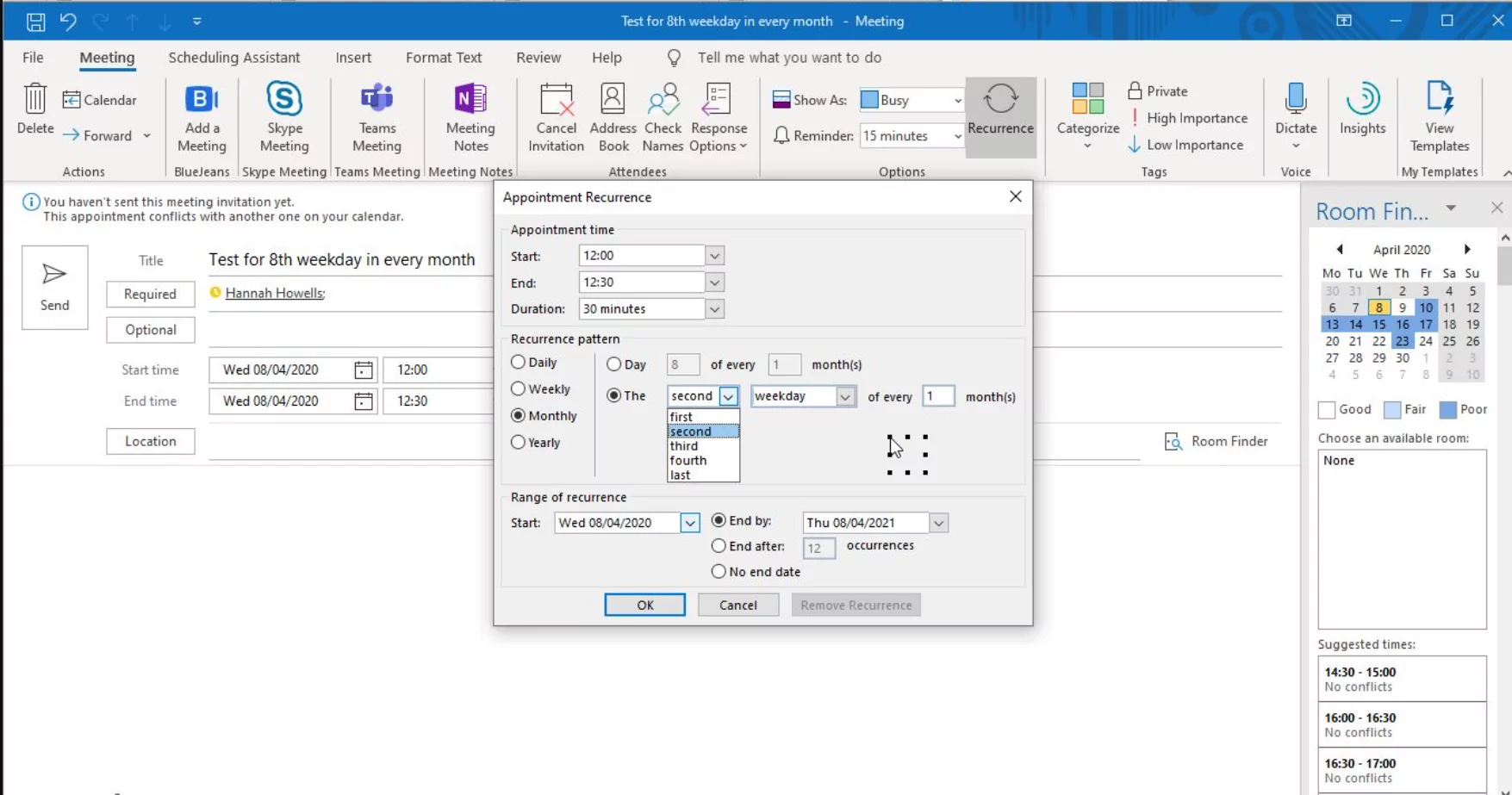
Microsoft Outlook offers more advanced recurrence settings, including the ability to skip weekends and modify patterns.
Steps:
- Create a recurring meeting.
- Open “Recurrence” settings.
- Select weekly or monthly patterns.
- Use “Remove Recurrence for Selected Dates” to skip holidays.
Outlook is ideal for corporate environments with predefined holiday calendars.
5. Use Calendar Automation Tools
Advanced users can use automation apps such as:
- Zapier
- IFTTT
- Make.com
- Calendar integration tools
These tools can automatically generate events only on non-holiday dates, especially useful for:
- Business schedules
- Content calendars
- Employee shifts
- Appointment scheduling systems
6. Use Scripts or Custom Code (Advanced Method)
For developers or power users, you can use Google Apps Script or Microsoft Graph API to automate recurring events that skip specific dates.
Example process:
- Fetch a list of public holidays
- Check recurrence dates against the holiday list
- Create events only on non-holiday days
This method is ideal for complex business workflows.
How to Create Holiday-Skipping Events in Popular Calendar Apps
Google Calendar
- Add your country’s holiday calendar from “Add calendar → Browse calendars of interest.”
- Create your recurring event.
- Edit holiday conflicts → Delete or reschedule that instance only.
Outlook Calendar
- Add holidays: “File → Options → Calendar → Add Holidays.”
- Create recurring event.
- Edit each holiday date: “Open Occurrence → Delete.”
Apple Calendar (Mac, iPhone, iPad)
- Enable holiday calendar in settings.
- Create a recurring event.
- Tap holiday occurrences → delete or reschedule.
Tips for Managing Recurring Events Effectively
To ensure your calendar stays organized and holiday-free, follow these expert tips:
- Review your yearly schedule at the start of each year.
- Use color coding to differentiate holidays and workdays.
- Enable holiday alerts on your calendar app.
- Sync your calendar across all devices.
- Use automation tools if you handle many recurring events.
Best Use Cases for Holiday-Skipping Recurring Events
- Weekly team meetings
- Class schedules and lesson plans
- Fitness or training sessions
- Office hours
- Billing reminders
- Content posting schedules
- Project management timelines
Common Mistakes to Avoid
When setting up recurring events that skip holidays, watch out for these mistakes:
- Forgetting to add your holiday calendar first
- Not reviewing exceptions after creating the recurrence
- Using the wrong calendar format (Sunday vs. Monday start)
- Editing “all events” instead of “this occurrence”
- Not syncing across devices, causing duplicate or missing events
Conclusion
Now that you understand How to Create Recurring Calendar Events That Skip Holidays, you can manage schedules more efficiently and professionally. Whether you’re using Google Calendar, Outlook, Apple Calendar, or a custom automation workflow, skipping holidays prevents scheduling conflicts and keeps your planning smooth and accurate.
From simple edits to advanced automation, these methods make it easy to ensure your recurring events stay organized all year long.
