Microsoft Outlook Calendar and Google Calendar stand as the leading digital scheduling tools, each with unique strengths appealing to different users and organizational needs. As productivity apps evolve in 2025, understanding the differences between these platforms helps professionals, teams, and individuals choose the best solution for their specific workflow requirements. This comprehensive comparison covers features, integrations, user experience, pricing, and practical use cases for both Outlook Calendar and Google Calendar.
Outlook Calendar, part of the Microsoft 365 suite, targets enterprise users and professionals already invested in the Microsoft ecosystem. Google Calendar, accessible through personal Gmail accounts or Google Workspace, prioritizes simplicity, collaboration, and cross-platform accessibility. Both calendars support essential scheduling functions but diverge significantly in architecture, target audiences, and advanced capabilities.
Core Features Comparison
Event Creation and Management
Google Calendar offers streamlined event creation with its intuitive interface. Users can quickly add events by clicking empty time slots or using the “Create” button. Natural language input allows typing phrases like “Lunch with Sarah tomorrow at 1 PM” to automatically populate dates, times, and locations. Google Meet links generate automatically for video calls, and event suggestions pull from Gmail emails about reservations or appointments.
Outlook Calendar provides more detailed event creation options from the start. The event editor includes comprehensive fields for location, agenda, notes, and attachments. Integration with Microsoft Teams enables seamless video meeting setup, while Outlook’s desktop app supports drag-and-drop rescheduling and rich text formatting in event descriptions. Outlook’s interface caters to power users needing advanced customization.
Calendar Views and Navigation
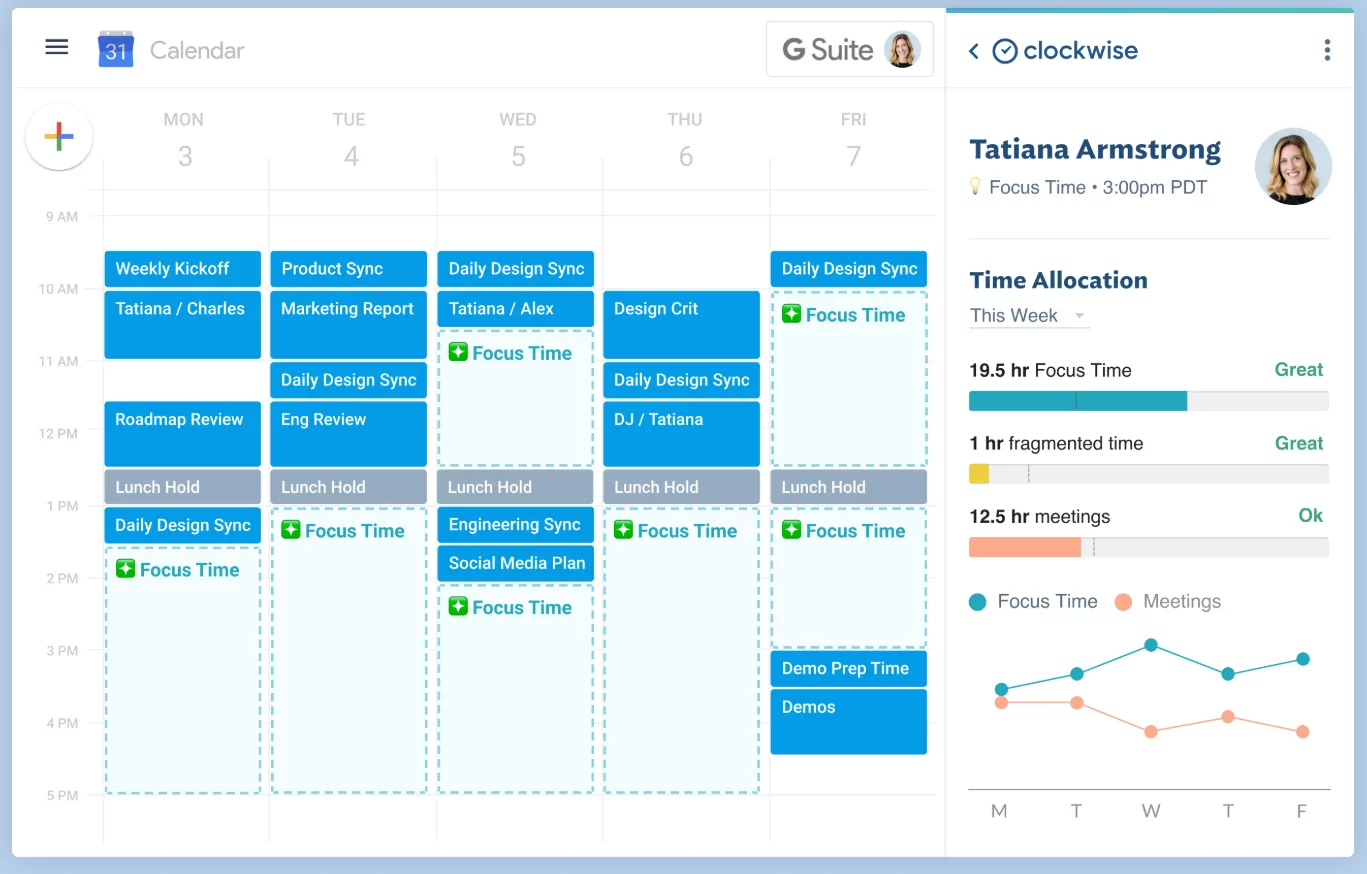
Google Calendar displays five primary views: Day, Week, Month, Agenda, and Year. The interface is clean and minimal, with smooth transitions between views and color-coded calendars for easy identification. The “Tasks” view integrates Google Tasks alongside scheduled events, providing a unified productivity hub.
Outlook Calendar offers six views: Day, Work Week, Week, Month, Schedule Agenda, and Day/Week/Month. The Work Week view shows only business hours, ideal for corporate environments. Outlook’s interface includes more detailed navigation options like folder panels for multiple calendars and advanced search capabilities. The desktop version provides superior performance for large calendars with thousands of events.
Collaboration and Sharing
Google Calendar excels in collaborative environments with real-time sharing and editing capabilities. Users can share calendars with specific permissions: free/busy only, see all event details, or make changes and manage sharing. Color-coded shared calendars display availability seamlessly, and guest management includes RSVP tracking and event updates sent automatically to all attendees.
Outlook Calendar provides robust enterprise-grade collaboration features. Calendar sharing supports granular permissions including delegate access, allowing assistants or team members to manage calendars on behalf of others. Integration with Microsoft Exchange enables organizational-wide availability views and resource booking for conference rooms and equipment.
Integration and Ecosystem Compatibility
Google Calendar’s open API architecture supports integration with over 1,000 third-party applications. Native integrations include Gmail (automatic event creation from emails), Google Meet (video conferencing), Google Drive (file attachments), and Google Docs (collaborative agendas). Popular third-party integrations include Zoom, Slack, Trello, Asana, and Zapier for workflow automation.
Outlook Calendar integrates deeply within the Microsoft ecosystem. Seamless connectivity with Microsoft Teams shows calendar availability in chat interfaces and automatically schedules video meetings. Outlook’s integration with OneDrive allows direct file sharing in events, while Microsoft Bookings enhances appointment scheduling for service-based businesses.
Third-Party Apps1,000+ (Zapier, Slack, Trello, Asana)Microsoft ecosystem + 500+ third-party
| Integration | Google Calendar | Outlook Calendar |
|---|---|---|
| Email Integration | Gmail (automatic event extraction) | Outlook (direct event creation from emails) |
| Video Conferencing | Google Meet (native) | Microsoft Teams (native), Zoom (third-party) |
| File Storage | Google Drive (15GB free) | OneDrive (5GB free, 1TB with Microsoft 365) |
User Interface and Experience
Google Calendar’s web and mobile apps prioritize simplicity and accessibility. The interface is clean with ample white space, making navigation intuitive even for new users. Touch-friendly mobile apps work consistently across iOS and Android, with offline capabilities through progressive web app technology.
Outlook Calendar offers desktop, web, and mobile experiences with varying levels of sophistication. The desktop application provides advanced features like rule-based event organization and customizable toolbars, but the learning curve is steeper. Mobile apps function well but lack some desktop capabilities, particularly on iOS where integration feels less seamless than on Android.
Mobile Experience Comparison
Google Calendar’s mobile app receives high marks for consistency and ease of use. Touch gestures for navigation, natural language entry, and reliable push notifications make scheduling on the go effortless. The app integrates with Google Assistant for voice scheduling.
Outlook Calendar’s mobile experience varies by platform. Android users benefit from deeper Microsoft integration, while iOS users find the app functional but less polished. Notification management and offline capabilities work reliably, though some advanced desktop features require web access.
Pricing and Accessibility
Google Calendar is free for personal use with Gmail accounts and includes all core features. Google Workspace plans start at $6 per user per month for businesses, offering enhanced collaboration, increased storage, and administrative controls. The free tier satisfies most individual and small team needs without limitations on calendar functionality.
Outlook Calendar requires Microsoft 365 subscription for full access. Personal plans start at $6.99 per month, while business plans begin at $6 per user per month. The free Outlook.com version offers basic calendar functionality but lacks advanced features like custom forms and enterprise integration. Outlook targets users already invested in the Microsoft ecosystem.
Free vs. Paid Features
Both platforms offer robust free tiers for individuals. Google Calendar’s free version includes unlimited calendars, comprehensive sharing, and all core features. Outlook’s free version supports basic scheduling but limits integration and advanced customization options to paid subscribers.
Advanced Features and Customization
Google Calendar includes AI-powered smart suggestions, drawing from Gmail content to automatically add events like flights, hotel reservations, or doctor appointments. The “Goals” feature schedules recurring activities around existing commitments, and multiple calendar support with custom colors enhances organization.
Outlook Calendar offers advanced calendar customization through custom views, form regions, and VBA automation. Enterprise features include resource booking (conference rooms, projectors), advanced delegate permissions, and integration with Microsoft Project for complex scheduling. The desktop client’s ribbon interface provides access to sophisticated tools unavailable in web versions.
Search and Organization Capabilities
Google Calendar’s search functionality leverages Google’s indexing technology, quickly finding events by keywords, locations, or attendees. The search includes content from event descriptions and integrated Gmail messages. Calendar organization relies on color coding and multiple calendar subscriptions.
Outlook Calendar’s search capabilities are powerful within the Microsoft ecosystem, searching across email, contacts, and calendar events simultaneously. Advanced filtering options include date ranges, categories, and recurrence patterns. Outlook’s folder system and category tagging provide sophisticated organization for power users managing hundreds of recurring events.
Offline Access and Performance
Google Calendar offers limited offline access through the Chrome browser’s progressive web app capabilities. Users can view cached events and create new ones, which sync when reconnected. Mobile apps provide better offline functionality, allowing event viewing and basic editing without internet.
Outlook Calendar’s desktop application excels in offline scenarios, providing full functionality without internet connectivity. Events, searches, and calendar navigation work seamlessly offline, with automatic synchronization upon reconnection. The web version offers limited offline capabilities through browser caching.
Use Cases and Recommendations
Individual Users and Small Teams
Google Calendar is the superior choice for individuals and small teams seeking simplicity, cross-platform compatibility, and extensive integrations. The free tier provides unlimited functionality without subscription requirements. Gmail integration and mobile accessibility make Google Calendar ideal for dynamic, on-the-go users.
Enterprise and Corporate Environments
Outlook Calendar within Microsoft 365 is essential for organizations using Microsoft Exchange or SharePoint. Advanced delegate permissions, resource booking, and deep integration with Teams and OneDrive support complex enterprise scheduling. The desktop application’s performance and customization options meet corporate requirements.
Hybrid Work and Mixed Platforms
Teams using mixed platforms (Windows and Mac, Microsoft and Google) benefit from third-party sync tools like OneCal or CalendarBridge. These solutions enable calendar synchronization across ecosystems, allowing teams to maintain unified schedules despite diverse technology stacks.
Security and Privacy Considerations
Google Calendar benefits from Google’s robust security infrastructure, including two-factor authentication, data encryption, and regular security audits. Calendar data is stored on Google’s secure servers with automatic backups. Privacy concerns center around data collection for advertising purposes, though calendar events remain private by default.
Outlook Calendar’s security aligns with Microsoft 365’s enterprise-grade protections, including compliance with GDPR, HIPAA, and ISO standards. Advanced features like data loss prevention and eDiscovery support regulatory compliance. Microsoft emphasizes data sovereignty, allowing organizations to control data location and retention policies.
Conclusion
Choosing between Microsoft Outlook Calendar and Google Calendar depends on your ecosystem, team size, and workflow preferences. Google Calendar excels for individuals, small teams, and users prioritizing simplicity and cross-platform accessibility. Outlook Calendar dominates enterprise environments, offering sophisticated integration and advanced customization for complex organizational needs.
Most users will find sufficient functionality in the free versions of both platforms. Consider your existing technology stack, collaboration requirements, and long-term scalability when making your decision. Both calendars continue to evolve with AI enhancements and improved integrations, ensuring they remain essential productivity tools for 2025 and beyond.