We have all been there. You are tidying up your schedule for the week, clicking “Delete” on old meetings, and suddenly—panic sets in. You just accidentally deleted the wrong event. Maybe it was a crucial client meeting or a recurring project sync that took ages to set up.
Before you start rewriting emails to ask for the invite again, stop. Google Calendar has a built-in safety net that most users don’t know about. In this guide, we will walk you through exactly how to recover deleted calendar events in Google Calendar quickly and efficiently.
The “Trash” Feature: Google Calendar’s Hidden Recycle Bin
Unlike Gmail, which prominently displays a “Trash” folder in the sidebar, Google Calendar hides its recovery feature deeper in the settings menu. This “Trash” bin holds your deleted events for 30 days. After this period, they are permanently erased.
Important Note: You can only access the Trash feature from a desktop computer (web browser). The Google Calendar mobile app (Android or iOS) currently does not allow you to view or restore deleted items.
Step-by-Step: How to Restore Deleted Events
Follow these simple steps to bring your lost schedule back to life:
1. Open Google Calendar on Desktop
Navigate to calendar.google.com on your computer. Log in to the Google account where the event was originally created.
2. Access the Trash Menu
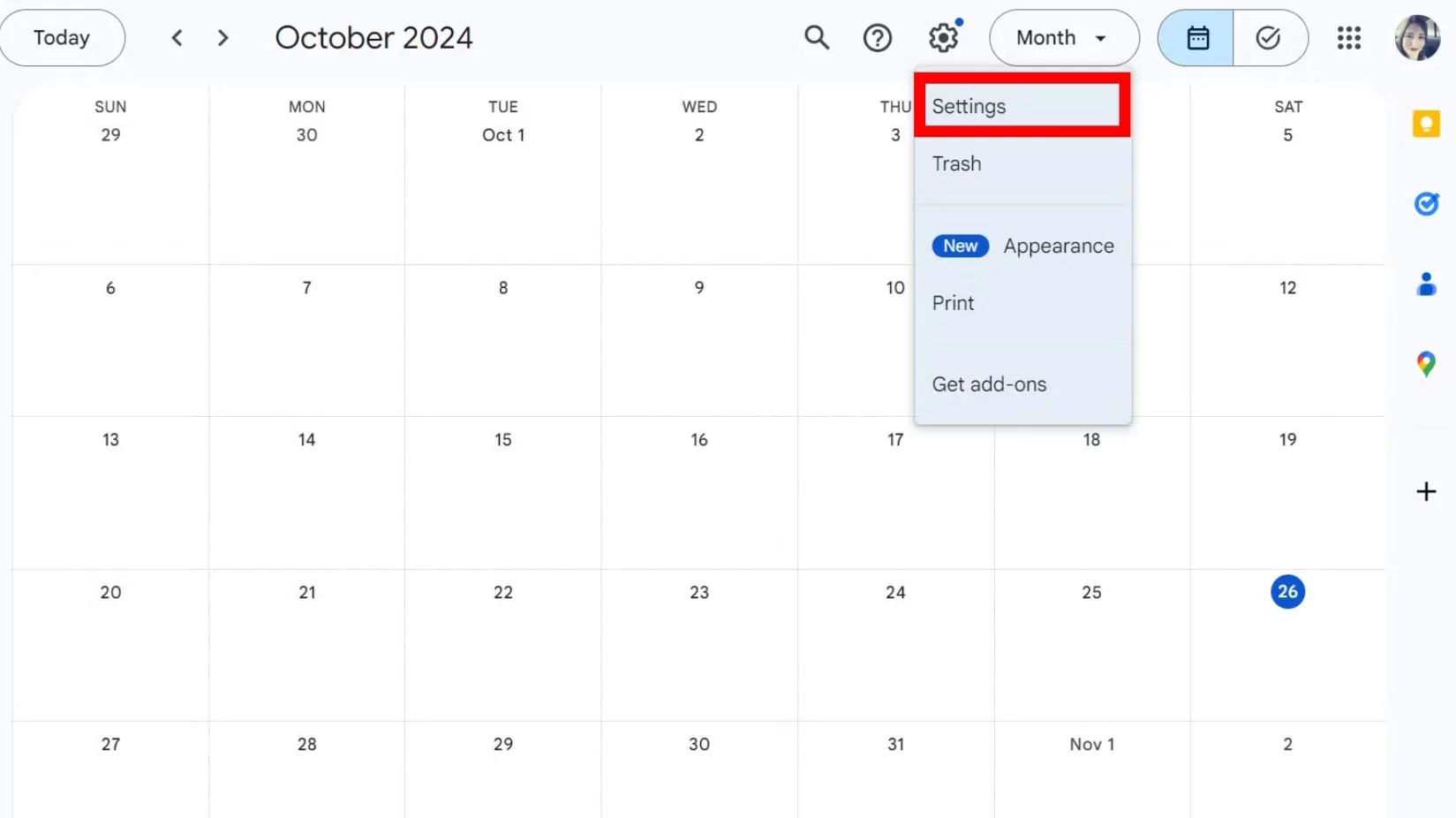
Look for the Gear Icon (Settings menu) in the top-right corner of the screen. Click it, and a dropdown menu will appear. Select “Trash” from this list.
3. Locate and Restore
You will now see a list of all events deleted in the last 30 days. You can sort them by date or name to find what you are looking for.
- To restore a single event: Hover over the event row and click the Restore icon (it looks like a curved arrow pointing backward).
- To restore multiple events: Check the boxes on the left side of multiple rows, then click the Restore icon at the top of the list.
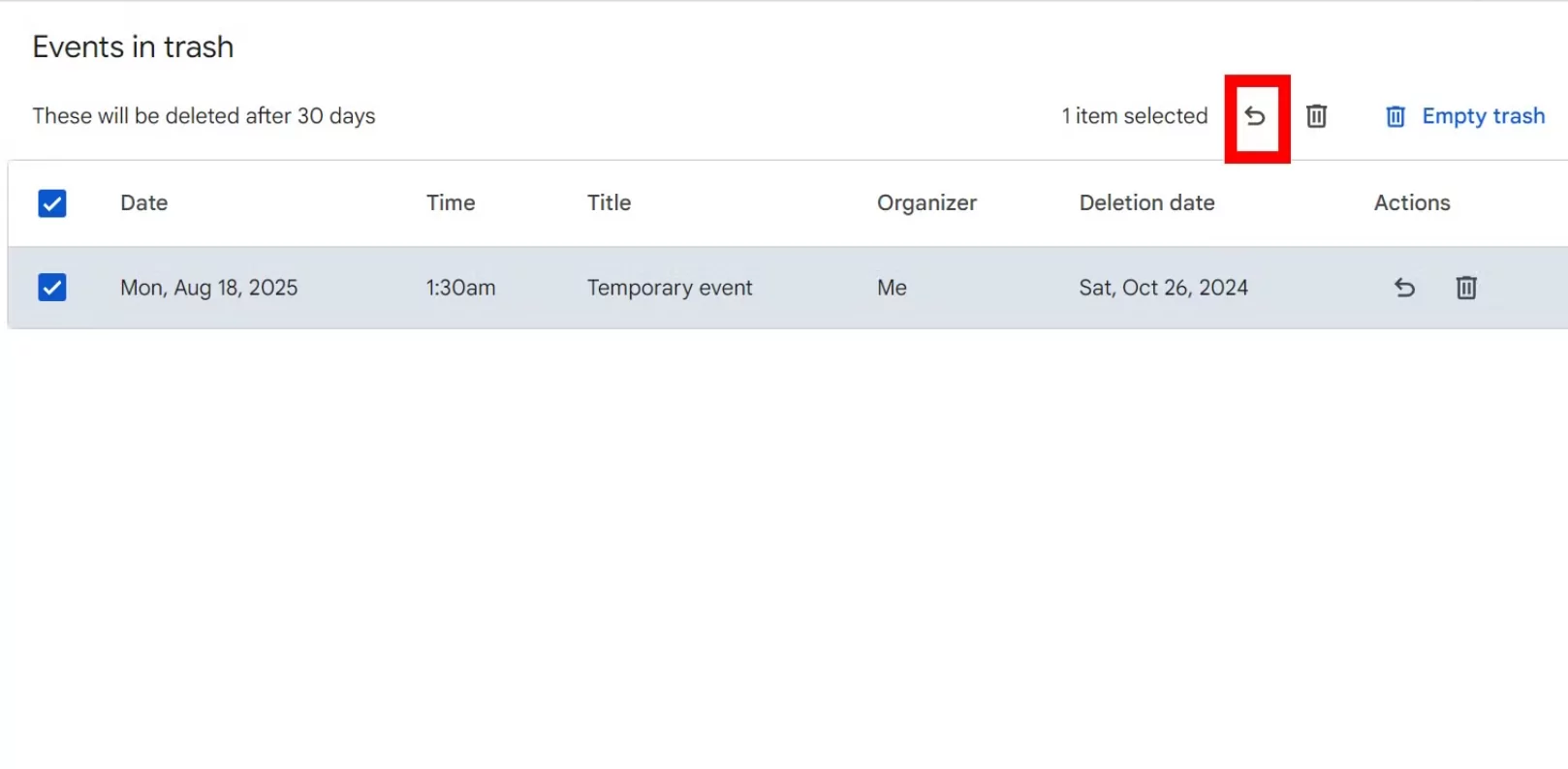
Once clicked, the event will instantly reappear in your main calendar view, just as it was before.
What If I Can’t Find the Event in Trash?
If more than 30 days have passed, or if you cleared your Trash manually, the native recovery options are limited. However, you still have two “Hail Mary” options:
Option A: Search Your Email for the Original Invite
Even if the calendar event is gone, the email invitation might still be in your Gmail inbox. Search for the meeting name or the organizer’s email address. If you find the original invite email, you can often click “Yes” or “Add to Calendar” to re-add it to your schedule.
Option B: Administrator Recovery (For Business Accounts)
If you use Google Workspace (formerly G Suite) for work, your company’s IT administrator has more power than you do. Admins can access the Google Vault or the Admin Console to restore data that users have permanently deleted. Reach out to your IT department immediately if the lost event is critical.
Best Practices to Avoid Data Loss
Prevention is always better than cure. To keep your schedule safe in 2026:
- Export Monthly Backups: Go to Settings > Import & Export to download a local copy (ICS file) of your calendar every month.
- Be Careful with “Recurring” Events: When deleting a recurring meeting, Google asks if you want to delete “This event,” “This and following events,” or “All events.” Read carefully before clicking!
Conclusion
Accidentally deleting a Google Calendar event doesn’t have to be a disaster. As long as you act within the 30-day window and have access to a desktop browser, recovery is just a few clicks away. By knowing where the hidden “Trash” folder lives, you can manage your digital schedule with confidence and peace of mind.
