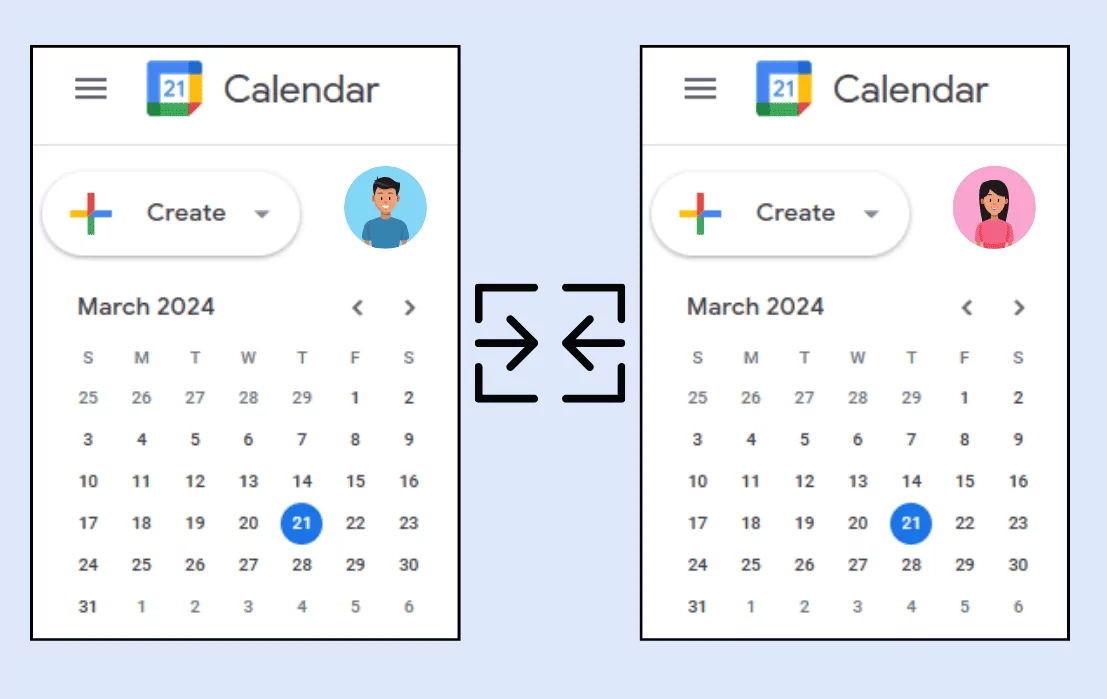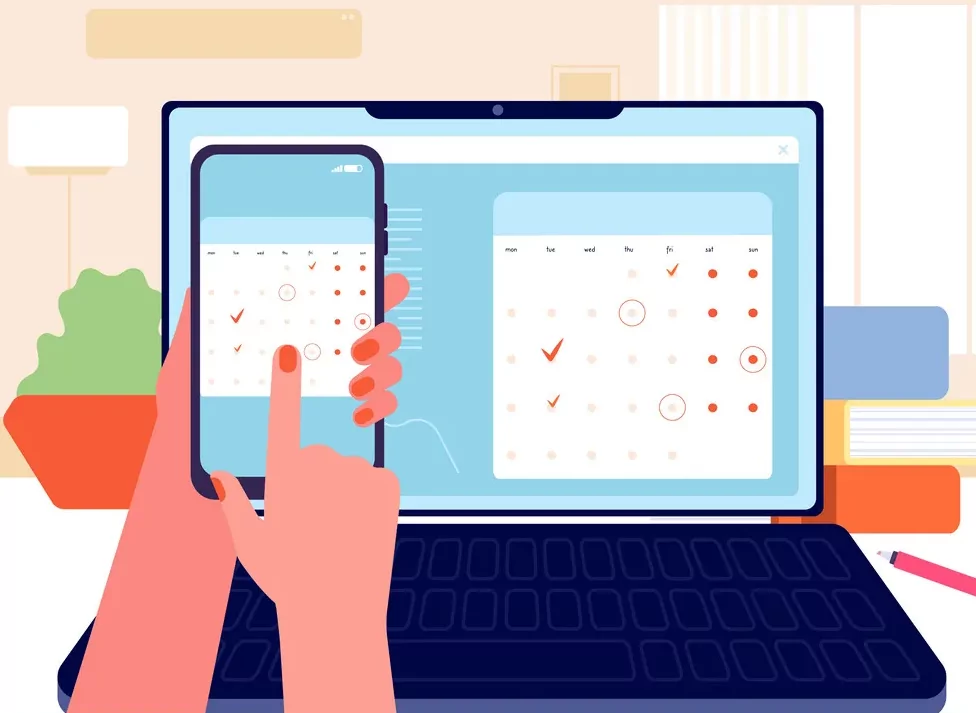
Syncing Google Calendar across multiple devices is essential for productivity in 2025, enabling seamless access to events on smartphones, tablets, laptops, and desktops. Whether managing work schedules or personal commitments, synchronized calendars prevent scheduling conflicts and ensure real-time updates across all platforms. This comprehensive guide explores methods to achieve seamless synchronization, troubleshoot common issues, and optimize multi-device calendar management.
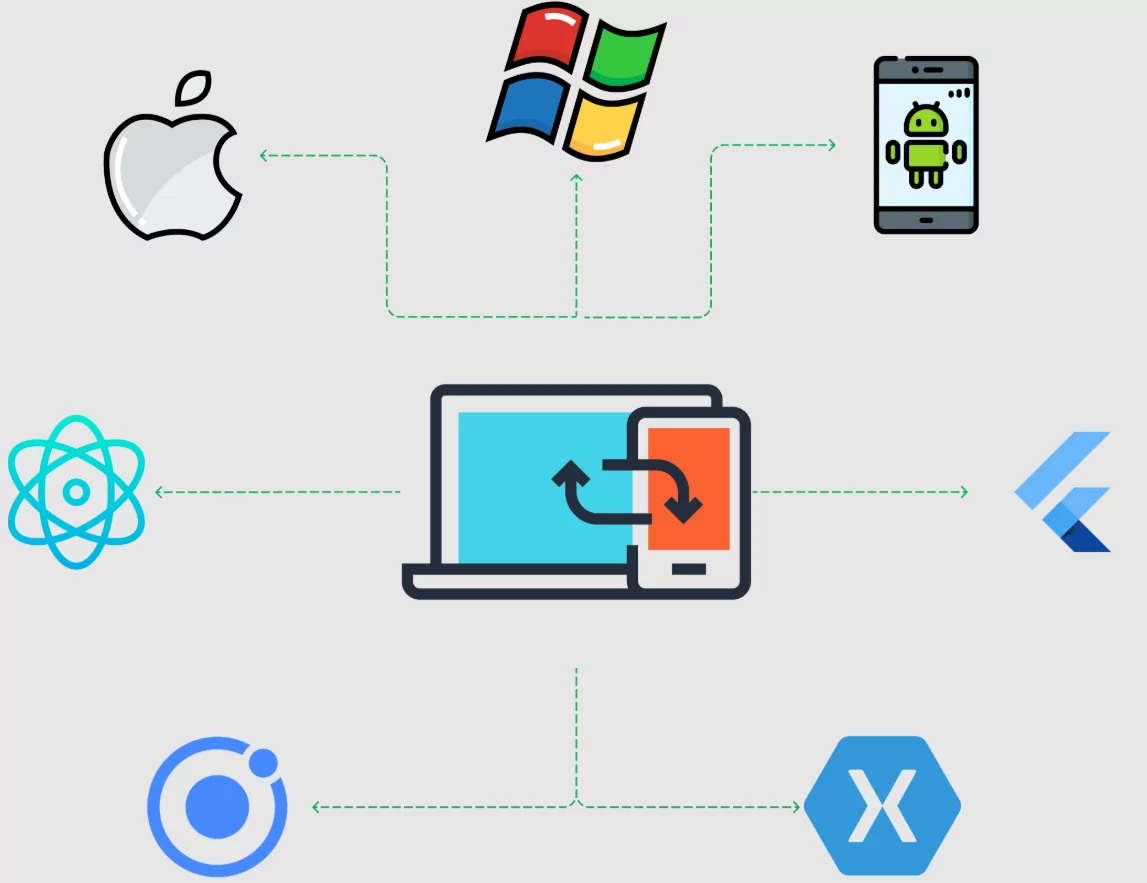
In an increasingly connected world, maintaining consistent calendar data across devices has become critical. Users switching between iPhone, iPad, Mac, Windows, and Android expect their events to appear instantly everywhere. Google Calendar’s cloud-based architecture facilitates this synchronization, though proper setup and configuration maximize reliability and efficiency.
Understanding Google Calendar Synchronization
Google Calendar synchronization works through Google’s cloud infrastructure, where events are stored centrally and accessed from any connected device. When logged into the same Google account across devices, all calendars automatically sync in real-time. Changes made on one device—adding events, updating details, or deleting items—reflect instantly on all others, provided internet connectivity exists.
Synchronization differs from sharing: syncing creates duplicate access to the same calendar from multiple locations, while sharing grants other users viewing or editing permissions. For personal multi-device users, synchronization ensures a single source of truth. For teams, synchronized shared calendars facilitate collaboration without duplication.
Real-time sync requires active internet connections; offline changes sync when reconnecting. Google Calendar handles this gracefully, queuing offline changes for upload upon reconnection, preventing data loss or conflicts.
Prerequisites for Seamless Multi-Device Syncing
Before syncing Google Calendar across devices, ensure basic requirements are met: an active Google account accessible across devices, the latest Google Calendar app or browser version on each device, stable internet connectivity, and synchronized device time zones. All devices must be logged into the same primary Google account or have the calendar shared appropriately.
Verify account security by enabling two-factor authentication, protecting calendar data from unauthorized access. Update all devices to current software versions, as outdated apps may have sync bugs. Configure time zones accurately, as mismatched settings cause scheduling errors.
Clear storage space on mobile devices ensures smooth syncing; low storage can interrupt synchronization processes. Test internet connections on each device, confirming they support Google’s services without blocking or throttling.
Step-by-Step Guide to Syncing on Android Devices
Download the official Google Calendar app from Google Play Store on your Android device. Open the app and sign in with your Google account. Upon opening, all events sync automatically from your Google account to your device. To verify sync is active, open device Settings, navigate to Accounts and Sync, select your Google account, and confirm Calendar is toggled on.
For manual sync, open Google Calendar app, tap the menu icon (three horizontal lines), and select Refresh. This forces an immediate sync with Google’s servers. To ensure calendars remain visible, open the app menu, scroll to your calendar list, and confirm all calendars are checked. Unchecked calendars don’t display or sync, a common cause of missing events.
Enable notifications by going to Settings within the app and configuring notification preferences. Set reminders for different event types—notifications 15 minutes before meetings, 30 minutes for appointments. Customize notification methods: sound, vibration, or pop-up alerts.
Troubleshooting Android Sync Issues
If events don’t appear, verify internet connectivity and calendar visibility first. If problems persist, clear the app cache by going to Settings > Apps > Google Calendar > Storage, then tapping Clear Cache. If this fails, Clear Data restarts the app locally, but events re-sync from the cloud.
Low device storage (under 5GB free space) interrupts syncing. Delete unnecessary apps, photos, or files to restore functionality. If specific calendars won’t sync after these steps, remove and re-add your Google account: Settings > Accounts > Google > Select account > Remove Account. Restart the device, then re-add the account and enable Calendar sync.
Syncing Google Calendar on iPhone and iPad
For Apple devices, Google Calendar syncs through native Calendar app and the dedicated Google Calendar app. Using the Google Calendar app provides the full Google experience with advanced features. Download from the App Store, sign in with your Google account, and events sync automatically.
To sync with the native Apple Calendar app, go to device Settings > Calendar > Accounts, tap Add Account, select Google, and enter your credentials. iOS will handle syncing calendars to the native Calendar app. Both apps access the same events; changes in one reflect in the other.
Enable notifications: Open Google Calendar app, tap Menu > Settings, tap your email, select Notifications, and choose preferences. Alternatively, in Apple Settings, go to Notifications, find Calendar, and configure alerts for different notification types.
Troubleshooting iPhone and iPad Sync
If Google Calendar events don’t appear, verify that Calendar is enabled in System Settings > Calendar > Accounts > Google account. Ensure the specific calendars are toggled on in account settings. If events still don’t show, remove and re-add your Google account: Settings > Calendar > Accounts > Google account > Delete Account, restart the device, then re-add.
For native Calendar app sync, enable “Show Events from Gmail” if flight confirmations or hotel bookings don’t appear: Google Calendar app > Menu > Settings > Events from Gmail > toggle on. Check device storage; low storage impairs syncing. Delete unused apps or media to free space.
Syncing Google Calendar on Mac and Windows
On Mac, the native Calendar app syncs Google Calendar events similarly to iOS. Go to Calendar > Preferences > Accounts, click Add Account, select Google, and authenticate. macOS will sync Google Calendar events to the Calendar app. Alternatively, use the Google Calendar web app at calendar.google.com or download Google Chrome extensions for quick access.
For Windows, access Google Calendar via the web browser at calendar.google.com. Google Chrome or Microsoft Edge sync notifications and calendar data. Alternatively, add Google Calendar to Outlook: Open Outlook, go to File > Open & Export > Import a iCalendar, and import the calendar subscription URL from Google Calendar settings.
Desktop sync is typically more reliable than mobile due to stable internet connections and larger storage. Real-time updates occur within seconds of changes on any device.
Configuring Desktop Calendar Notifications
In web Google Calendar, go to Settings > Notifications, and customize how and when alerts appear. Choose notification methods: email, pop-up, or sound. Set different defaults for different calendar types. Desktop sync delivers better notification reliability than mobile in many cases.
Syncing Multiple Google Calendar Accounts
Users with multiple Google accounts (personal, work, multiple jobs) need careful management to sync all calendars seamlessly. Add all Google accounts to each device: On Android, go to Settings > Accounts and add each account. On iOS, add each account in Settings > Calendar > Accounts. On desktop, sign into each account in browser tabs.
Once multiple accounts are added, each device will sync all calendars from all accounts by default. Use color-coding to distinguish calendars by account and purpose. In Google Calendar settings, assign colors: red for work, blue for personal, green for family. This visual distinction aids quick identification.
Best practice: Designate one account as the primary across devices. Create shared calendars within that account for work teams or family coordination, avoiding account fragmentation. For complex multi-account setups, consider calendar sync tools like OneCal that consolidate multiple accounts into unified views.
Preventing Multi-Account Sync Conflicts
Conflicts arise when events exist in multiple accounts. Establish rules: always create personal events in the personal account, work events in the work account. Configure default calendars in each app to ensure new events land in the correct account. Share calendars across accounts for visibility without duplication.
Using Third-Party Calendar Sync Tools
For advanced synchronization needs, third-party tools like OneCal, CalendarBridge, and SyncGene offer features beyond native Google Calendar capabilities. These tools enable true real-time synchronization between Google Calendar and other platforms like Outlook, Apple Calendar, and different Google accounts without manual processes.
OneCal allows multi-way synchronization: changes in one calendar automatically update all synced calendars, even across platforms. It’s particularly useful for syncing multiple Google Calendars with granular control over which properties (title, description, reminders) sync. CalendarBridge specializes in Google-Outlook sync, addressing the 24-hour sync delay in native integration.
These tools run automatically in the background, monitoring connected calendars and syncing changes instantly. Setup involves connecting accounts, selecting calendars to sync, choosing synchronization direction (one-way or multi-way), and configuring properties to sync. Most offer free trials, with premium plans for advanced features.
Best Practices for Seamless Calendar Synchronization
Establish consistent calendar naming and organization. Use a single primary Google account for personal calendars to simplify syncing. Keep device software updated to ensure compatibility and access latest sync improvements. Enable two-factor authentication for account security, protecting synchronized calendar data.
Regularly verify sync status: Check that all calendars appear on all devices monthly. Use consistent time zones across devices; mismatches cause scheduling errors. Archive or delete old events periodically to maintain performance. Review and audit calendar sharing permissions quarterly.
Test sync after major device updates or when adding new devices. Create test events to verify real-time propagation across all devices. Document calendar sources and destinations, aiding troubleshooting if sync fails.
Calendar Management Best Practices
Use separate calendars for different life areas: work, personal, health, finance. Color-code consistently across devices. Set event reminders appropriate to context: 24 hours for important events, 15 minutes for routine appointments. Review calendars daily for planning, weekly for upcoming commitments, and monthly for scheduling adjustments.
Common Sync Issues and Solutions
Events not syncing: Verify internet connectivity on all devices. Check calendar visibility settings—hidden calendars don’t display. Ensure Calendar sync is enabled in device settings. Force manual refresh or restart the calendar app. If a specific calendar won’t sync after these steps, remove and re-add it.
Duplicate events: Occurs when syncing Google Calendar to multiple apps (native Calendar + Google Calendar app). Solution: Choose one app per device or disable sync on secondary apps. If duplicates already exist, manually delete duplicates from one calendar source.
Time zone mismatches: Events display in wrong time zones when device time zones differ from calendar settings. Fix: Go to Google Calendar Settings > General > Time Zone and set to device’s current zone. Verify device time zone matches in System Settings.
Delayed sync: Real-time sync occasionally lags with poor internet connections. Manually refresh the calendar app to force sync. If delays persist, check internet speed and connectivity quality. Switch from mobile data to WiFi if mobile data is slow.
Privacy and Security Considerations
Syncing calendars across multiple devices exposes data if devices are lost or compromised. Enable device lock screens and two-factor authentication on Google accounts. Regularly review connected devices in Google Account settings (myaccount.google.com), removing unknown devices.
Avoid syncing sensitive personal health or financial calendar events on shared devices. Use separate accounts for professional and personal use if sharing devices. Be cautious when sharing calendars; verify recipients need access and limit their permissions to read-only when appropriate.
Syncing Google Calendar seamlessly across multiple devices in 2025 is achievable through proper setup, device configuration, and ongoing maintenance. Following this guide ensures events remain synchronized in real-time across smartphones, tablets, and computers. Troubleshooting common issues quickly restores functionality, while best practices prevent future problems. Whether managing personal schedules or coordinating team calendars, synchronized Google Calendar access boosts productivity and eliminates scheduling conflicts across all your devices.