Tired of juggling separate calendars for work, personal events, and meetings? With Calenso, you can connect multiple calendars and access a unified schedule on all devices. This guide walks you through the setup process, from integration to synchronization, so you’ll never miss another appointment.
Why Sync Multiple Calendars?
Managing different calendars on separate apps or accounts can cause missed events and double bookings. By syncing everything into one centralized calendar, you can:
- See personal, work, and shared events in a single timeline.
- Sync automatically between phone, laptop, and tablet.
- Avoid time conflicts with real-time availability updates.
- Share selected events with teammates or family members securely.
What You’ll Need
- A free or paid Calenso account
- Existing calendars (Google, Outlook, iCloud, etc.)
- Internet connection and device access (desktop & mobile)
Step-by-Step: Sync Multiple Calendars in Calenso
- Sign in to Calenso.
Go to calenso.com and log in or create an account. - Go to Calendar Settings.
Click your profile icon → Settings → Integrations → Calendar Connections. - Connect External Calendars.
Select the calendars you want to sync:- Google Calendar – ideal for personal and shared schedules.
- Microsoft Outlook / Office 365 – for professional meetings and work events.
- Apple iCal – for native sync with iPhone, iPad, and macOS.
- Grant Permissions.
Authorize Calenso to access your calendar data. You’ll see an OAuth pop-up asking for read/write permissions to manage events. - Set Sync Direction.
Choose whether to:- One-way sync: Calenso reads events from your external calendar.
- Two-way sync: Calenso both reads and updates events across apps.
- Merge Calendars into One View.
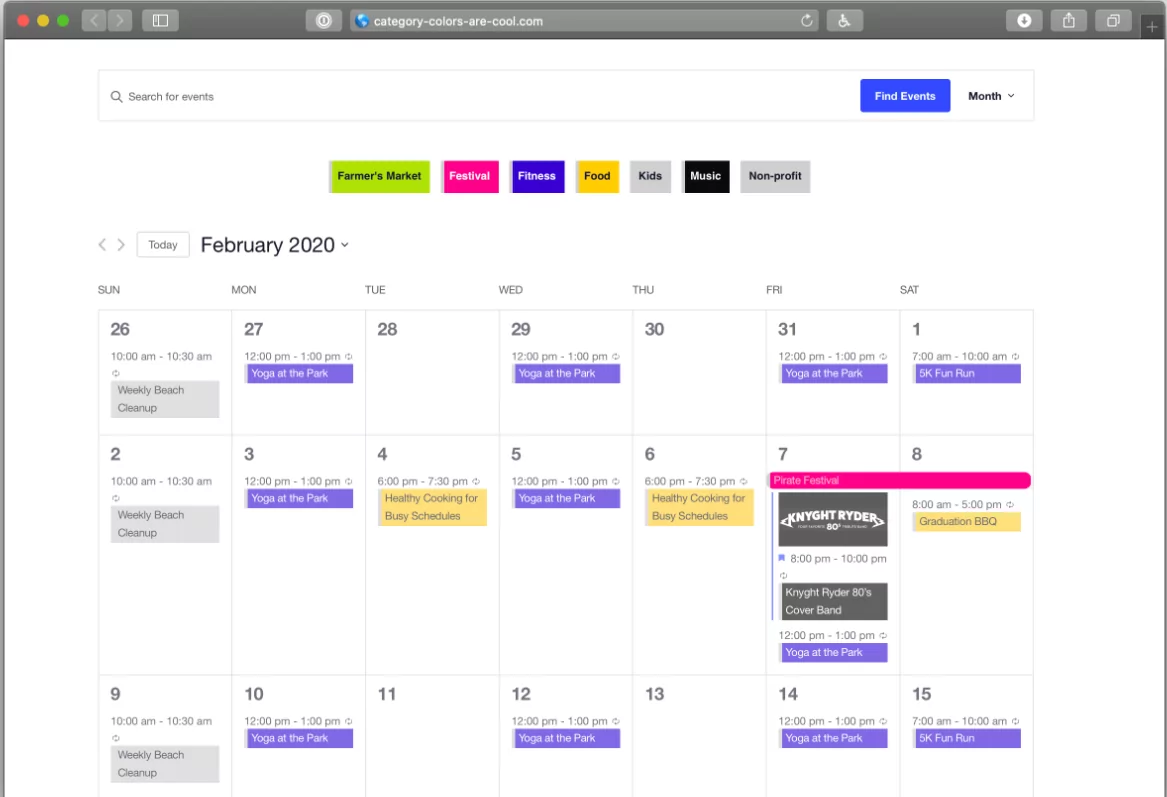
After connecting, go to My Calendar inside Calenso. You’ll see color-coded events from each source displayed together. - Enable Mobile Sync.
Install the Calenso mobile app (Android or iOS). Log in with the same account to get real-time updates on your phone and tablet. - Customize Notifications.
Set alerts for upcoming meetings, overlapping events, or shared bookings so you’re always on time. - Share or Embed Your Calendar.
You can create a public or private share link, or embed your calendar on your website using Calenso’s iframe widget.
Supported Integrations & Devices
| Platform | Integration Type | Sync Frequency |
|---|---|---|
| Google Calendar | Two-way | Instant (API-based) |
| Microsoft Outlook / Office 365 | Two-way | Real-time |
| Apple iCal / iCloud | One-way or Two-way | Every few minutes |
| Exchange Server | Two-way | Real-time sync |
| Mobile Devices (iOS, Android) | App-based | Live sync |
Tips for Managing Multiple Calendars Efficiently
- Color-code each calendar: Use consistent colors to distinguish personal vs. work events.
- Set default calendar: Choose where new events are created by default to avoid confusion.
- Check conflicts weekly: Use Calenso’s conflict detection to spot overlapping bookings.
- Sync once, plan everywhere: Once linked, your changes appear across all devices automatically.
Troubleshooting Common Sync Issues
- Ensure permissions are granted to Calenso for all connected calendars.
- Reauthorize connections if you recently changed passwords or security settings.
- Refresh the integration under Settings → Calendar Connections.
- Clear cache or log out and back in if events aren’t appearing on mobile devices.
FAQ: Calenso Calendar Sync
Can I sync more than one Google account?
Yes, you can connect multiple Google accounts. Each appears as a separate calendar layer within Calenso.
Does Calenso work offline?
While offline editing is limited, your changes will sync automatically once you reconnect to the internet.
Can I revoke calendar access later?
Absolutely. You can disconnect any calendar anytime from your Calenso Integrations panel.
Stay Organized with Calenso in 2026
Syncing multiple calendars doesn’t have to be complicated. With Calenso, you can combine all your schedules into one reliable dashboard, accessible on every device. Keep your time organized, avoid double bookings, and stay focused — all year long.